
Taking a screenshot on macOS seems straightforward until you need to capture a specific hover state, remove the default drop shadow for a documentation site, or automate the process via the Terminal. While the basic shortcuts cover 90% of use cases, the remaining 10% is where developers and power users live.
This guide goes beyond the basics. You will learn not just how to capture your screen, but how to control exactly where those files go, what format they use, and how to integrate them into a faster development workflow.
Quick Reference Cheat Sheet
For those of you who just need the hotkey right now, here is the essential list.
| Action | Shortcut |
|---|---|
| Capture Entire Screen | Command + Shift + 3 |
| Capture Selected Area | Command + Shift + 4 |
| Capture Specific Window | Command + Shift + 4, then Spacebar |
| Open Screenshot App (UI) | Command + Shift + 5 |
| Save to Clipboard | Add Control to any of the above |
The Essential Keyboard Shortcuts
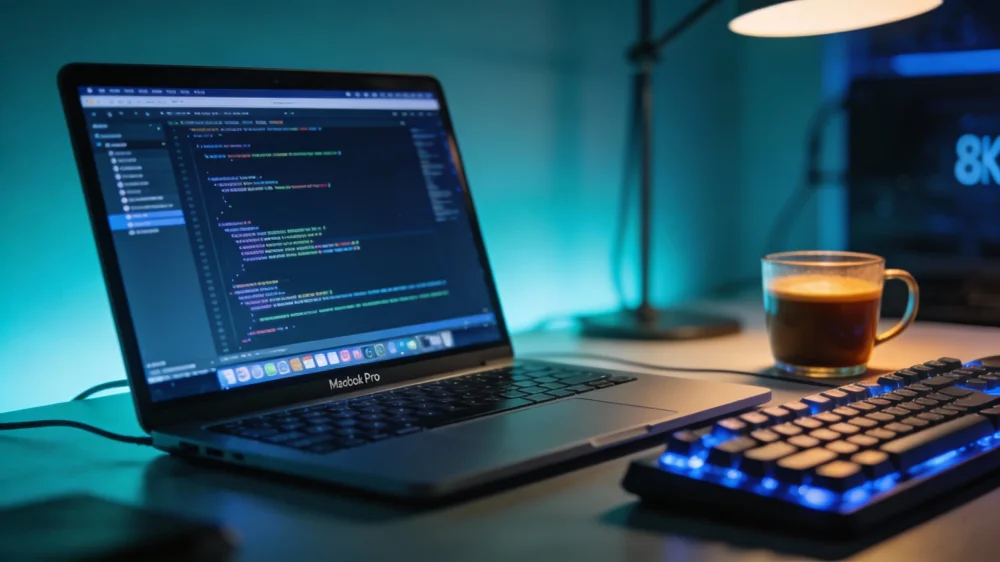
MacOS handles screenshots at the system level, meaning these shortcuts work instantaneously across every application.
Capture the Entire Screen
Press Command + Shift + 3. You will hear a camera shutter sound, and a thumbnail will appear in the bottom right corner of your screen. By default, this saves the image as a PNG file to your Desktop. This is the fastest way to grab everything visible, including your menu bar and dock.
Capture a Selected Portion
Press Command + Shift + 4. Your cursor transforms into a crosshair with pixel coordinates. Click and drag to define the area you want to save. When you release the mouse button, the capture is taken.
If you made a mistake while dragging, do not release the mouse. Press Escape to cancel the action and try again.
Capture a Specific Window (The Cleanest Method)
This is the most underused trick by new Mac users. If you are writing documentation or sharing a bug report, you rarely want the messy desktop background.
- Press Command + Shift + 4.
- Release the keys, but do not click yet.
- Press the Spacebar.
- Your cursor turns into a camera icon.
- Hover over the window you want to capture (it will highlight).
- Click to capture just that window.
This method automatically applies a nice drop shadow and transparency, making your screenshots look professional instantly. If you are transitioning from Windows, you might find other key combinations different; checking our guide on the Ctrl Alt Del Mac equivalent can help you adjust your muscle memory.
Using the Modern Screenshot App
Introduced in recent macOS versions, the Screenshot app offers a GUI for users who prefer not to memorize complex finger gymnastics.
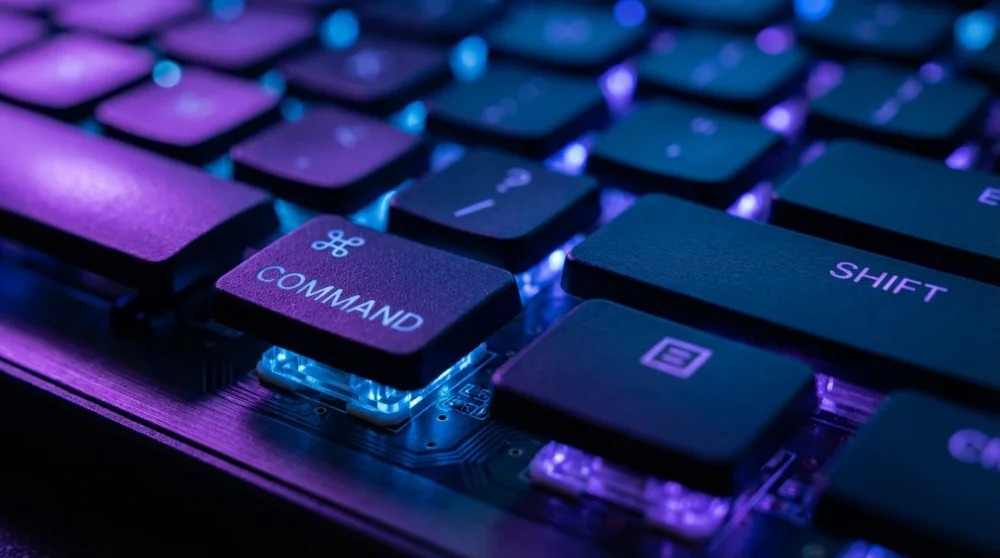
Press Command + Shift + 5.
A floating control bar appears at the bottom of the screen. This toolbar gives you options that keyboard shortcuts miss:
- Timer: Set a 5 or 10-second delay. This is critical when you need to take a screenshot of a dropdown menu or a hover state that disappears when you press other keys.
- Screen Recording: You can record a video of the entire screen or a selected portion.
- Options Menu: Here you can quickly change the save destination (e.g., to Documents or Clipboard) without using the Terminal.
Saving Directly to the Clipboard
As a developer or content creator, you often do not need a permanent file cluttering your desktop. You just want to paste an error message into Slack, Discord, or a GitHub PR.
To do this, add the Control key to any of the previous shortcuts.
- Command + Control + Shift + 3: Copies the entire screen to the clipboard.
- Command + Control + Shift + 4: Copies a selection to the clipboard.
Once captured, just use Command + V to paste it wherever you are working.
Pro Tips for Developers (Terminal Tricks)
This section is for those who want to customize the behavior of the screenshot utility using the command line.
Change the Default File Format
By default, macOS saves screenshots as PNG. This is great for quality but bad for file size. If you prefer JPG (for web uploads) or PDF, you can change this via Terminal. This is similar to how you might need to convert HEIC to JPG for compatibility.
Open Terminal and run:
defaults write com.apple.screencapture type jpg;killall SystemUIServerYou can replace jpg with png, pdf, tiff, or gif.
Change the Default Save Location
If you are tired of your Desktop being covered in Screenshot... files, create a dedicated folder and route them there.
- Create a folder (e.g.,
~/Pictures/Screenshots). - Run this command:
defaults write com.apple.screencapture location ~/Pictures/Screenshots
killall SystemUIServer
Remove the Window Drop Shadow
When capturing a specific window (Spacebar trick), macOS adds a heavy shadow. For clean technical documentation, you might prefer a flat look.
Disable the shadow:
defaults write com.apple.screencapture disable-shadow -bool true
killall SystemUIServer
To bring the shadow back, simply change true to false and run the command again.
Troubleshooting Common Issues
Screenshots are not saving: If you hear the shutter sound but cannot find the file, check your Clipboard. You might have accidentally held down the Control key, or a third-party app like Dropbox might be intercepting the screenshot to save it to the cloud automatically.
Shortcuts are not working: Go to System Settings > Keyboard > Keyboard Shortcuts > Screenshots. Ensure the checkboxes are active. Sometimes, other applications conflict with these global hotkeys.
File name clutter: If you take many screenshots, the default naming convention (Screenshot Date at Time) can be annoying. While you cannot easily change the timestamp format without third-party tools, managing your files using the Terminal tips above usually solves the organization problem. For more advanced file management, learning how to open RAR files on Mac or using terminal commands like linux tail command (which has equivalents in macOS) can improve your workflow.

Comments (0)
Sign in to comment
Report