Streaming live or managing complex workflows often feels like balancing on a tightrope. One accidental tap on your macro deck could end your stream, mute your microphone at the wrong moment, or delete a crucial file. A simple Are you sure? mechanism acts as a safety switch for these high-risk actions. This guide shows you how to build a smart confirmation button in Touch Portal that requires a deliberate double-tap to execute, preventing those heart-stopping misclicks.
The Logic: How the Safety Switch Works
Before diving into the editor, understanding the concept is key to customizing it later. We are building a State Machine.
The button will have two modes:
Locked Mode (Default): The dangerous action is disabled. Pressing the button only arms it for a few seconds.
Armed Mode: The button changes appearance to signal danger (e.g., turns red). If you press it again within the time window, the action fires. If you do nothing, it automatically locks itself again.
This method is superior to a simple Long Press because it gives you clear visual feedback and a specific window of opportunity to confirm your intent.
Step 1: Setting Up the Custom State (The Brain)
Touch Portal needs a memory to track whether the button is currently locked or armed. We use Values for this. Think of this as creating a specialized variable just for this button.
Open the Touch Portal desktop app. On the left sidebar, click on the Values tab.
Click the Add Value button to create a new entry.
Crucial Step: Fill in the Details
ID: Enter
id_safety_switch(Use underscores, avoid spaces. This is how the system identifies it).Name: Enter
Safety State(This is just for you to read).Type: Select Number (This ensures the system treats 0 and 1 as mathematical values, not text).
Default Value: Set this to 0.
Advertisement
Click Save.
Why 0? We use 0 to represent Locked/Safe and 1 to represent Armed/Ready. By setting the default to 0, your button always starts in a safe state when you launch the app.
Step 2: Configuring the 'On Press' Logic
Now you need to program the button to check this value every time you touch it. Drag a new button onto your page and follow this logic structure in the On Press section.
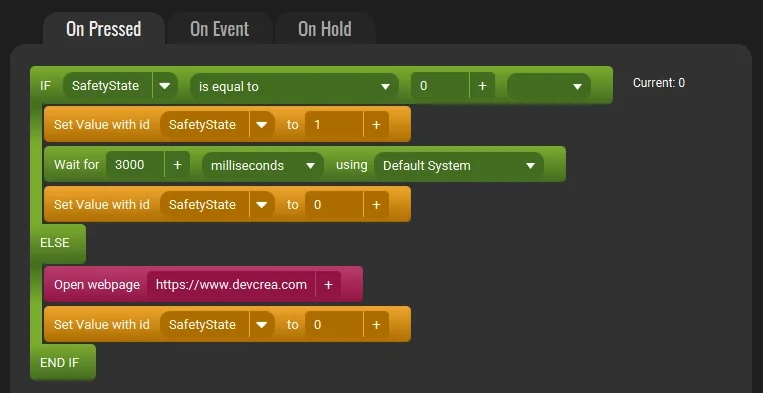
You will use an If Statement to check the current state of your id_safety_switch value.
The Trigger (First Press)
Add an If block checking if id_safety_switch is 0. Inside this block, add these actions:
Set Value: Change
id_safety_switchto 1. This unlocks the safety catch.Wait: Add a Wait Timer for 3000 ms (3 seconds). This is your window of opportunity.
AdvertisementSet Value: Change
id_safety_switchback to 0. This ensures that if you don't press the button again, it locks itself automatically.
The Action (Second Press)
Right after the If block (not inside it), add an Else block. This part runs only if the button is pressed while the state is already 1 (during that 3-second window). Inside the Else block:
Execute Logic: Place your dangerous action here (e.g., Switch Scene, OBS Command, Key Press Alt+F4).
Set Value: Change
id_safety_switchback to 0 immediately. This resets the button to its locked state right after the action is performed.
Step 3: Visual Feedback (The 'On Event' Section)
A safety switch is useless if you don't know it is active. You need the button to scream CONFIRM ME when it is armed.
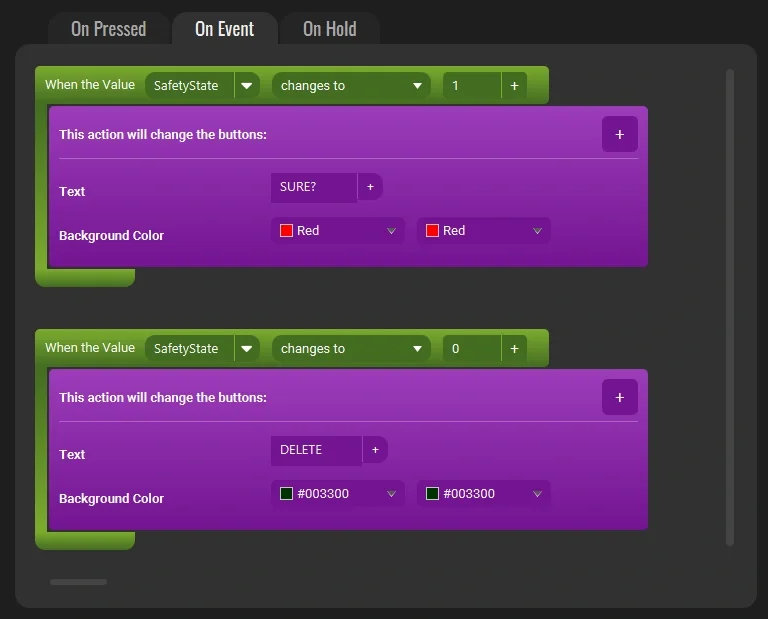
Go to the On Event tab of your button. This section monitors changes in real-time.
Add an event: When Value Changes. Select your
id_safety_switchvalue.AdvertisementSet the condition to When value is 1.
Inside this event, add visual changes:
Change Button Background: Set it to a bright warning color like Red or Orange.
Change Button Title: Change the text to SURE? or CONFIRM.
Change Icon: Optionally swap the icon to a warning triangle.
Create a second event for When value is 0 to revert these changes (set color back to transparent/default and text back to the original Action Name).
Why This Method is Essential for Streamers
Using a state-based confirmation system protects your workflow without slowing you down. Unlike a pop-up window that requires mouse interaction, this keeps your hand on the macro deck. You tap once to arm, see the red flash, and tap again to fire. It becomes muscle memory.
You can apply this logic to any high-risk toggle:
End Stream: Prevent cutting off your audience mid-sentence.
Delete Clips: Secure your file management commands.
Smart Plugs: Avoid accidentally turning off your key lights or PC power.
By implementing this logic, you transform your Touch Portal setup from a simple remote into a professional control surface that understands context and intent.