Your RAM sticks are rated for 3600 MHz. Windows shows 2133 MHz. That gap is not a hardware defect , it is an unfired BIOS setting, and it costs you real performance every day.
Quick fix: Restart, enter BIOS (Del or F2), enable XMP (Intel) or DOCP (AMD), select Profile 1, save. Done.
Method 1: Task Manager (Fastest Check)
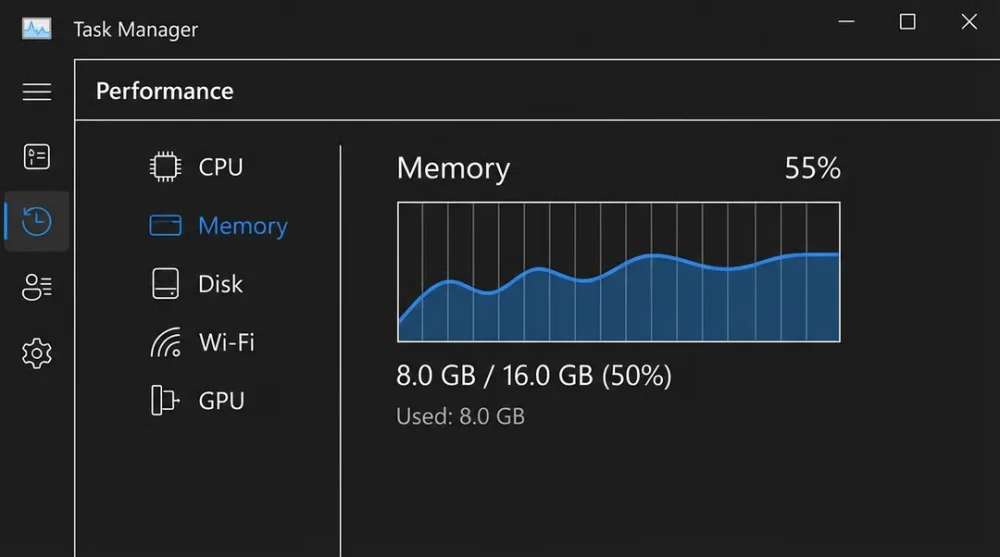
Press Ctrl + Shift + Esc, go to the Performance tab, and click Memory in the left panel.
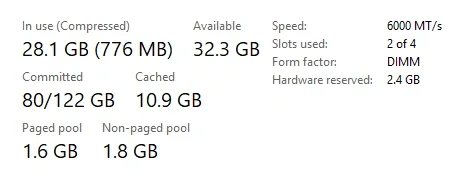
You get four numbers worth caring about:
- Speed , the frequency your RAM is currently running at (in MHz)
- Slots used , e.g. "2 of 4" tells you if upgrade slots are open
- Form factor , DIMM (desktop) or SODIMM (laptop)
- Channels , whether you are in Dual or Single channel mode
Why Task Manager sometimes shows half the advertised speed: DDR stands for Double Data Rate. The chip physically transfers data on both the rising and falling edge of each clock cycle, so the effective bandwidth is doubled. Some Windows versions display only the base clock frequency (e.g. 1600 MHz) instead of the effective DDR speed (3200 MHz). If the number looks exactly half of what is on the box, your RAM is likely fine , CPU-Z will confirm the real number.
Method 2: Command Prompt
For per-stick details including manufacturer and part number, open Command Prompt (Win key, type cmd, Enter) and run:
wmic memorychip get devicelocator, manufacturer, partnumber, speed, capacity
Output lists every installed module individually:
Capacity     DeviceLocator  Manufacturer  PartNumber          Speed
34359738368  DIMMA2         Unknown       CMH64GX5M2B6000Z30  6000
34359738368  DIMMB2         Unknown       CMH64GX5M2B6000Z30  6000
If you need to match a replacement stick exactly, this is the command to run.
PowerShell alternative with more structured output:
Get-WmiObject Win32_PhysicalMemory | Select-Object DeviceLocator, Manufacturer, PartNumber, Speed, Capacity
Method 3: CPU-Z (For Overclockers and Troubleshooters)
Task Manager does not show CAS Latency (CL) , the timing number that matters when tuning or comparing kits. CPU-Z does.
- Download CPU-Z (portable version available, no install needed)
- Open the SPD tab
- Use the slot dropdown to inspect each stick individually
The SPD tab shows JEDEC standard profiles and any XMP/EXPO profiles the kit supports. If your RAM supports 3600 MHz CL16 but is running at 2133 MHz, the XMP profile is disabled , covered in the next section.
CAS Latency explained: A 3600 MHz CL16 kit is generally faster than a 3600 MHz CL18 kit. CL is the number of clock cycles the controller waits before reading a memory address. Lower is better, but the difference matters mainly in CPU-bound workloads and competitive gaming.
Why Your RAM Is Running Slower Than Advertised
This is the most common RAM issue, and it has a short list of causes in order of likelihood:
- XMP/DOCP not enabled in BIOS , factory default is JEDEC baseline speed for stability
- RAM not seated in the correct slots , wrong slot placement forces single-channel mode
- Motherboard BIOS is outdated , newer RAM kits sometimes need a BIOS update for full support
- Mixed modules , two sticks of different speeds will both run at the slower one's speed
- CPU memory controller limit , older CPUs have a hard cap on supported frequencies
How to Enable XMP (Intel) or DOCP (AMD)
Restart and press Del or F2 during boot to enter BIOS. The exact menu name varies by motherboard brand:
| Brand | Setting name |
|---|---|
| ASUS | AI Overclock Tuner > XMP or DOCP |
| MSI | OC Tweaker > XMP |
| Gigabyte | MIT > Extreme Memory Profile |
| ASRock | OC Tweaker > DOCP/XMP |
Select Profile 1 (the highest rated speed), save with F10, and reboot. Task Manager should now show the rated frequency.
Dual Channel: Slots Matter
If you have two sticks, do not put them in adjacent slots. Most motherboards use a 2nd and 4th slot pattern for dual-channel (check your manual , the slots are usually color-coded).
Single channel vs dual channel doubles your memory bandwidth. In memory-intensive workloads, the performance gap runs 10 to 30%. Task Manager's Channels field confirms which mode you are in.
If XMP Causes a Boot Failure
System stuck on black screen after enabling XMP? The kit and motherboard are not agreeing on timings. Recovery steps:
- Power off and unplug the machine
- Locate the CMOS battery on the motherboard (coin-cell size)
- Remove it for 5 minutes, then reinsert
- Boot , BIOS resets to defaults, XMP is off again
From there, either try a lower XMP profile, update the BIOS, or manually set the frequency one step below rated (e.g. 3466 MHz instead of 3600 MHz) and run a stability test for 30 minutes with Windows Memory Diagnostic or MemTest86.
Understanding DDR4 vs DDR5
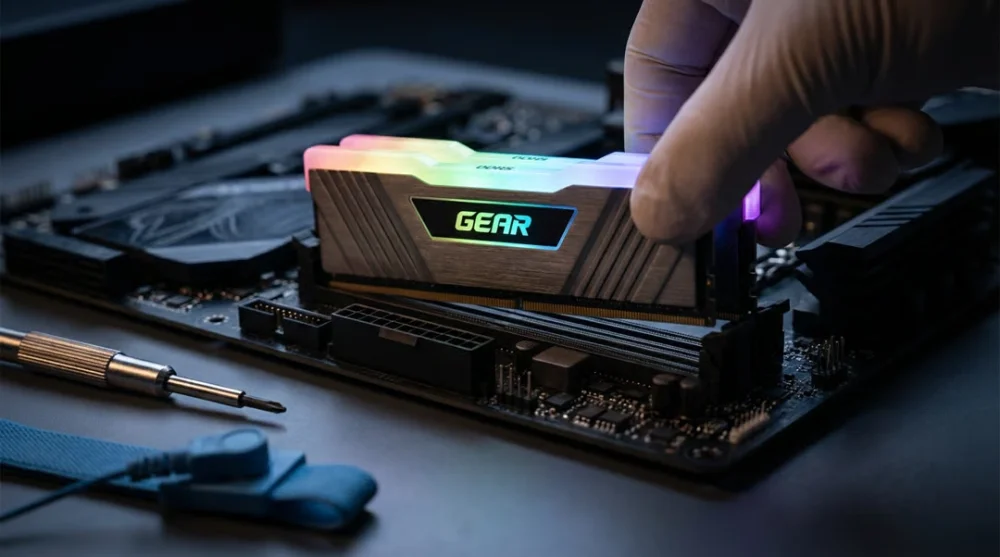
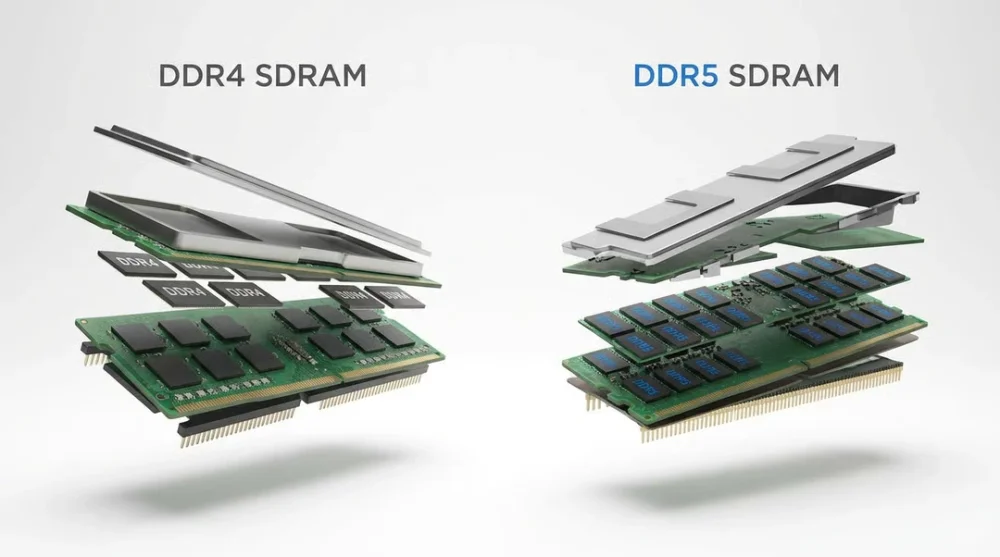
DDR4 and DDR5 are physically incompatible , the notch on the stick is in a different position. You cannot fit DDR5 into a DDR4 slot. Before buying, verify which generation your motherboard supports.
Quick identification if your PC is dead: remove the stick and read the label. PC4-25600 means DDR4-3200. PC5-38400 means DDR5-4800.
Can You Mix Different Brands or Speeds?
Technically yes, but both sticks will run at the speed of the slower one. Mixed kits also often prevent XMP from activating. For upgrades, buy an identical kit or at minimum match the speed, latency, and voltage specs.
Before purchasing, check the motherboard's QVL (Qualified Vendor List) , a list of tested compatible kits published by the manufacturer. A kit that is not on the QVL can still work, but it is not guaranteed to reach its rated speed with that specific board.
If your RAM is running at an unexpected speed after following these steps, the CPU memory controller is often the final bottleneck. Older processors have a hard ceiling that no amount of XMP profiling can override. If you are also running virtual machines, note that Hyper-V on Windows 11 has its own memory allocation requirements that can affect available RAM for the host system.