Plugging a high-speed external drive into a mismatched USB port instantly chokes your file transfer speeds down to a crawl. Understanding the cryptic symbols and non-standardized colors on your laptop is the only way to avoid frustrating bottlenecks and ensure your devices charge at full capacity.
| Port Color / Symbol | Primary Function | Max Speed | Max Power Delivery |
|---|---|---|---|
| Black / White | USB 2.0 Standard | 480 Mbps | 2.5W |
| Blue (SS) | SuperSpeed Data | 5 Gbps | 4.5W |
| Red / Yellow | Sleep and Charge | 5 Gbps | Up to 15W |
| Lightning Bolt | Thunderbolt / PD | 40-80 Gbps | Up to 240W |
| D Icon | DisplayPort Video | N/A | Variable |
What Do USB Port Colors Actually Mean?
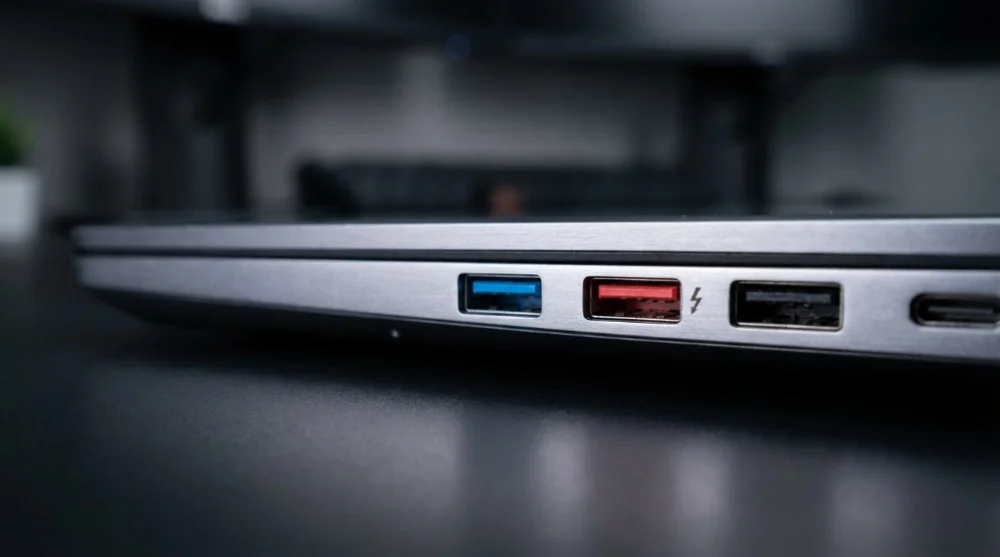
Visual cues inside the physical port offer the fastest way to identify capabilities without reading the spec sheet. Black or white plastic inserts typically denote USB 2.0 connections. These ports handle basic peripherals like mice and keyboards perfectly but fail miserably for large data transfers.
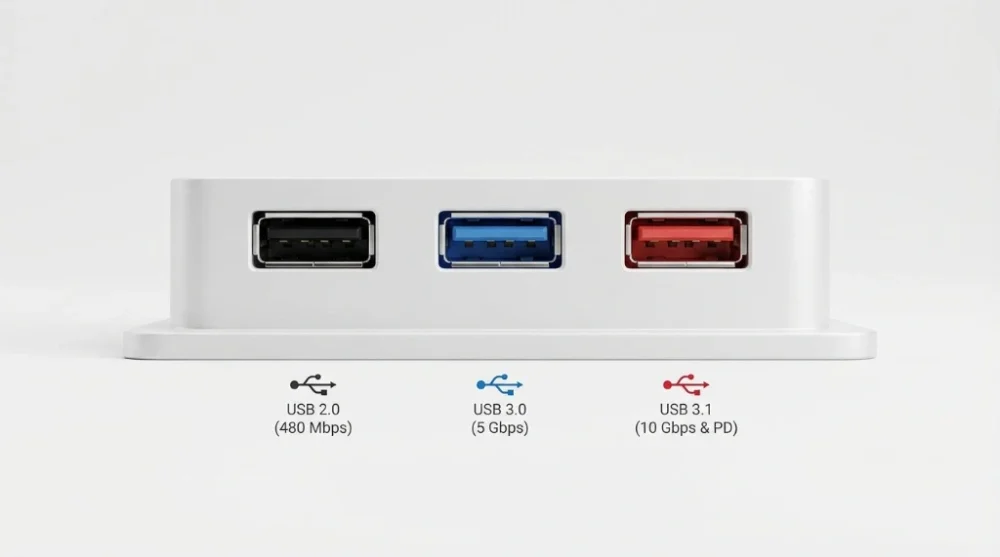
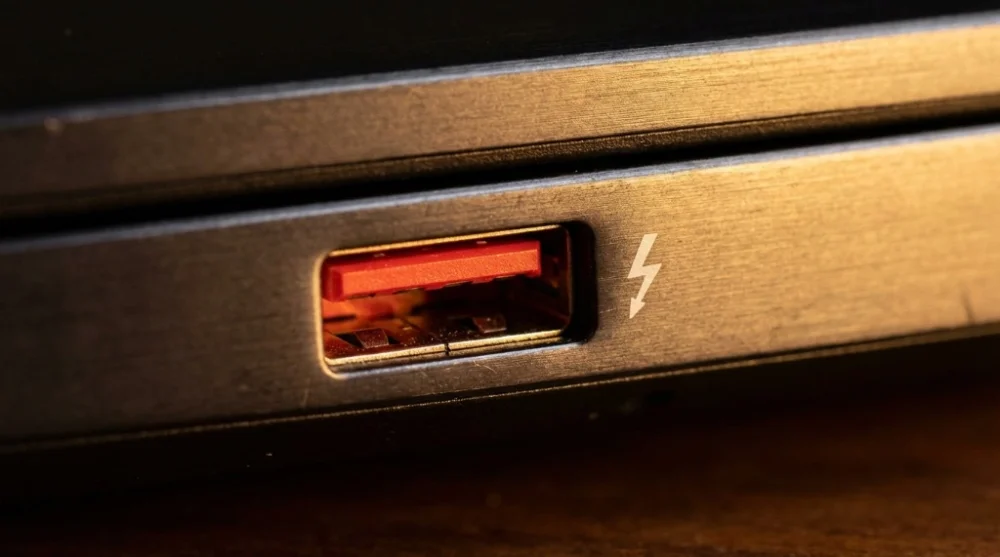
Blue plastic indicates a SuperSpeed (USB 3.0) port capable of 5 Gbps data rates. Red, yellow, or sometimes orange ports indicate a Sleep and Charge feature. These specific ports remain active even when your computer is powered down or in sleep mode. Plugging your phone into a yellow port guarantees a fully charged battery by morning.
The Myth of Industry Color Standards (And Why Manufacturers Deviate)
Assuming every blue port delivers high speed is a common mistake that leads to hardware frustration. The USB Implementers Forum (USB-IF) never strictly mandated these color codes as absolute rules. They are merely strong recommendations.
Gaming laptop manufacturers frequently break these conventions for aesthetic reasons. You might find Razer laptops sporting bright green USB ports or MSI devices using striking red inserts across all their connections regardless of speed. Always verify the physical symbol printed next to the port rather than trusting the internal plastic color alone.
The USB 3.x Naming Confusion: 3.0, 3.1, and 3.2 Gen 1
Buying external hardware requires navigating one of the most confusing naming conventions in tech history. USB 3.0, USB 3.1 Gen 1, and USB 3.2 Gen 1 are the exact same 5 Gbps standard. The USB-IF simply rebranded the older technology multiple times to align with newer releases.
If you purchase a hard drive labeled as USB 3.2 Gen 1, you are essentially getting standard USB 3.0 performance. To achieve true 10 Gbps speeds, look strictly for the Gen 2 designation. Upgrading your storage setup requires paying close attention to these generation tags to avoid paying a premium for older technology.
Decoding USB-C and Stacked Port Symbols
Modern laptops utilize single USB-C ports to handle power, video, and data simultaneously. This convergence creates a crowded row of tiny icons stacked right next to the port. Seeing three different symbols squished together is completely normal on high-end machines.
SuperSpeed (SS), SS 10, and SS 20 Differences
The classic SS logo indicates base SuperSpeed capabilities. Manufacturers now append small numbers to this logo to clarify the maximum throughput. An SS 10 label guarantees 10 Gbps speeds, making it ideal for external SSDs. The rarer SS 20 mark indicates a 20 Gbps connection requiring high-quality cables to function properly.
The DisplayPort (D) and Lightning Bolt Icons
A port featuring a D-shaped icon supports DisplayPort Alternate Mode. Connecting a monitor directly to this port using a compatible Type-C cable eliminates the need for bulky HDMI adapters. A small lightning bolt next to the SS logo means the port supports Power Delivery for charging the laptop itself.
USB Charging Speeds and Power Delivery (PD) Wattages
Standard USB connections deliver a baseline power output that barely maintains the battery level of modern smartphones while in use. Utilizing the Power Delivery (PD) protocol changes the equation entirely by negotiating higher voltages. The standard PD 2.0 and 3.0 protocols push up to 100W, enough to run most consumer laptops.
Maximum Wattage Output by Port Type
Legacy USB 2.0 ports cap out at a dismal 2.5W. Sleep and Charge ports deliver up to 15W, enough to keep a phone charging overnight while the laptop sleeps. The newest PD 3.1 standard shatters previous limits by delivering a massive 240W. This extreme wattage allows a single Type-C cable to power demanding gaming laptops and professional workstations without a dedicated brick.
Thunderbolt 4 vs. Thunderbolt 5 vs. USB4: The 40-80 Gbps Era
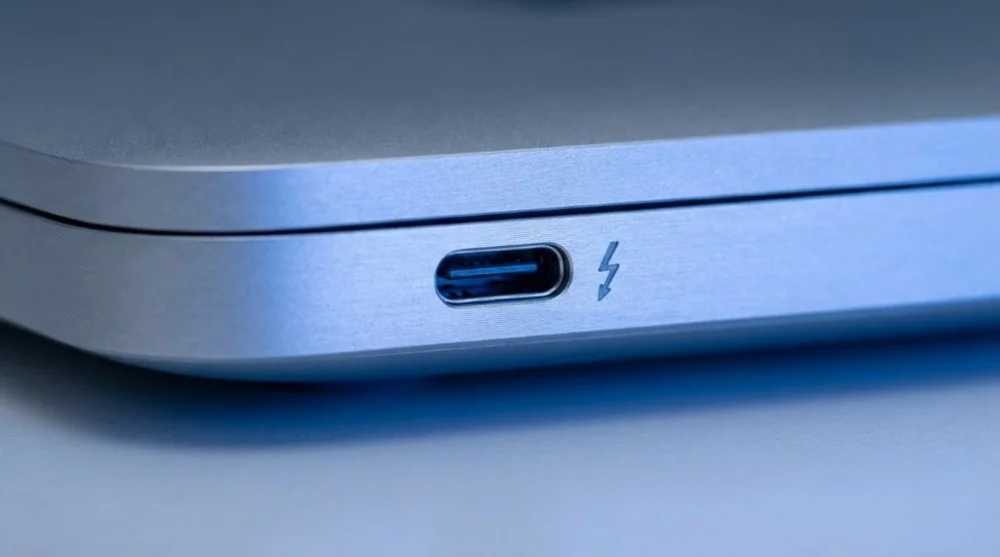
The physical shape of USB-C now hosts entirely different underlying technologies, creating immense confusion. Thunderbolt 4 utilizes a lightning bolt symbol and guarantees 40 Gbps bandwidth alongside dual 4K monitor support. Browsers and GPU-accelerated tools with hardware acceleration enabled will immediately saturate this bandwidth when switching from a USB 3.0 connection. The newer Thunderbolt 5 standard doubles this capacity to a staggering 80 Gbps for bandwidth-heavy creator workflows.
USB4 also operates at 40 Gbps but lacks the strict Intel certification requirements of Thunderbolt. You will often see USB4 ports marked with a simple 40 Gbps text or a generic lightning bolt. Using high-quality cables is non-negotiable here, as cheap alternatives will silently throttle your connection down to USB 2.0 speeds.
Developer Use Cases: OTG, Debugging, and Firmware Flashing
Hardware developers and Android engineers face unique challenges when selecting connection points. The trident logo featuring an arrow indicates USB On-The-Go (OTG) support. This allows mobile devices to act as a host, letting developers connect flash drives or custom controllers directly to a smartphone for field testing.
Device firmware flashing requires maximum stability to prevent hard-bricking expensive hardware. Always use the black USB 2.0 ports located directly on the motherboard rear I/O panel for these sensitive operations. Front panel case connectors introduce unnecessary cable length and potential signal degradation. For those setting up testing environments, reviewing your Android developer options ensures proper device recognition before initiating any command line interfaces.
Matching the right port to the right task takes about ten seconds once you know the symbols. The table at the top of this page covers the quick lookup; the sections above handle every edge case that comes up in real hardware work.