Experiencing massive frame drops right in the middle of a competitive match usually points directly to your GPU hitting its thermal junction limit and throttling down. Keeping your graphics card temperatures within safe ranges prevents permanent degradation of your VRAM thermal pads and maintains stable clock speeds.
| Status | Desktop | Laptop | Action |
|---|---|---|---|
| Idle | 30-45°C | 40-55°C | Normal |
| Gaming (optimal) | 60-80°C | 70-90°C | Normal |
| Heavy load | 80-85°C | 90-95°C | Monitor airflow |
| Danger zone | 90°C+ | 100°C+ | Check fans, paste |
Desktop vs. Laptop GPU Temperatures: Understanding the Difference
Laptop cooling systems are heavily constrained by physical space. They often share copper heat pipes between the CPU and GPU to manage thermal loads within a tiny chassis. Seeing 85°C on a massive desktop card indicates a serious airflow problem or dried paste. Seeing that exact same 85°C on a high-end gaming laptop is completely normal and well within manufacturer specifications. Desktop users have the luxury of massive heatsinks, while laptop users must rely on aggressive fan speeds.
Core, Hot Spot, and VRAM Temperatures Explained
What is a Normal Hot Spot Delta? (The 15°C Rule)
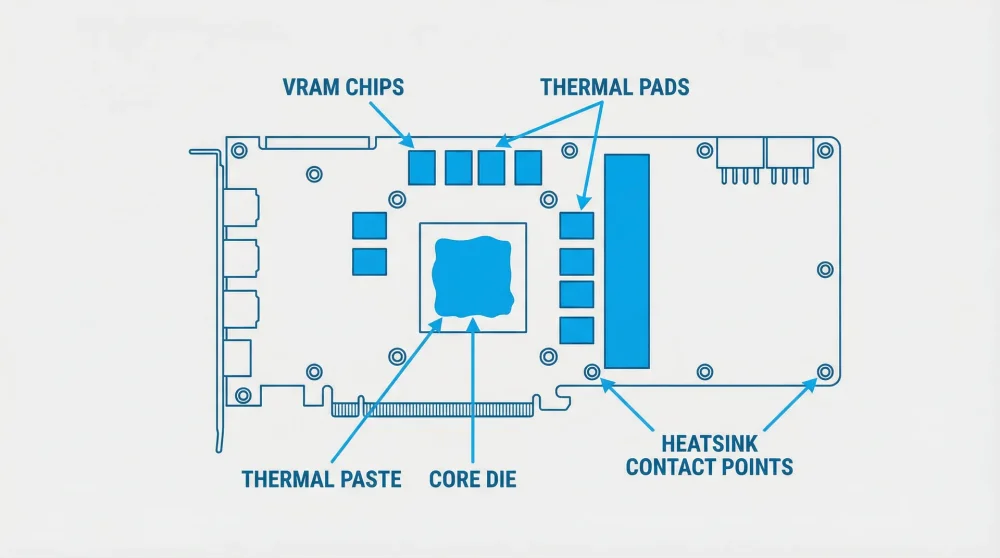
Monitoring software shows multiple temperature readings. The core temperature is an average reading across the silicon, while the hot spot is the absolute hottest single sensor on the die. A normal delta between these two readings is 10 to 15°C. When you start seeing a delta of 25 to 30°C, your thermal paste has degraded or pumped out, and it requires immediate replacement to prevent hardware damage.
Why Your VRAM is Hitting 110°C (RTX 3000 & RX 6000 Series)
Memory junction temperatures often run much hotter than the main graphics core. The high-speed GDDR6X memory on cards like the RTX 3080 and 3090 is notorious for running between 95°C and 110°C under heavy gaming load. The factory thermal pads on these specific models tend to dry out quickly. Replacing them with high-quality aftermarket pads is a highly effective way to drop memory temperatures significantly.
Normal Gaming Temperature Ranges by GPU Model
NVIDIA RTX 40 & 30 Series Safe Limits
Modern NVIDIA architectures manage heat exceptionally well thanks to over-engineered cooling solutions. The massive coolers on the RTX 4090 keep the core well under 90°C even at maximum power draw. The RTX 4080 typically maxes out around 87°C. If your 30 or 40 series card exceeds these limits consistently, check your case airflow configuration and fan curves. If GeForce Experience itself fails to launch while you're trying to update drivers, resolve that first before attempting a clean driver reinstall.
AMD Radeon RX 7000 & 6000 Series Safe Limits
AMD specifies much higher thermal limits for their recent architectures compared to NVIDIA. The RX 7900 XTX is specifically designed to safely operate with a junction temperature up to 110°C. Do not panic if your Radeon Adrenalin software shows these triple-digit hotspot numbers during intensive gaming sessions. This is the intended behavior for modern AMD silicon.
What Actually Happens When Your GPU Thermal Throttles?
Thermal throttling is a built-in self-preservation mechanism. When the silicon reaches its absolute maximum T-Junction limit, the card aggressively drops its clock speeds and core voltage to prevent physical melting. You feel this immediately as sudden, severe frame rate drops and micro-stuttering in your game. The card is actively sacrificing gaming performance to survive the heat load.
The Hidden Factor: How Ambient Room Temperature Affects Your GPU
Your PC cooling system cannot defy the laws of physics. It cools internal components using the surrounding room air. An ambient room temperature increase of 10°C roughly translates to a 5 to 7°C increase in your GPU core temperature. Gaming in a hot summer room directly impacts your thermal headroom. Ensure your PC case uses a positive pressure setup with more intake fans than exhaust fans to constantly feed fresh, cool air directly to the graphics card fans.
Step-by-Step Guide to Lowering Your GPU Temperature
How to Set a Custom Fan Curve in MSI Afterburner
Factory fan profiles prioritize quiet operation over raw cooling performance. Open MSI Afterburner and click the settings gear icon. Navigate to the Fan tab and check the box to enable user defined software automatic fan control. Drag the curve points so your fans hit 80% speed when the card reaches 70°C. This aggressive curve keeps temperatures down before the heatsink becomes completely heat-soaked.
Undervolting: Lower Temps Without Losing FPS
Undervolting reduces the total power draw of your card while maintaining the exact same gaming clock speeds. In MSI Afterburner, press Ctrl+F to open the Voltage/Frequency curve editor. Flatten the top of the curve at your desired boost clock, usually around the 900mV mark. This drastically lowers heat output without sacrificing a single frame per second. For gaming laptop users, simply reducing the overall power limit slider is a safer alternative that yields similar thermal benefits.
Replacing Dried Thermal Paste and Degraded VRAM Pads
If software tweaks fail to lower temps, the physical cooling materials have likely failed. Disassemble your graphics card carefully and clean the old, crusty paste with highly concentrated isopropyl alcohol. Apply a high-quality thermal paste directly to the core. You must measure the exact thickness of the old VRAM pads using digital calipers before ordering replacements. Using the wrong pad thickness prevents the main cooler from making proper contact with the GPU core, which makes overheating issues much worse.
How to Monitor and Log Temps with HWInfo64
Standard Windows task manager readings do not show critical data like hot spots or VRAM temperatures. Monitoring your CPU temperature at the same time helps diagnose whether thermal throttling is coming from the GPU or a CPU bottleneck heating the shared heatsink. Download HWInfo64 and launch the application in Sensors-only mode. Before starting your game, click the small spreadsheet icon at the bottom right to start logging sensor data directly to a CSV file. Play your game normally for thirty minutes, then stop the log and review it. This gives you concrete, real-time data on exactly when and why your card is thermal throttling.