If your PC is acting weird, crashing, or battling a virus, Safe Mode is your best friend. It strips Windows down to the bare essentials, loading only the necessary drivers so you can fix the problem without interference.
Many users panic when they see a black screen or when the old F8 trick doesn't work. Don't worry. Whether you can access your desktop or your computer refuses to boot at all, I have tested methods here to get you into Safe Mode on both Windows 11 and Windows 10.
The Fastest Way (If You Can See Your Screen)
You don't need to dig through complex menus if your computer is running. The Shift + Restart trick is the golden shortcut technicians use every day.
Open the Start menu and click the Power icon.
Press and hold the Shift key on your keyboard.
While keeping Shift pressed, click Restart.
Your PC will reboot into a blue screen called Choose an option.
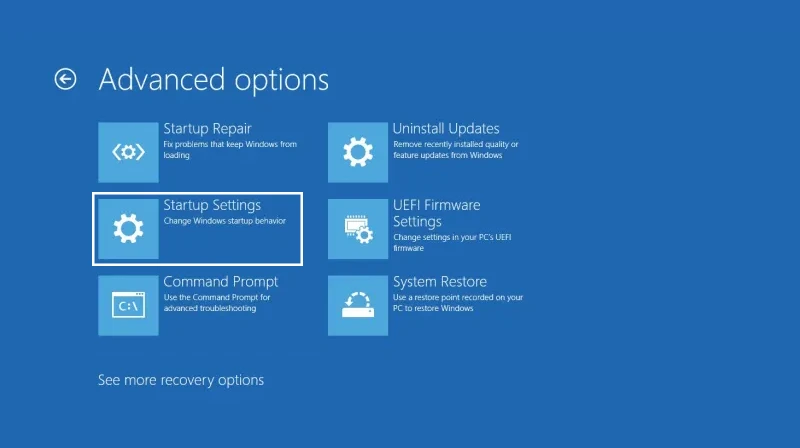
Head to Troubleshoot > Advanced options > Startup Settings > Restart.
Once it restarts again, press 4 or F4 to start in Safe Mode.
If your Start menu is frozen and you can't click restart, you might need to force a reboot using the command line. You can check our guide on how to reboot Windows using CMD for that specific scenario.
Method 1: Entering Safe Mode from Settings
If you prefer navigating through the Windows interface, the Settings menu provides a clear path. This is especially useful if you want to take your time and don't want to hold down keys while clicking.
For Windows 11: Go to Settings > System > Recovery. Look for Advanced startup and click Restart now.
For Windows 10: Go to Settings > Update & Security > Recovery. Under Advanced startup, click Restart now.
Once you click that button, Windows will restart and take you to the same blue recovery environment mentioned in the Shift+Restart method. From there, just follow the path: Troubleshoot > Startup Settings > Restart.
Method 2: The "Black Screen" Method (Hard Reboot)
This is the scenario that scares people the most. Your computer turns on, but Windows won't load, or you are stuck on a black screen. Since you can't click any buttons on the screen, you have to force Windows into Automatic Repair mode using hardware buttons.
Here is the rhythm you need to follow:
Hold the power button on your PC or laptop for about 10 seconds to turn it off completely.
Press the power button again to turn it on.
Crucial Step: The moment you see the Windows logo (or your manufacturer's logo like Dell/HP), hold the power button for 10 seconds to force it off again.
Repeat this process two more times.
On the third or fourth start, let the computer boot fully.
Windows will detect that it failed to start multiple times and will automatically launch the Automatic Repair screen. From there, click Advanced options and follow the standard path: Troubleshoot > Advanced options > Startup Settings > Restart.
Method 3: Using System Configuration (msconfig)
If you need to restart your computer multiple times to troubleshoot a stubborn issue and don't want to hit F4 every single time, you can force Windows to always boot into Safe Mode until you say otherwise.
Press Windows + R on your keyboard to open the Run dialog.
Type msconfig and hit Enter.
Switch to the Boot tab at the top.
Under Boot options, check the box that says Safe boot.
Select Minimal for standard Safe Mode.
Click OK and confirm by clicking Restart.
Warning: Your computer will continue to boot into Safe Mode every single time you restart until you undo this change. To exit, just open msconfig again and uncheck the Safe boot box.
Expert Tip: Why Doesn't F8 Work Anymore?
Veterans remember mashing the F8 key during startup to access Safe Mode. Starting with Windows 8 and continuing through Windows 10 and 11, Microsoft disabled this feature to speed up boot times. The boot process is simply too fast for the keyboard interrupt to register.
However, if you miss this feature, you can bring it back using the Command Prompt. You will need to open CMD as an Administrator.
Type this command and press Enter: bcdedit /set {default} bootmenupolicy legacy
If you are not comfortable using the terminal or need to run more complex scripts to repair your system, you might want to learn how to run PowerShell scripts, which gives you even more control over your system.
What Should You Do in Safe Mode?
Once you are in, the environment will look different. The wallpaper might be black, and icons might look large. This is normal. Now is the time to:
Run a Virus Scan: Malware often hides in normal processes that don't run in Safe Mode.
Uninstall Recent Updates: If your problem started after a Windows update, remove it via Control Panel.
Check Your Disk: Sometimes file system errors cause boot loops. You can run CHKDSK to scan and repair drive errors.
Remove Bad Drivers: If a new graphics driver caused the crash, you can safely uninstall it here.
How to Exit Safe Mode
Getting out is usually as simple as restarting your computer normally. Open the Start menu and click Restart.
If your computer boots back into Safe Mode again, it means you probably used the msconfig method (Method 3) and forgot to disable it. Just follow the steps in Method 3 again, but this time uncheck the Safe boot option.