If you just tried to run a .ps1 script and saw this error, don't worry:
File C:\Scripts\hello.ps1 cannot be loaded because running scripts is disabled on this system.
This isn't a broken installation or a security breach. It's simply Windows' default safety switch called the Execution Policy. And most tutorials will tell you to run a command as Administrator - but you usually don't need to.
Here's the fastest, safest fix without needing elevated permissions:
- Open PowerShell (no admin rights required)
- Run:
Set-ExecutionPolicy -Scope CurrentUser -ExecutionPolicy RemoteSigned - Type
Aand hit Enter - Run your script with
.\scriptname.ps1
This command is the sweet spot for developers because:
- No admin needed: it only changes settings for your Windows profile
- Permanent: run it once, it stays active for all future sessions
- Safe: local scripts run freely, but files downloaded from the internet still require a digital signature
In a hurry or on a restricted work machine? Skip the policy change entirely and use the Bypass flag for a single run:
powershell -ExecutionPolicy Bypass -File .\your-script.ps1
The policy change applies to this specific execution only. Once the script finishes, your system returns to its original state. CI/CD pipelines use this pattern constantly.
On a domain-joined machine where nothing works? Skip to When Policy Changes Don't Stick - Group Policy may be the real blocker.
Why Windows Blocks Scripts by Default
Execution policy isn't a security wall. Microsoft is explicit about this in the official docs: it's a safeguard against accidental script execution, not a barrier against determined attackers. An attacker can bypass it in seconds. But it does protect you from double-clicking a .ps1 you didn't mean to run.
By default, Windows client machines use Restricted mode. Nothing runs. Servers default to RemoteSigned, which requires signatures only on downloaded files while local scripts run freely.
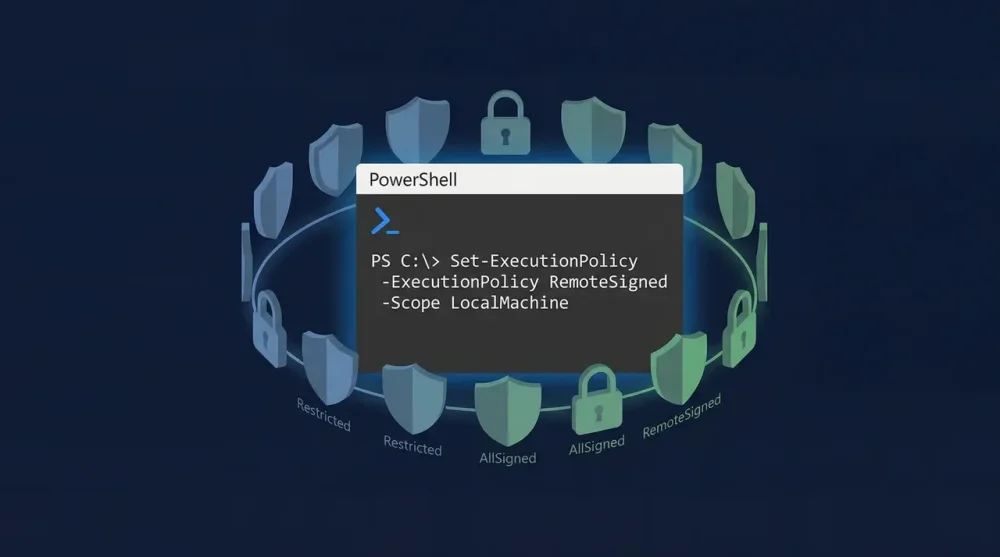
The policy levels, from most to least restrictive:
- Restricted: No scripts run at all. Default on Windows clients.
- AllSigned: Every script must be signed by a trusted publisher.
- RemoteSigned: Local scripts run freely; downloaded scripts need a valid signature.
- Unrestricted: Everything runs, but you get a warning for internet-sourced scripts.
- Bypass: No restrictions, no warnings. Useful for automated pipelines.
For everyday developer use, RemoteSigned at the CurrentUser scope is the right call.
Check Your Current Policy First
Before changing anything:
Get-ExecutionPolicy -List
This shows the policy at every scope level. The output looks like:
        Scope ExecutionPolicy
        ----- ---------------
MachinePolicy       Undefined
   UserPolicy       Undefined
      Process       Undefined
  CurrentUser    Unrestricted
 LocalMachine      Restricted
The scope that matters is the most restrictive active one. If MachinePolicy or UserPolicy is set to anything other than Undefined, those override everything else.
Scopes: Where the Policy Actually Lives
This is the part most tutorials skip. PowerShell applies execution policies in a strict priority order:
- MachinePolicy (Group Policy, system-wide, highest priority)
- UserPolicy (Group Policy, user-level)
- Process (current session only, gone when you close PowerShell)
- CurrentUser (your Windows profile, persists across sessions)
- LocalMachine (all users on this machine, lowest priority)
When you run Set-ExecutionPolicy RemoteSigned without specifying a scope, it defaults to LocalMachine, which requires admin rights. Setting it on CurrentUser is usually enough and doesn't need elevation. Most developers set it once and forget it.
Three Ways to Enable Script Execution
Option 1: Permanent Change for Your User (Recommended)
Open PowerShell and run:
Set-ExecutionPolicy -Scope CurrentUser -ExecutionPolicy RemoteSigned
Type A to confirm. This persists across all future sessions for your user account.
Option 2: Current Session Only
No changes to system settings, resets when you close PowerShell:
Set-ExecutionPolicy -Scope Process -ExecutionPolicy RemoteSigned
Useful when you're on a shared machine or want zero permanent footprint.
Option 3: One-Time Bypass Without Changing Policy
Run a specific script without touching the execution policy at all:
powershell -ExecutionPolicy Bypass -File "C:\Scripts\myscript.ps1"
This is the cleanest approach when you just need to run one script quickly. Nothing is permanently changed. CI/CD pipelines almost always use this pattern for automation scripts.
The Better Fix for Downloaded Scripts: Unblock-File
If you downloaded a script from the internet and it's blocked even under RemoteSigned, changing the policy wider isn't the right fix. Windows stamps downloaded files with an NTFS Zone Identifier flag ("downloaded from internet"), and RemoteSigned blocks them because of that flag, not because of the policy level itself.
Remove the flag directly:
Unblock-File -Path "C:\Downloads\script.ps1"
After this, RemoteSigned will let it run. This is the more surgical fix: you're unblocking one specific file instead of loosening system-wide restrictions.
To confirm a file is flagged before unblocking:
Get-Item "C:\Downloads\script.ps1" -Stream Zone.Identifier
If it returns data, the file is marked as downloaded. Unblock-File removes that stream.
Running the Script
Once your policy allows it, navigate to the script's directory and run:
cd C:\Scripts
.\scriptname.ps1
The .\ prefix is required. PowerShell doesn't look in the current directory by default (unlike CMD), so you have to be explicit. Typing just scriptname.ps1 returns a "not recognized" error.
If the script path has spaces:
& "C:\My Scripts\hello world.ps1"
Use the & call operator with quotes for paths containing spaces.
When Policy Changes Don't Stick: Group Policy
If you run the Set-ExecutionPolicy command and it immediately reverts, or you see:
Set-ExecutionPolicy : Windows PowerShell updated your execution policy successfully, but the setting is overridden by a policy defined at a more specific scope.
Group Policy is winning. This is the most common issue on corporate machines. Check which scope is locked:
Get-ExecutionPolicy -List
If MachinePolicy or UserPolicy shows anything other than Undefined, your domain's IT admin controls this setting and you cannot change it with PowerShell commands.
The only thing that always works in this situation is Process scope, which Group Policy cannot block:
Set-ExecutionPolicy -Scope Process -ExecutionPolicy Bypass
This takes effect for the current session only and doesn't persist, but it will let you run scripts even on locked-down machines. When running admin-level Windows executables from the command line, the same admin rights vs. policy tension applies.
Resetting to Default
To restore the default locked-down state:
Set-ExecutionPolicy -Scope CurrentUser -ExecutionPolicy Restricted
Or revert LocalMachine (requires admin):
Set-ExecutionPolicy -Scope LocalMachine -ExecutionPolicy Restricted
Common Errors and What They Actually Mean
"Access to the registry key is denied"
You ran Set-ExecutionPolicy without the right scope. Either add -Scope CurrentUser (no admin needed) or open PowerShell as Administrator for LocalMachine scope. Tasks like enabling Hyper-V on Windows 11 hit the same admin requirement.
"Cannot be loaded because the file is not digitally signed"
The downloaded script has no certificate. Use Unblock-File on it first (see above), or temporarily use Bypass for the session.
"Running scripts is disabled on this system" even after changing the policy
Run Get-ExecutionPolicy -List and check for non-Undefined entries at MachinePolicy or UserPolicy. Group Policy is overriding your change.
Script runs fine in VS Code but fails in the terminal
VS Code's PowerShell extension sometimes runs in a separate execution context or constrained language mode. Test directly in powershell.exe to isolate the issue. Run $ExecutionContext.SessionState.LanguageMode to check if constrained mode is active.
Execution policy is one of those settings that sounds more complicated than it is. Set it to RemoteSigned at CurrentUser scope once and you'll never see that error again on your own machine.