For VS Code, Fira Code is a strong free choice when ligatures matter, JetBrains Mono favors clear glyphs and long sessions, Cascadia Code fits Windows and Microsoft tooling, and MesloLGS NF is useful for terminal Powerline symbols. Choose by character clarity first, then enable ligatures only if they improve your reading rather than distracting from code.
#DevOps & Systems#Fira Code#JetBrains Mono#Cascadia Code#VS Code#Developer Tools#Typography#Quick Fix
Best Fonts for VS Code: Setup, Ligatures, and Theme Pairings
Compare the best VS Code fonts, including Fira Code, JetBrains Mono, and Cascadia Code. Includes settings.json snippets and theme pairing tips.
// The short answer
Full walkthrough, edge cases and why it works

Ekin Yalgın
7 min read
In this guide · 9 sections
- 01Why Most of Us Have Moved on from Consolas
- 02The Big Three: Top Free Picks for VS Code
- 03Going Premium: Is MonoLisa Actually Worth It?
- 04The Great Ligatures Debate: Clean Shortcut or Distraction?
- 05Setting Up Your Font in settings.json
- 06Tuning Editor Fonts vs. Terminal Fonts
- 07Nailing the Right Font Size for Your Display
- 08Solid Font and Theme Pairings to Try
- 09Quick Fixes When Fonts or Ligatures Refuse to Work
If you spend eight hours a day squinting at pixelated glyphs and awkward character gaps, your eyes are paying the price without you even realizing it. Swapping out whatever generic system font came out of the box for a purpose-built coding typeface makes an immediate difference, taking the friction out of reading dense code during long, grueling debugging runs.
| Font | Best For | Ligatures | License |
|---|---|---|---|
| Fira Code | Ligature lovers, macOS setups | Extensive | Free |
| JetBrains Mono | Eye comfort, dark themes, long stretches | Balanced | Free |
| Cascadia Code | Windows Terminal, .NET workflows | Moderate | Free |
| MesloLGS NF | Shell prompts & Powerline icons | N/A | Free |
| MonoLisa | Premium feel, high-end customization | Extensive | Paid |
Why Most of Us Have Moved on from Consolas
Consolas had a fantastic run, but modern coding environments simply ask for more nuance than it can provide. Sticking with older system fonts often means running headfirst into ambiguous characters, especially when you need to tell a numeric 1, a lowercase l, and an uppercase I apart at a quick glance.
Modern programmer fonts tackle this directly with distinct glyph shapes and more deliberate horizontal spacing. They also bring ligature support to the table, which legacy options like Consolas never had. Making the switch instantly cleans up your workspace aesthetics and cuts down on dumb typos born from pure visual fatigue.
The Big Three: Top Free Picks for VS Code
Finding your daily driver usually comes down to two things: how tall you like your lowercase characters and how you feel about ligatures. These three community favorites have dominated developer desks for very good reasons.
Fira Code
With over 78,000 GitHub stars, Fira Code is essentially the grandfather of ligature-heavy programming fonts. It cleans up standard multicharacter operators and transforms them into slick, connected mathematical glyphs that look right at home in modern editors.
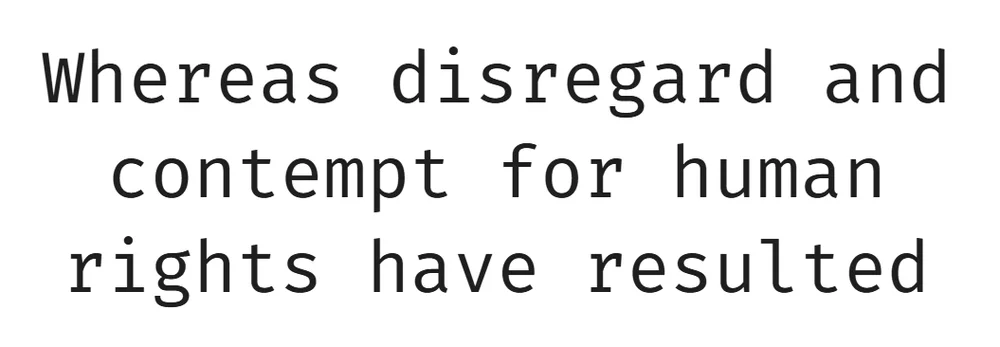
Installation:
- Head over to the Fira Code GitHub repo and grab the latest zip release.
- Unzip it and click through to the ttf folder.
- Select the font files, right-click, and install them directly onto your system.
- Relaunch VS Code so it picks up the fresh font files.
JSON
{
  "editor.fontFamily": "'Fira Code', Consolas, monospace",
  "editor.fontLigatures": true
}
JetBrains Mono
JetBrains Mono was built from the ground up for developer comfort, leaning heavily on taller lowercase letters (a generous x-height). That extra breathing room keeps text remarkably easy on the eyes when you are buried in an editor past midnight.
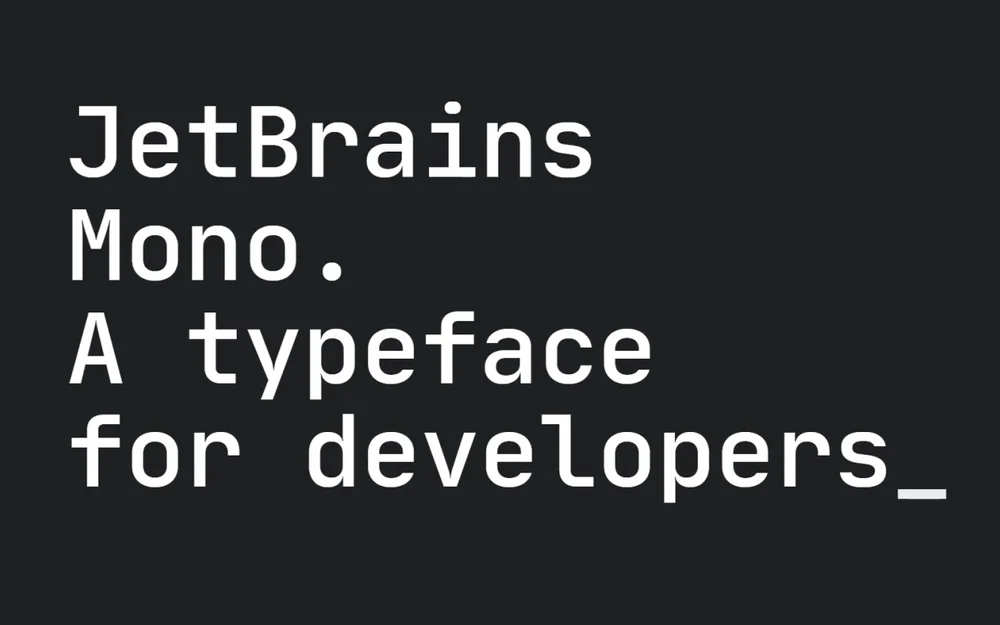
Installation:
- Download the font bundle straight from JetBrains' official site.
- Crack open the archive and head into the ttf folder.
- Install all the font weights so you have the full family ready.
- Restart your editor to lock in the changes.
JSON
{
  "editor.fontFamily": "'JetBrains Mono', Consolas, monospace",
  "editor.fontLigatures": true
}
Cascadia Code
Built directly by the Windows Terminal team at Microsoft, Cascadia Code feels right at home across Windows setups. It brings a confident, slightly chunkier weight that holds up beautifully on crisp, high-resolution screens without turning blurry or thin.
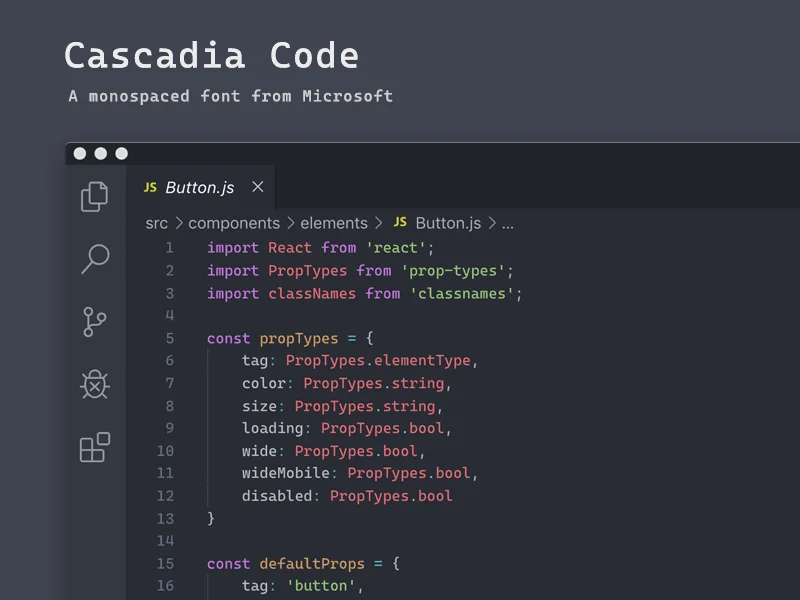
Installation:
- Snag the latest release bundle from the Cascadia Code GitHub repository.
- Open up the zip and jump into the ttf directory.
- Install the static font files across your operating system.
- Fire up VS Code again to let the editor register them.
JSON
{
  "editor.fontFamily": "'Cascadia Code', Consolas, monospace",
  "editor.fontLigatures": true
}
Going Premium: Is MonoLisa Actually Worth It?
Open-source fonts are incredible these days, but boutique options like MonoLisa cater to people who want serious ergonomic tuning. Instead of relying on stark, boxy geometry, MonoLisa leans into subtle, humanistic curves that feel surprisingly organic to read.
It packs over 140 custom ligatures and slightly broader character proportions engineered specifically to minimize fatigue. Spending cash on a font might sound wild to your non-dev friends, but if you look at code all day, investing in your primary view is easy to justify.
The Great Ligatures Debate: Clean Shortcut or Distraction?
Ligatures automatically fuse multi-character tokens like != or => into unified, polished symbols. A lot of developers swear by them because they make conditional blocks look as clean as textbook math notation.
That said, critics will tell you that ligatures obscure the raw characters you actually typed, which can trip up juniors or cause friction during pair programming. There is no right or wrong answer here; flip them on for a week or two and see if your brain likes the shift.
Setting Up Your Font in settings.json
Hooking up your new typeface just takes a couple of lines in your workspace config. Hit Ctrl+Shift+P (or Cmd+Shift+P on macOS) to summon the Command Palette, then punch in Open Settings (JSON).
Paste these lines inside your root JSON object:
JSON
{
  "editor.fontFamily": "'JetBrains Mono', Consolas, monospace",
  "editor.fontLigatures": true,
  "editor.fontSize": 14,
  "editor.fontWeight": "400"
}
While you have your settings file open, it is a great time to hide the pycache folder in VS Code so your file tree stays tidy and uncluttered.
Tuning Editor Fonts vs. Terminal Fonts
Don't assume your main editor font will handle your integrated terminal seamlessly. Rich command-line setups using Zsh, Oh My Posh, or Git prompt status bars lean on dedicated glyph sets known as Powerline symbols.
Regular coding fonts lack these custom icons, leaving you with annoying missing-character boxes inside your shell. You will want a dedicated Nerd Font like MesloLGS NF wired specifically to the terminal panel. If you find yourself dialing into remotes via VS Code remote SSH, this keeps your remote branch status and prompt icons displaying cleanly.
JSON
{
  "terminal.integrated.fontFamily": "'MesloLGS NF'"
}
Nailing the Right Font Size for Your Display
Picking an ideal font size comes down to finding the sweet spot between your display resolution and OS scaling. Go too small, and you will catch yourself hunching over the desk just to scan variable names.
- 1080p screens: 13pt to 14pt keeps everything sharp without chewing up too much editor space.
- 1440p (2K) displays: 15pt to 16pt handles the tighter pixel pitch nicely.
- 4K monitors: 18pt or larger works best, assuming you aren't already running heavy OS scaling.
When you are neck-deep in command line logs while setting up a Python virtual environment in VS Code, dialled-in sizing saves your focus and prevents a mid-afternoon headache.
Solid Font and Theme Pairings to Try
Typefaces carry visual weight, so pairing them with an appropriate color theme makes your workspace feel intentional rather than thrown together. Here are a few combos that work exceptionally well:
- One Dark Pro + Fira Code: The sharp, vibrant highlights of One Dark Pro balance nicely against Fira Code's tight mathematical glyphs.
- Dracula + JetBrains Mono: Dracula’s rich purples and pastel tones look great draped over the taller, structured frame of JetBrains Mono.
- Solarized + Cascadia Code: Solarized's low-contrast background needs a font with a bit more muscle, and Cascadia Code delivers just enough weight.
Quick Fixes When Fonts or Ligatures Refuse to Work
Nine times out of ten, font issues come down to a subtle typo in the font's display name. Double-check that any font name with spaces is wrapped in single quotes inside your settings array.
If the font loaded fine but ligatures just won't show up, VS Code might simply be clinging to stale cache files. In rare cases where things get stubbornly stuck, you can reset VS Code extension data to force the UI back into shape. If an installed font still won't populate anywhere, give your operating system a full reboot to force font caches to refresh.
Quick answers
Frequently asked questions
What is the best font for VS Code?
Fira Code and JetBrains Mono are the most popular choices. Fira Code is best for developers who want extensive ligatures and a lighter feel, especially on macOS. JetBrains Mono is better for long sessions on dark themes due to its taller characters and heavier stroke weight.
How do I change the font in VS Code?
Open the command palette with Ctrl+Shift+P (Cmd+Shift+P on Mac), type Open Settings (JSON), and add 'editor.fontFamily' with your chosen font name. Make sure the font is installed on your system first, then restart VS Code.
Do I need ligatures in VS Code?
No, ligatures are optional. They make operators like => and != render as single symbols, which some developers find cleaner. If they cause confusion during pair programming or screen sharing, disable them with 'editor.fontLigatures': false.
What font size should I use in VS Code?
13-14pt works well on 1080p monitors. For 1440p (2K) displays, 15-16pt is more comfortable. On 4K monitors without display scaling, go to 18pt or higher.
Why does my terminal show broken symbols after installing a new font?
Your integrated terminal needs a Nerd Font variant to display Powerline glyphs and special icons. Install MesloLGS NF and set 'terminal.integrated.fontFamily' separately in settings.json. The terminal font is independent from your editor font.
Is Consolas still a good font for programming?
Consolas is functional but dated. Modern alternatives like Fira Code and JetBrains Mono offer better character distinction between similar glyphs (1, l, I), wider spacing, and ligature support that Consolas completely lacks.
Why are my VS Code ligatures not working after installing a new font?
First, verify 'editor.fontLigatures' is set to true in settings.json and the font name is exactly correct with proper quoting. If the font is installed but still not rendering, try restarting VS Code completely or clearing the extension cache.
Something wrong or out of date?
Tools change fast. Tell the editor what no longer works.