The cluttered __pycache__ folders ruin your VSCode file explorer visibility and make global search slower by indexing bytecode you never read. Hiding these compiled Python files via your settings.json immediately restores your workspace performance and keeps your directory tree clean.
- Target Directory:
__pycache__ - Settings File:
settings.json - Configuration Key:
files.exclude - Required Glob Pattern:
**/__pycache__ - Complete Prevention Method:
PYTHONDONTWRITEBYTECODE=1
How to Hide pycache in VSCode Using files.exclude
You need to tell VSCode to completely ignore these compiled files at the editor level. You achieve this by modifying your JSON configuration rather than clicking through endless menus. Open your command palette using Ctrl+Shift+P on Windows or Cmd+Shift+P on Mac. Type Open Settings (JSON) and select it.
Add the exact block below to your existing configuration. The files.exclude key acts as a strict filter for your project explorer.
{
  "files.exclude": {
    "**/__pycache__": true,
    "**/*.pyc": true
  }
}
This pattern immediately removes the folders from your sidebar. The **/ prefix is absolutely critical here. It ensures VSCode looks inside every single subfolder of your project, not just the root directory. Writing __pycache__ without **/ only targets the top level, so folders buried three directories deep remain fully visible.
files.exclude vs search.exclude: What is the Difference?
Many developers get confused between hiding files visually and removing them from search results. The search.exclude setting only prevents files from showing up when you press Ctrl+Shift+F. It leaves the folders completely visible in your left sidebar.
The files.exclude setting does both jobs simultaneously. When you hide a folder using files.exclude, VSCode automatically removes it from the search index as well. Because compiled Python bytecode provides zero readable value during development, always use files.exclude to eliminate it from both the explorer and the search engine.
User Settings vs Workspace Settings: Where to Apply the Rules?
Applying the exclusion rule globally saves you from repeating the process for every new Python project. User settings apply to your entire machine and affect every VSCode window you open. You edit this via the global settings.json file.
Workspace settings live inside a specific project folder under .vscode/settings.json. These rules override your global user settings, which is also their biggest gotcha: if you define files.exclude at the workspace level, it completely replaces the global value rather than merging with it. Any rules you added globally for other projects will not carry over.
If you work in a team, keep your Python exclusions in .vscode/settings.json and commit it to your repository. Every team member gets the same clean directory structure regardless of their personal setup.
How to Completely Prevent pycache Generation
Sometimes hiding the files is not enough. You can force Python to stop generating .pyc files entirely, saving disk space and stopping the clutter before it begins.
Run your scripts with the -B flag directly in the terminal:
python -B main.py
For a permanent solution across all projects, set the PYTHONDONTWRITEBYTECODE environment variable. You have three options depending on scope:
System-wide (Windows):
setx PYTHONDONTWRITEBYTECODE 1
System-wide (macOS/Linux) , add to ~/.bashrc or ~/.zshrc:
export PYTHONDONTWRITEBYTECODE=1
Per-project , add to your .env file (VSCode's Python extension picks it up automatically if python.envFile points to it):
PYTHONDONTWRITEBYTECODE=1
This tells Python to skip bytecode compilation globally. Useful for development environments where you want a completely clean filesystem, though it slightly increases startup time on repeated runs since Python re-compiles on each execution.
Ultimate VSCode Settings Template for Python Projects
Python projects generate much more clutter than just cache files. Testing frameworks, type checkers, and virtual environments create their own directories. A master exclusion list handles all of it in one place.
Add this block to your settings.json for a perfectly clean Python workspace:
{
  "files.exclude": {
    "**/__pycache__": true,
    "**/*.pyc": true,
    "**/.pytest_cache": true,
    "**/.mypy_cache": true,
    "**/.tox": true,
    "**/*.egg-info": true,
    "**/build": true,
    "**/dist": true
  }
}
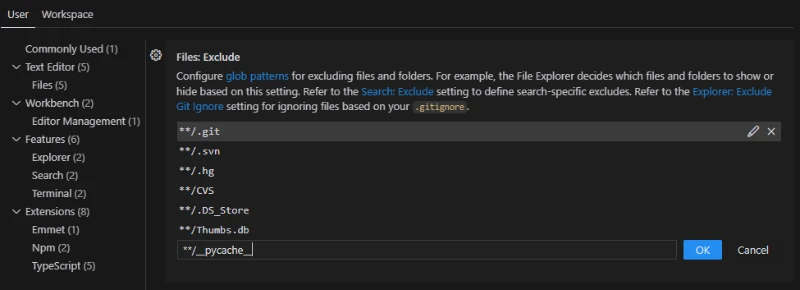
This hides the noise generated by pytest, mypy, and standard packaging tools. If you use a virtual environment inside your project folder, add "**/.venv": true to the list as well. You can also manage conda environments with a similar workspace-level approach.
Troubleshooting: Why is pycache Still Visible?
If you pasted the pattern but the folders are still showing up, check these common causes:
Missing **/ prefix. __pycache__ without the leading **/ only matches the top-level directory. Use **/__pycache__ to match at every depth.
Trailing slash in the pattern. VSCode requires strict glob syntax. The pattern **/__pycache__/ with a trailing slash is invalid and silently fails. Remove the slash.
Workspace settings overriding user settings. A local .vscode/settings.json with its own files.exclude block completely replaces your global rules. Check that file first if your global exclusions stopped working, and add **/__pycache__ there as well (see the User vs Workspace Settings section above for details).
Settings not saved. VSCode applies changes immediately on save. If you edited settings.json manually, verify the file has no JSON syntax errors by checking the Problems panel (Ctrl+Shift+M).
Knowing how to reset VS Code extension data and cache can also help if the explorer is behaving inconsistently after applying settings changes.