Upgrade pip through the interpreter you actually use: python -m pip install --upgrade pip on Windows and python3 -m pip install --upgrade pip on macOS or Linux. Run the command inside the active virtual environment; if Linux reports an externally managed environment, use the distribution package manager or a project virtual environment instead of forcing a system-wide pip replacement.
How to Upgrade Pip in Python: Windows, macOS, and Linux
Learn exactly how to upgrade pip in Python on Windows, macOS, and Linux. Fix common 'pip not recognized' errors and manage virtual environments easily.
// The short answer

Ekin Yalgın
6 min read
In this guide · 6 sections
Chances are, your terminal just threw up a yellow warning saying a newer version of pip is available - or worse, a package build crashed halfway through because an older tool couldn't handle a newer wheel format. Keeping pip fresh isn’t just about silencing those annoying terminal nudges; it genuinely saves you from weird dependency snags, mysterious resolver bugs, and failed installs down the line.
The command itself is straightforward, but modern setups - between isolated virtual environments, strict OS permission models, and native system utilities - can occasionally trip you up. Here is a clean, practical breakdown of how to get pip updated without wrecking your Python setup.
Quick Fix (Run These and Move On)
If you just want the exact line to copy-paste right now, find your operating system below, pop open your command line, and fire away:
- Windows:
python -m pip install --upgrade pip - macOS / Linux:
python3 -m pip install --upgrade pip - Modern Linux (If you hit an "externally managed" error):
apt install python3-pip(Hold off on forcing pip directly onto system Python; take a quick look at the Linux breakdown below first).
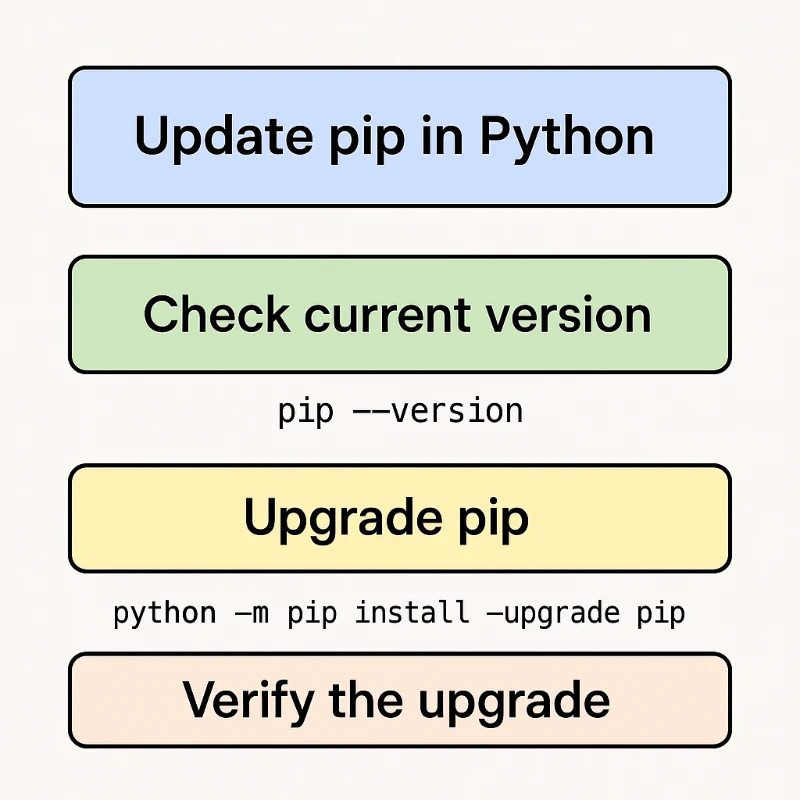
Checking Which Version You Have
Before touching anything, it pays to check what build is currently handling your packages. It gives you a quick baseline so you can verify that the update actually took hold. Pop open your terminal or Command Prompt and run:
Bash
pip --versionYou will get back a line that looks something like: pip 23.0.1 from /usr/lib/python3.10/site-packages/pip (python 3.10).
That output gives you two critical breadcrumbs: the exact pip version and the underlying Python binary it ties into. If you have several Python installs floating around your machine (pretty standard on macOS and Linux), that directory path confirms precisely which runtime you are modifying.
The Cleanest Way to Upgrade Pip (By OS)
Running plain old pip install ... works fine until it doesn't - often choking on Windows file locks or pointing at the wrong binary entirely. The bulletproof approach is calling pip via the module flag: python -m pip. That lets your Python interpreter manage the process directly, so things won't break midway through swapping out the executable.
Upgrading on Windows
Windows generally keeps things simple since Python usually sits inside your user space or a dedicated directory. Fire up PowerShell or Command Prompt and run:
Bash
python -m pip install --upgrade pipIf the console throws an Access is denied error at you, your Python installation probably lives in a protected area like Program Files, meaning standard user rights won't cut it. You have two easy ways out:
- Right-click your terminal icon, launch it as Administrator, and re-run the command.
- Append the
--userflag so it installs cleanly to your local profile without touching root directories:python -m pip install --upgrade pip --user
If your shell claims Python isn’t recognized at all, your system PATH variable probably needs a quick nudge. Check out our guide on working with environment variables to get your PATH sorted out.
Upgrading on macOS and Linux
Unix-based platforms come with their own system Python baked in, and the OS relies on it for everyday utilities. Modifying that built-in system Python directly is asking for headaches.
For standard personal setups, make sure you explicitly point to python3:
Bash
python3 -m pip install --upgrade pipHeads up for modern Linux distros (Ubuntu 23.04+, Debian 12+, Fedora): Trying to run the update command globally will likely trigger an error: externally-managed-environment.
Don't panic - this is an intentional safeguard (PEP 668) designed to stop pip from overwriting packages your operating system needs to function. Resist the urge to slap --break-system-packages onto the end unless you enjoy rebuilding broken operating system packages. Instead:
- Stick to your distro package manager:
sudo apt update && sudo apt install python3-pip - Use pipx for standalone CLI tools: If you just want a global Python app (like
blackorflake8), installpipxand let it isolate things cleanly. - Spin up a virtual environment: For any real project work, isolated environments are the gold standard (see below).
If you ever need to track down exactly where rogue packages landed so you can scrub them, our guide on how to find a directory on Linux covers the right search commands.
Handling Virtual Environments
This is where you should be spending 95% of your coding time anyway. The key thing to remember: every virtual environment maintains its own isolated pip executable. Bumping your global pip version does nothing to the pip residing inside your project’s venv.
Standard venv / virtualenv
- Turn on your environment first:
- Windows:
.\venv\Scripts\activate - macOS/Linux:
source venv/bin/activate
- Run the standard module upgrade:
Bash
python -m pip install --upgrade pipBecause new environments often spin up using the bundled base tools from when your Python runtime was installed, running this once whenever you create a fresh project ensures you're on the latest release.
Managing Pip Under Conda (Anaconda / Miniconda)
If your workflow runs on Conda for data science work, pause right here. You generally want to avoid running raw pip update commands on pip itself inside an active Conda environment. Crossing streams between pip and conda is the fastest route to dependency conflicts.
Let Conda handle its own ecosystem using:
Bash
conda update pipThis ensures the conda solver stays aware of package states and prevents nasty binary incompatibilities down the line.
Fixing Common Snags
Even routine upgrades can occasionally hit a wall. Here are the most typical gremlins and how to swat them.
ModuleNotFoundError: No module named 'pip' This normally happens if an upgrade got cut off mid-stride, effectively wiping the existing pip binary before writing the new one. You can bootstrap it right back using Python's native installer:
Bash
python -m ensurepip --default-pipPermission Denied on Windows If a wall of red text complains about write privileges, don't overthink it. Just pass the --user flag mentioned earlier. That dumps the package straight into AppData/Roaming, which your user account can always modify freely.
SSL/TLS Handshake Failures If you are stuck behind a corporate proxy, a strict VPN, or an older certificate store, pip might fail reaching PyPI. If you trust the network you are on, you can manually whitelist the repository endpoints:
Bash
python -m pip install --upgrade pip --trusted-host pypi.org --trusted-host files.pythonhosted.orgNeed to Roll Back? Here's How to Downgrade
Every now and then, a brand-new release ships with an unvetted bug or drops compatibility with an older build configuration you rely on. Dropping back to a known-stable version is painless.
Just pin the exact version string you want in the install command:
Bash
python -m pip install pip==23.0Swap out 23.0 with whichever specific version your project demands. It’s an invaluable fallback to keep handy whenever an update breaks an active development pipeline.
Quick answers
Frequently asked questions
What is the correct command to upgrade pip on Windows?
The safest command to upgrade pip on Windows is python -m pip install --upgrade pip. Using python -m ensures the upgrade process runs through the Python interpreter, which prevents file lock errors and ensures you are upgrading the pip version attached to your active Python environment.
How do I fix the 'pip is not recognized' error?
This error indicates that Python is not added to your system's PATH variable. To fix it, you should reinstall Python and check the box that says "Add Python to PATH" during the setup, or manually add your Python installation's Scripts folder to your Windows Environment Variables.
Why do I get an 'externally-managed-environment' error on Linux?
This error appears because modern Linux distributions (like Ubuntu 23.04+) prevent users from modifying system-wide Python packages to avoid system instability. Instead of forcing the update, you should install packages using apt (e.g., sudo apt install python3-pip) or use a virtual environment for your projects.
How can I solve 'Access is denied' when updating pip?
This permission error happens when you try to modify files in a system-protected directory without administrative privileges. You can solve this by running your Command Prompt as an Administrator or by adding the --user flag to your command: python -m pip install --upgrade pip --user.
Should I upgrade pip inside a virtual environment?
Yes, you should always upgrade pip inside every new virtual environment you create. Each virtual environment is an isolated container with its own copy of pip, so upgrading your global system pip does not automatically update the pip version inside your venv.
What is the difference between 'pip install' and 'python -m pip install'?
While both commands install packages, python -m pip is more reliable because it explicitly tells Windows exactly which Python interpreter to use. This method avoids ambiguity if you have multiple Python versions installed and prevents issues where the pip script itself gets locked during an update.
How do I downgrade pip to an older version?
To downgrade pip, you need to specify the exact version number you want to install using the == operator. For example, running python -m pip install pip==23.0 will revert your pip installation to version 23.0, which is useful if a new update causes compatibility issues.
How do I update pip if I am using Anaconda?
If you are using Anaconda or Miniconda, you should use the command conda update pip instead of the standard pip command. Using standard pip commands inside a Conda environment can cause dependency conflicts and break your environment's package management system.
Something wrong or out of date?
Tools change fast. Tell the editor what no longer works.