Seeing a connection error block your access to an important document affects your workflow instantly. This error usually appears when you try to open a file in Google Drive, use a specific add-on, or access a shared document. The good news is that your files are safe. The issue is almost always a conflict with browser permissions or multiple Google accounts rather than a server problem.
You can fix this issue quickly by following the steps below, ordered from the easiest workaround to the permanent solution.
Try Incognito Mode: If you need to access your document immediately without changing any settings, open a New Incognito Window (Ctrl+Shift+N or Cmd+Shift+N). Log in to your Google account there. If the document opens, the issue is related to your browser cache or extensions. You can finish your work there and apply the permanent fixes below when you have time.
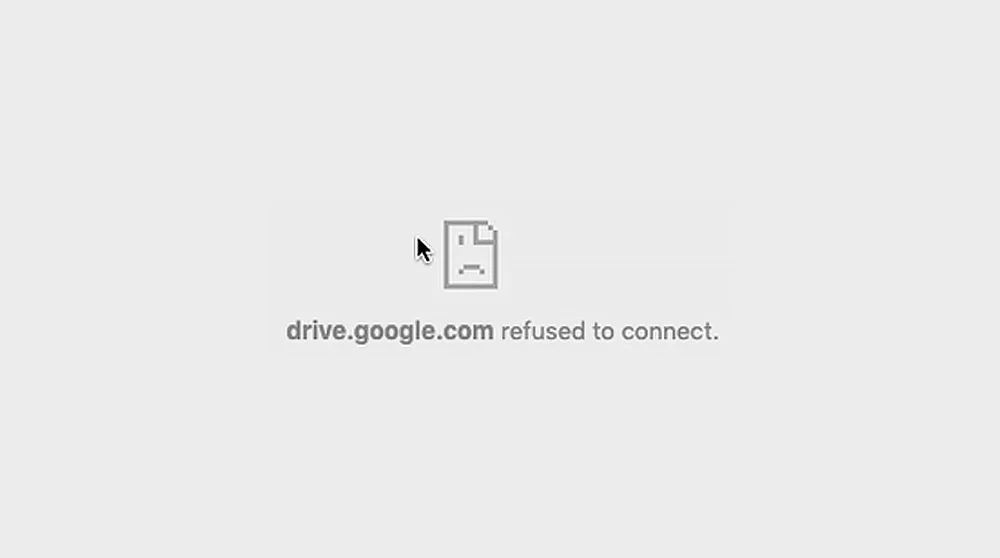
Why Does Refused to Connect Error Happen?
Understanding the cause helps you prevent it from coming back. Google uses security protocols like X-Frame-Options to protect your account. When you are signed into multiple Google accounts in the same browser, Google Drive sometimes gets confused about which account has the permission to view the file or run the script.
This confusion causes the browser to block the connection to protect your data. It also happens when your browser blocks third-party cookies that Drive needs to verify your identity across different tabs.
Method 1: Sign Out of Multiple Accounts (The Permanent Fix)
The most common culprit for this error is account conflict. If you have your personal Gmail, work email, and a freelance account all logged in simultaneously, the browser may struggle to authorize the specific script or file you are trying to open.
Go to https://www.google.com/search?q=Google.com or your Gmail tab.
AdvertisementClick on your profile picture in the top right corner.
Select Sign out of all accounts.
Close your browser completely and reopen it.
Sign in only to the account that owns or has access to the document.
Try opening the file again.
This refreshes your session tokens and usually clears the error instantly.
Method 2: Allow Third-Party Cookies
This is a step many users overlook. Google Drive and its add-ons often run inside a frame within your browser. If your browser is set to strictly block all third-party cookies, it prevents Drive from communicating with the server to verify who you are.
To fix this in Google Chrome:
Copy and paste this into your address bar:
chrome://settings/cookiesLook for the Third-party cookies section.
Select Allow third-party cookies or ensure that Block third-party cookies is not selected in a way that interferes with Google services.
Alternatively, you can add
[*.]google.comto the list of sites allowed to use third-party cookies.
After changing this setting, refresh your Google Docs tab.
Method 3: Clear Browser Cache and Cookies
If the permissions are correct but the error persists, your browser might be holding onto outdated or corrupted data. Cleaning this up forces the browser to fetch a fresh version of the page.
Press Ctrl + Shift + Delete (Windows) or Cmd + Shift + Delete (Mac) on your keyboard.
Set the Time range to All time.
Check the boxes for Cookies and other site data and Cached images and files.
Click Clear data.
Keep in mind that this will sign you out of most websites, so make sure you know your passwords.
Method 4: Disable Conflicting Extensions
Some browser extensions, especially ad blockers, privacy protectors, or dark mode tools, can aggressively block scripts that Google Docs needs to function.
Click the puzzle piece icon in your browser toolbar or go to
chrome://extensions.AdvertisementToggle off your extensions one by one.
Reload your Google Doc after disabling each one.
If the document loads, you have found the culprit. You can keep that extension disabled for Google Drive or remove it entirely.
Method 5: Check Your Browser Version
An outdated browser can lack the latest security certificates required by Google. While less common, it is worth checking if you are running the latest version.
In Chrome, go to Settings, look for About Chrome in the sidebar, and it will automatically check for updates. If an update is available, let it install and then click Relaunch.