Opening Task Manager to check your CPU temperature is a complete waste of time because Windows deliberately hides this exact metric. Microsoft chose to display only GPU heat in the Performance tab. This design flaw leaves your processor vulnerable to silent thermal throttling right under your nose. Unlocking the real thermal data requires digging into the hardware layer.
- Idle Desktop Temperature: 30C to 50C
- Idle Laptop Temperature: 40C to 60C
- Heavy Load Maximum: 65C to 80C
- Critical Danger Zone: 90C and above
- Native Windows Tool: PowerShell WMI
- Best Diagnostic Tool: HWiNFO64
The Truth About Windows Task Manager
You probably hit Ctrl+Shift+Esc expecting a clear dashboard of your system health. The Performance tab looks comprehensive at first glance. Look closer at the CPU section. You will find utilization and clock speed but absolutely zero thermal readings.
Windows relies on motherboard sensors that lack a unified standard API. Microsoft decided it was safer to omit the data entirely rather than show incorrect values. This means you must bypass the standard Windows interface to get accurate diagnostics.
Universal Method: How to Check CPU Temp in BIOS/UEFI
Accessing the BIOS gives you the most unadulterated thermal baseline possible. The operating system has not loaded yet. Background applications are not stressing the cores.
Restart your computer and repeatedly press F2 or Delete before the Windows logo appears. Navigate to the Hardware Monitor or PC Health Status tab. You will see the exact temperature reading straight from the motherboard. This number represents your true idle temperature. Use this baseline to figure out if your cooling system is mounted correctly.
Developer's Way: Using PowerShell to Read CPU Temp
You do not always need third-party software to read sensor data. Windows has a hidden layer called Windows Management Instrumentation. You can extract raw thermal data directly through the command line.
Open PowerShell as an administrator. Type the specific command to query the thermal zone:
Get-WmiObject MSAcpi_ThermalZoneTemperature -Namespace root/wmi
The output will show a value called CurrentTemperature. This number is not in Celsius or Fahrenheit. Windows outputs this raw data in tenths of a Kelvin. Divide the number by 10 and subtract 273.15 to get your exact Celsius reading. This programmatic approach works brilliantly for remote server monitoring or automated diagnostic scripts.
Best Free CPU Temperature Monitors for Detailed Diagnostics
Sometimes you need more than a single command line output. Modern processors have dozens of individual sensors spread across multiple cores.
HWMonitor
This is the gold standard for overall system diagnostics. HWMonitor displays the current temperature alongside the absolute minimum and maximum values recorded during your session. You can leave it running in the background while working. Check the max column later to see if your cooler struggles during peak workloads.
HWiNFO64
Professional overclockers rely entirely on HWiNFO64. This tool goes far beyond simple temperature readouts. It actively monitors the hardware fail-safes. Scroll down to the core section to find specific Thermal Throttling flags. The software will highlight these flags in red if your processor ever hits its thermal limit.
Core Temp
Not everyone wants a massive spreadsheet of data. Core Temp is incredibly lightweight and lives quietly in your system tray. It shows the temperature of every individual core right on your taskbar. Watch out during the installation process. Uncheck the bundled software offers to keep your system clean.
MSI Afterburner
Gamers need to see their temperatures in real-time without minimizing the game. MSI Afterburner provides a customizable On-Screen Display. You can pin your CPU and GPU temperatures to the top corner of your screen. Watching these numbers fluctuate during heavy gaming helps you identify airflow bottlenecks instantly.
What is a Normal CPU Temperature?
Comparing a massive desktop rig to a thin laptop is a fundamental mistake. Laptops pack high-performance chips into extremely confined spaces with tiny fans.
A desktop processor idling at 55C might indicate a failing water pump or dried thermal paste. A gaming laptop idling at 55C is completely normal. Laptop manufacturers configure their fan curves to stay silent until the processor hits at least 60C. Do not panic if your ultrabook runs a bit warm on your lap.
Intel Core vs AMD Ryzen Baseline Differences
Brand architecture dictates heat output just as much as clock speed. AMD Ryzen processors run significantly hotter by design.
AMD chips use an aggressive boost algorithm that pushes voltage high for short bursts. Seeing an AMD processor spike to 75C while just opening a browser is expected behavior. Intel Core processors maintain a much lower and stable baseline during light tasks. Knowing what hardware you own prevents unnecessary troubleshooting.
How to Tell if Your CPU is Thermal Throttling
Reaching 90C is bad, but the real danger is the throttling mechanism. Modern processors will not melt. They protect themselves by intentionally crippling their own performance.
When the silicon hits its critical thermal limit, it aggressively drops the clock frequency. Your game will suddenly drop frames and your system will feel sluggish. Open HWiNFO64 and run a stress test. If the Core Thermal Throttling value changes from No to Yes, your processor is actively choking itself to survive. This is the ultimate proof that your cooling solution has failed.
Proven Ways to Lower High CPU Temperatures
Software monitoring only tells you there is a problem. Fixing the hardware is the next step.
Start with the most obvious culprit. Dust buildup blocks the airflow through your heatsink fins. Taking a can of compressed air to your cooler can easily drop your peak temperatures by 10C to 15C.
Software issues can also generate massive heat. A malicious background miner will pin your processor to 100 percent load continuously. Boot your system into Windows Safe Mode to check if the high temperatures persist without third-party applications running. If the heat disappears, you have a malware problem.
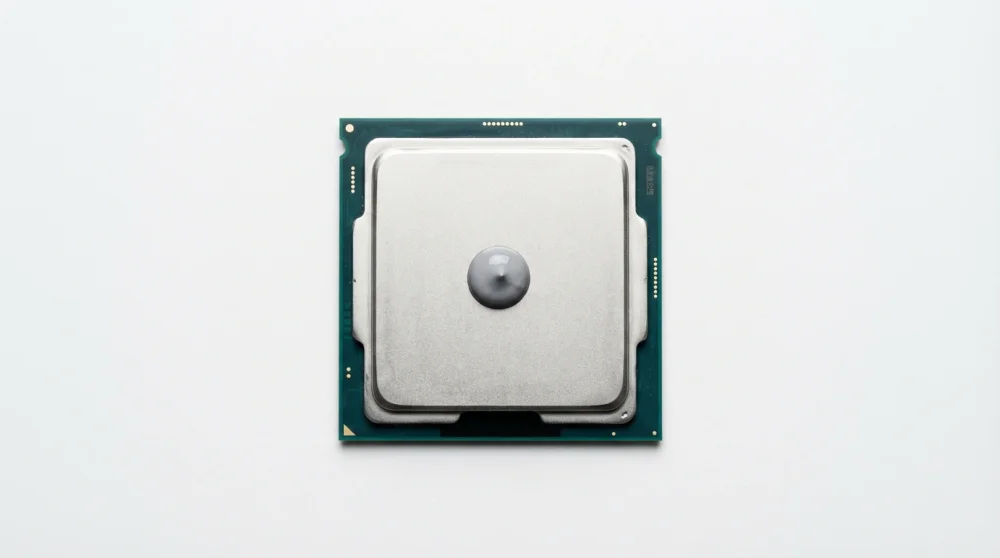
Finally, thermal paste degrades over time. The compound between your processor and the cooler turns to chalk after three or four years. Cleaning off the old crust and applying a fresh drop of high-quality thermal paste will restore your cooling efficiency immediately.