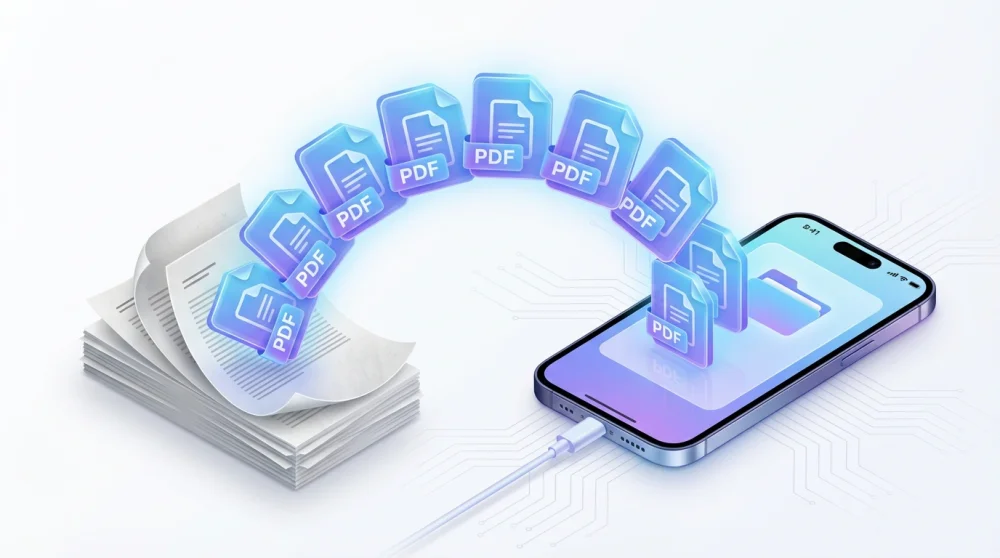
You likely have a powerful scanner right in your pocket, yet many users still clutter their devices with third-party apps full of ads and subscription fees. The native scanning tools built into iOS are not only free but also integrated deeply with iCloud, making organization seamless. Whether you need to digitize a receipt, sign a contract, or capture a multi-page report, the Notes and Files apps offer professional-grade quality with built-in OCR (Optical Character Recognition) capabilities.
Quick Pro Tip: If you are in a rush, you do not even need to open an app first. Long-press the Notes icon on your home screen or Control Center. A menu pops up; simply tap Scan Document to jump straight into the camera mode.
Method 1: Using the Notes App (Best for Multi-Page Docs)
The Notes app serves as the most convenient method for compiling multiple pages into a single PDF file. It automatically detects edges, corrects perspective, and enhances the text legibility.
- Open the Notes app and create a new note or select an existing one.
- Tap the Camera icon located above the keyboard.
- Select Scan Documents from the list of options.
- Position your document in view of the camera.
Auto vs. Manual Shutter: By default, the camera operates in Auto mode. It detects the paper, highlights it in yellow, and captures the image automatically. This works perfectly for high-contrast documents on dark tables. If you are scanning receipts or irregular papers, switch to Manual by tapping the option in the top right corner. This gives you full control to snap the photo and adjust the corners yourself.

Optimizing Scan Quality: Before you save, tap the Filters icon (three overlapping circles). Choose Grayscale or Black & White for text documents. This removes shadows, increases contrast, and significantly reduces the file size, making it easier to share via email later. If your phone becomes unresponsive during this process, a quick force restart iphone usually resolves the glitch.
Method 2: Using the Files App (Best for Save & Share)
If your goal involves saving the document directly to a specific folder in iCloud Drive or Google Drive without creating a note, the Files app is the superior choice.
- Open the Files app and tap the Browse tab at the bottom right.
- Navigate to the folder where you want to save the scan.
- Tap the three dots icon (More) in the top right corner.
- Select Scan Documents.
- Capture your pages just as you would in the Notes app.
Once you tap Save, the PDF appears immediately in that folder. This method streamlines your workflow if you manage a digital filing system or need to upload the file to a cloud service instantly.
How to Sign and Edit Your Scanned Documents
You do not need to print a document just to sign it. iOS allows you to add a legally binding digital signature directly to your scan.
- Open your scanned PDF in Notes or Files.
- Tap the Markup icon (it looks like a marker tip).
- Tap the + symbol in the bottom right corner and select Signature.
- Use your finger to sign your name. You can save this signature for future use.
- Drag the signature to the correct line and resize it to fit.
You can also add text boxes for filling out forms or use the magnifier tool to highlight specific details. When sending these important documents, understanding email etiquette is vital; knowing the difference between email cc meaning vs bcc ensures you share sensitive contracts with the right privacy levels.
Extract Text from Scans (Live Text & OCR)
One of the most underrated features of the iPhone scanner is its ability to recognize text within the image. This feature, known as Live Text, turns your physical paper into editable digital text.
- Open the scanned document.
- Long-press on any word or paragraph within the image.
- Adjust the selection handles to cover the text you need.
- Tap Copy.
You can now paste this text into an email, a message, or a Word document. This feature saves you from retyping long paragraphs from printed pages. If you took a photo of a document instead of scanning it and need to manage the file format, knowing how to convert heic to jpg ensures compatibility with other devices.
Troubleshooting Common Scanning Issues
Even with advanced software, environmental factors affect the result. Follow these tips for a crisp, professional scan:
- Avoid Shadows: The most common issue involves the shadow of your hand or phone falling on the paper. Stand near a window so the light hits the paper from the side, or hold the phone at a slight angle rather than directly overhead.
- Contrast Backgrounds: Place white paper on a dark table. If the background matches the paper color, the edge detection algorithm fails.
- Flatten the Paper: Creases cause distortion. Use small weights or tape to flatten the corners of receipts or folded letters before scanning.
Comments (0)
Sign in to comment
Report