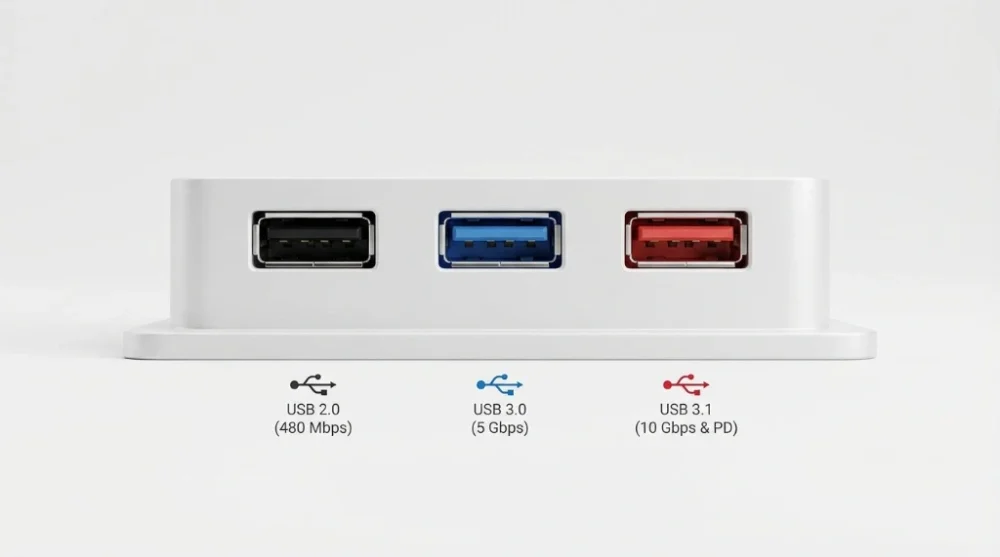
If your iPhone is completely frozen, stuck on a screen, or won't respond to any taps, a force restart is the fastest and most reliable solution. Before you worry, know this: this process is perfectly safe and does not erase any data or settings. It is simply a deeper reboot that forces the system to shut down and start fresh, clearing out the software glitch that caused the freeze.
Why a Force Restart is Safe (And When to Use It)
A force restart (also called a hard reset) is completely different from a factory reset. It does not touch your personal data like photos, messages, or apps. It is the digital equivalent of holding the power button on a computer, or performing a Ctrl+Alt+Del on a Mac. It cuts power to the system, forcing it to reload the operating system (iOS) and close all running apps, which usually resolves the freeze.
Use this method if your phone is experiencing any of these issues:
The screen is black or frozen.
The screen is stuck on the Apple logo during startup.
An app is frozen and you cannot return to the Home Screen.
The phone is not responding to touch.
AdvertisementYou are unable to turn the phone off using the normal "slide to power off" method.
Method 1: For iPhone 8 & All Newer Models (with Face ID)
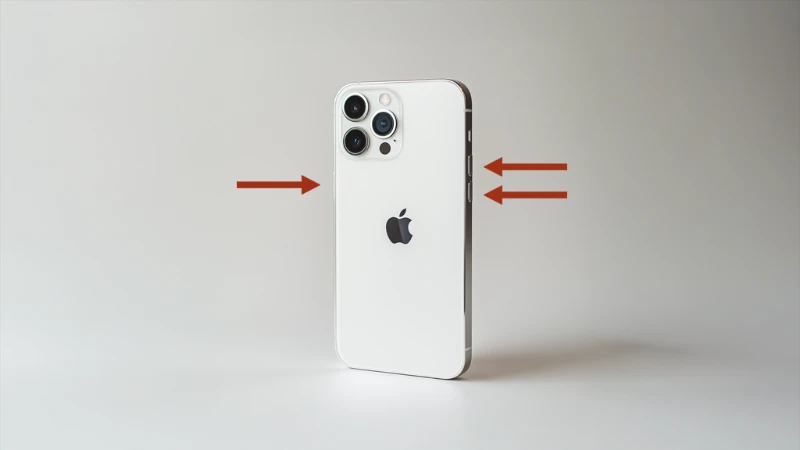
This three-button sequence is the standard for all modern iPhones, including the iPhone 8, X, XS, XR, 11, 12, 13, 14, 15 series, and the iPhone SE (2nd generation or later).
Press and quickly release the Volume Up button.
Press and quickly release the Volume Down button.
Press and hold the Side button (the power button on the right).
A crucial tip from experience: You must keep holding the Side button. Ignore the "slide to power off" prompt if it appears. Continue holding until you see the Apple logo appear on the screen. Once the logo appears, you can release the button and the phone will restart.
Method 2: For iPhone 7 and 7 Plus
The iPhone 7 and 7 Plus models have a unique combination because their Home button is no longer a physical, clickable button.
Press and hold both the Volume Down button and the Sleep/Wake (Power) button at the same time.
Keep holding both buttons. Do not release them when the "slide to power off" screen appears.
Continue holding until the Apple logo appears. Once you see the logo, release both buttons.
Method 3: For iPhone 6s, SE (1st Gen) & Earlier (with Home Button)
This method applies to all iPhones with a physical, clickable Home button, such as the iPhone 6s, 6, 5s, and the original iPhone SE (1st generation).
Press and hold both the Home button (the circular button on the front) and the Sleep/Wake (Power) button at the same time.
Keep holding both buttons.
Continue holding until the Apple logo appears on the screen. Release both buttons once the logo is visible.
Advertisement
What to Do if Force Restart Fails
If the Apple logo never appears or the phone restarts but immediately freezes again, the issue might be deeper than a simple glitch. Before proceeding, try these two steps.
Step 1: Charge Your Device
This may sound simple, but an extremely drained battery can make the device appear frozen or unresponsive. Connect your iPhone to a known-good charger and cable. Let it charge for at least 30-60 minutes. A completely dead battery might not show the charging icon immediately. After an hour, try the force restart sequence for your model again while it is still connected to the charger.
Step 2: Update or Restore via Computer (Recovery Mode)
If charging doesn't help, the operating system (iOS) itself might be corrupted. The next step is to connect your iPhone to a Mac or a PC with iTunes (or Finder on newer macOS). This is similar to starting a computer in Safe Mode to diagnose a problem.
You will need to put the phone into Recovery Mode. This allows the computer to communicate with the phone even if it won't boot up properly.
Connect your iPhone to your computer via USB.
Open Finder (on macOS Catalina or newer) or iTunes (on PC or macOS Mojave or older).
While connected, perform the force restart sequence for your specific model (as listed above), but do not release the buttons when you see the Apple logo.
AdvertisementKeep holding the buttons until you see the Recovery Mode screen (it looks like a computer and a cable).
Your computer will show a pop-up asking to Update or Restore.
Always choose Update first. This will try to reinstall iOS without erasing your data. If the Update fails, you will have to repeat the process and select Restore, which will erase all data and install a fresh version of iOS.
When to Contact Apple Support
If the force restart fails, Recovery Mode fails, or your phone is stuck on the Apple logo after multiple attempts, it is time to stop troubleshooting. This often indicates a hardware problem, such as a broken screen connection or a failed logic board, that software cannot fix.
The best and safest next step is to contact Apple Support directly or schedule an appointment at an Apple Store or an Apple Authorized Service Provider. Continuing to try software restores on a hardware-failed device can sometimes make the problem worse.