

That sickening plastic-on-hardwood crunch when your laptop hits the floor is enough to turn anyone’s stomach. You slowly lift the lid, bracing yourself, only to find a burst of spiderweb fractures, dark ink bleeds, or a colorful digital mess staring back at you. Before you start mourning your wallet or browsing for a whole new computer, take a deep breath. As terrifying as a smashed display looks, this is actually one of the most straightforward, satisfying fixes you can tackle at your own desk.
A lot of folks assume that once the screen cracks, the entire machine belongs in an e-waste bin. In reality, the display is just an external part plugged into the motherboard, not much different from a keyboard or a trackpad. If the engine underneath is still running smoothly, swapping in a fresh panel will cost a tiny fraction of a brand-new setup. Let’s walk through how to figure out what went wrong, track down the exact matching hardware, and install it without breaking a sweat.
Diagnosis: Is Your Screen Actually Broken?
Before spending a dime on parts, you want to be completely sure the glass panel is your only headache. Every so often, a loose internal wire or a failing graphics chip can throw a fit that looks suspiciously like physical screen damage.
The quickest way to rule this out is the good old External Monitor Test. Grab a standard HDMI cable (or VGA if you are rocking an older rig) and plug your laptop straight into your living room TV or an office monitor.
- If the TV screen looks completely normal: Great news - your graphics chip and motherboard are healthy. The problem is strictly trapped inside your laptop lid or its ribbon cable, so an LCD swap will solve it.
- If the TV shows the exact same lines or glitches: The issue lives deeper down on the board or GPU. Putting a new panel on the lid will not fix this.
If the glass shows zero physical cracks but the picture flickers or shifts into weird neon hues, bad software drivers could be acting up. Try restarting in Safe Mode so Windows loads only basic video drivers. You can follow our guide on how to start computer in safe mode to rule out software hiccups before pulling out the tools.
Repair vs. Replace: Is It Worth Fixing?
Not every cracked display gives you the same green light for a DIY project. Whether this makes financial sense usually comes down to the style of device resting in front of you.
- Standard Laptops: Almost always worth the effort. A fresh panel usually runs between $50 and $100, while finding a decent replacement laptop easily runs north of $600. Sinking 45 minutes of your weekend into the repair pays off big time.
- Desktop Monitors: Skip the hassle here. The LCD glass makes up nearly 90% of what it costs a company to build a monitor in the first place. Unless you are dealing with a wildly expensive color-grading panel, buying a fresh monitor off the shelf is almost always cheaper.
- Touchscreens and 2-in-1 Foldables: Tread carefully here. The touch-sensitive glass on these models is often glued directly to the display underneath with factory adhesive. Slicing them apart cleanly is a headache, meaning you often have to replace the entire pre-assembled metal lid - and that can get pretty expensive.
How to Find the Correct Replacement Screen
Here is where most first-timers run into trouble, so take an extra minute here. Do not jump on Amazon or eBay and search simply for your laptop model (like "Dell Inspiron 15 screen"). Laptop builders routinely source screens from three or four different manufacturers - like AU Optronics, LG, or Samsung - across the exact same laptop batch, and their internal plugs do not always match.
To make sure you get the right part on the first try, pop the broken panel out first and read the sticker on the back. You want the exact factory code stamped on that label, something like LP156WH4 or B156XW02.
Keep a sharp eye on the video plug at the bottom corner:
- 30-pin connector: The standard connection across most everyday modern panels.
- 40-pin connector: Typically found on older setups, ultra-sharp 4K screens, or high-refresh-rate gaming rigs.
If the pin counts don't line up, the new cable simply will not push in, even if the glass dimensions match your laptop to the millimeter.
Step-by-Step Guide: How to Replace a Laptop Screen
Once the delivery box arrives with your new glass, clear off a flat kitchen table. You will only need a couple of basics: a small Phillips-head screwdriver (a PH0 or PH00 works best) and a slim plastic pry tool, like a guitar pick or an old plastic gift card.
Step 1: Power and Safety (Crucial)
This is the step you absolutely cannot skip if you want to avoid turning a quick fix into a fried motherboard. Shut the operating system down all the way, unplug the power brick, and pull the battery pack out if yours clicks off with external latches.
If your battery is sealed inside the case, jump into your BIOS settings to toggle battery power off, or gently pop the bottom shell off and unhook the battery cable. The tiny display cable carries live electricity straight to the screen's backlighting. If your metal screwdriver slips across those pins while the battery is sending juice, you will blow a motherboard backlight fuse, leaving the screen permanently dark.
Step 2: Remove the Bezel
The bezel is simply the plastic border framing your screen. On older machines, you might see tiny rubber dots hiding little screws near the bottom corners; pry those off and set the screws aside. On most newer machines, the frame stays attached strictly through small plastic snaps or thin adhesive strips.
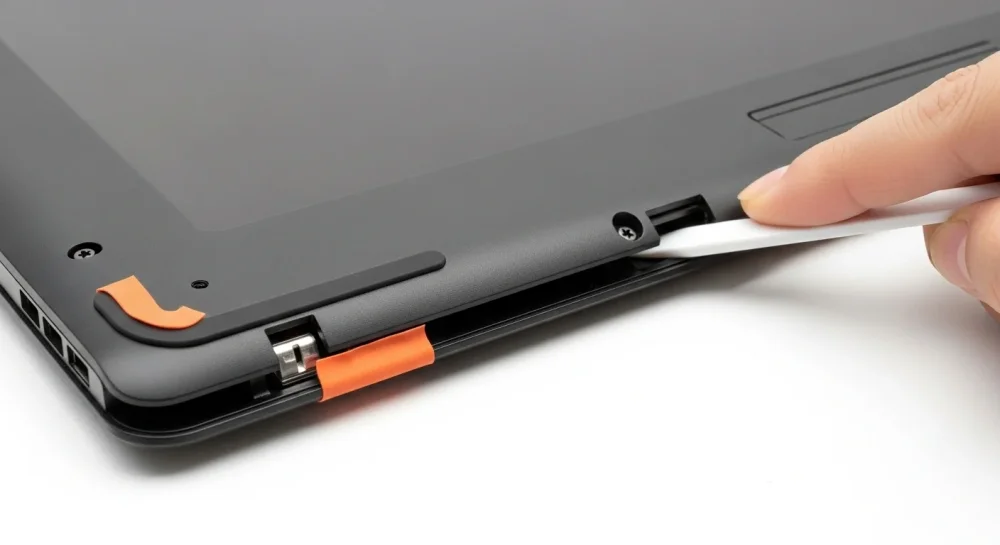
Work your fingernails or your plastic pick along the inner seam where the plastic meets the glass. Slowly trace your way along the edges to release the snaps. You will hear crisp clicking noises as the plastic clips let go - that is totally normal, just ease off if you feel tough resistance to make sure you didn't miss a hidden screw somewhere along the hinge line.
Step 3: Detach the Broken Panel
With the plastic border pulled away, you will see the bare metal edges of the LCD. Most models lock this panel down with four tiny corner screws, either sitting on metal tabs or running along the side rails. Back those screws out and keep them somewhere safe so they don't roll off the edge of your desk.
Tip the glass forward so it rests flat on top of your keyboard. Do this gently - remember the main video ribbon is still tethered directly to the circuit board on the backside.
Step 4: Disconnect the Video Cable
Flip the glass down and look near the bottom; you will see a thin bundle of wires running into a metallic port, usually held down with clear factory tape.
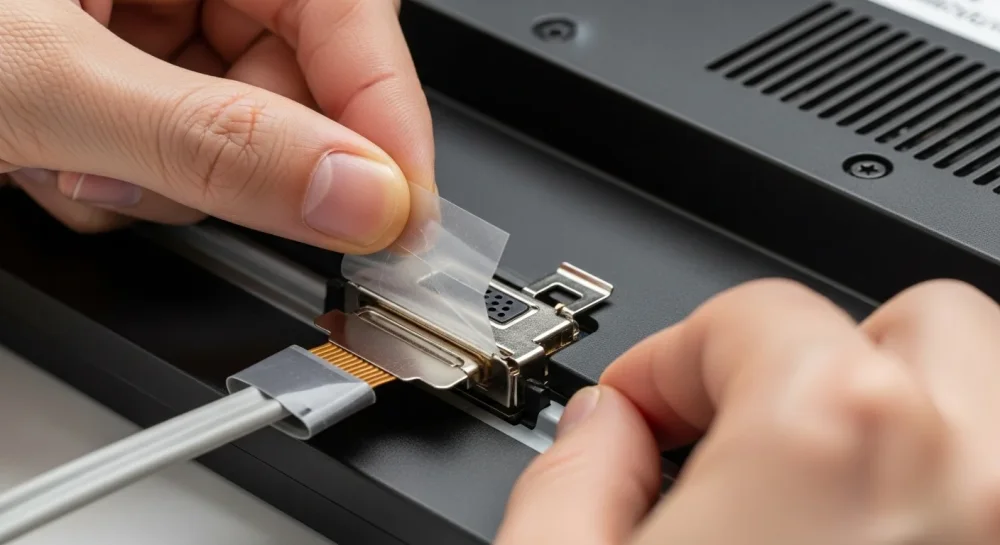
- Carefully peel that piece of tape back with your fingernail.
- Look closely to see if there is a tiny wire latch flipped down over the plug; if there is, lift it up.
- Slide the plug straight out toward the bottom edge. Never yank it straight up toward the ceiling, or you risk shearing the delicate pins clean off.
Step 5: Install and Test
Lay a clean hand towel over your keyboard to protect the finish, and lay your brand-new screen down face first. Slide the ribbon cable straight into the socket until it clicks, flip the retaining wire back down, and secure the tape smoothly across the connection.
Hold off on screwing everything shut just yet:
- Plug your power adapter back in and hook the battery back up.
- Press the power button.
- Make sure the panel lights up and cleanly loads your desktop interface.
If everything looks crisp, power down again, drive the corner screws back into place, and press the outer plastic frame until the clips snap together snugly. If you notice any weird display scaling or minor software glitches after putting things back together, a clean system restart clears out cached display drivers nicely. You can do this quickly from the command line if the mouse is being stubborn, just like we break down in our reboot windows cmd walkthrough.
What About Dead Pixels?
Every once in a while, a replacement panel arrives with a single pixel stuck on white, green, or pitch black. It is definitely frustrating, but it does not mean your panel is broken or that you did something wrong during installation. Display factories rely on ISO manufacturing standards that allow a tiny cluster of stubborn pixels (usually between 2 and 5) before a piece of glass qualifies as defective. If you are trying to tell whether that tiny speck is just a stubborn piece of dust or an uncooperative pixel, there are free color-cycling screen tests online that help you spot the difference instantly.