
When your PC starts acting possessed, crashing out of nowhere, or fighting off malware, Safe Mode is pretty much your emergency lifeline. Think of it as a bare-bones version of Windows that refuses to run third-party junk or fancy visual fluff, loading only the critical drivers so you can isolate and fix the problem without everything collapsing on you.
It’s completely normal to panic a bit when your display stays pitch black or when frantically tapping F8 does nothing anymore. Take a breath - you’re not stuck. Whether you can still reach your desktop or your rig refuses to boot at all, here are the reliable ways I use to get into Safe Mode on both Windows 11 and Windows 10.
The Fastest Way (If You Can See Your Screen)
You really don't have to wade through a maze of settings if Windows is somewhat cooperative. The Shift + Restart trick is the go-to shortcut pretty much every tech uses to save time.
- Open the Start menu and click on the Power icon.
- Press and hold down the Shift key on your keyboard.
- Keep holding Shift, and then click Restart.
- Let go once your machine reboots into a light-blue screen titled Choose an option.
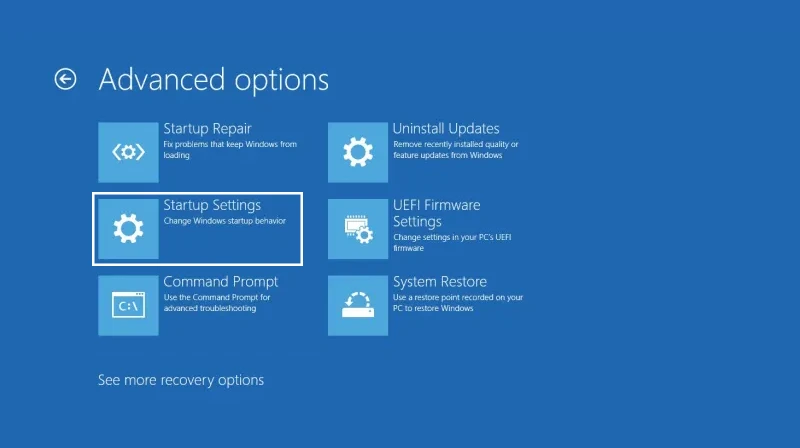
- From there, head through Troubleshoot > Advanced options > Startup Settings > Restart.
- When it powers back up, hit either 4 or F4 on your keyboard to boot straight into Safe Mode.
If your desktop is completely unresponsive and the Start button won't open, you can still kick off a reboot through the terminal. Take a look at our quick guide on how to reboot Windows using CMD to handle that specific freeze.
Method 1: Entering Safe Mode from Settings
If you prefer clicking through a clean menu instead of juggling keys while restarting, you can take the standard path inside Windows Settings. It’s a great option if your mouse works fine and you just want a clear, step-by-step route.
On Windows 11: Head to Settings > System > Recovery. Scroll down to find Advanced startup, then hit Restart now.
On Windows 10: Open Settings > Update & Security > Recovery. Under the Advanced startup header, select Restart now.
As soon as you confirm the restart, Windows will cycle back to that exact same blue troubleshooting screen mentioned above. From that point, just follow the identical trail: Troubleshoot > Startup Settings > Restart.
Method 2: The "Black Screen" Method (Hard Reboot)
This is the scenario that catches most people off guard. Your fans spin up, but Windows never loads, or you end up staring at an empty black display. Because you can't interact with the screen, you have to trick Windows into launching its Automatic Repair suite using the physical power button.
Here is the exact cadence you want to follow:
- Press and hold the power button on your machine for a solid 10 seconds to shut it off completely.
- Press the power button once to turn it back on.
- The trick: The second you spot the Windows loading dots or your motherboard/brand logo (like Asus, Dell, or HP), immediately hold down the power button for 10 seconds to shut it down mid-boot.
- Turn it back on and interrupt it like that two more times.
- On the third or fourth startup, just keep your hands off and let it finish booting up.
Windows will realize it had trouble starting several times in a row and trigger the blue Automatic Repair screen on its own. When it appears, click Advanced options and navigate the usual chain: Troubleshoot > Advanced options > Startup Settings > Restart.
Method 3: Using System Configuration (msconfig)
If you're dealing with an elusive glitch that requires testing across multiple reboots, you probably don't want to hit F4 every single time the system restarts. You can tell Windows to stay in Safe Mode indefinitely until you tell it to stop.
- Tap Windows + R to pull up the Run dialog box.
- Type msconfig and hit Enter.
- Click over to the Boot tab along the top.
- Inside the Boot options section, tick the box for Safe boot.
- Leave it set to Minimal for the standard, clean Safe Mode experience.
- Hit OK, then choose Restart to apply the change immediately.
Heads up: Your machine will now boot into Safe Mode every single time you turn it on until you manually revert this setting. Once you're done troubleshooting, just reopen msconfig and uncheck that Safe boot box.
Expert Tip: Why Doesn't F8 Work Anymore?
Anyone who built or fixed PCs years ago remembers frantically spamming F8 the second the monitor lit up. Starting around Windows 8 and carrying through 10 and 11, Microsoft turned that off by default to trim down system boot times. Modern drives simply load too quickly for that keystroke interrupt to register cleanly.
The good news is you can actually re-enable the classic F8 menu using Command Prompt if you miss having that safety net around. Just make sure to run CMD as an Administrator first.
Paste this line into the prompt and hit Enter: bcdedit /set {default} bootmenupolicy legacy
If you're not super comfortable messing around in Command Prompt or need to run automated diagnostic routines, check out how to run PowerShell scripts for a deeper look at managing system commands cleanly.
What Should You Do in Safe Mode?
Once your desktop loads, don't worry if it looks ugly - the resolution might be off, fonts look chunky, and your wallpaper will be gone. That's just the basic graphics driver doing its job. While you're in here, focus on:
- Running a thorough malware scan: Nasty background threats usually can't execute in Safe Mode, making them way easier for your antivirus to catch and wipe out.
- Rolling back recent updates: If your system went haywire right after an overnight patch, you can roll back the offending package through the Control Panel without crashing.
- Checking your storage drives: Corrupted system files often cause infinite reboot loops. You can run CHKDSK directly from here to track down and patch up drive corruption.
- Nuking troublesome drivers: If an unstable GPU driver caused immediate blue screens, you can safely uninstall it via Device Manager or DDU without display crashes getting in the way.
How to Exit Safe Mode
Heading back to your normal setup is almost always effortless - just restart the PC through the Start menu the way you usually would, without touching any extra keys.
If your system keeps reloading Safe Mode over and over, you almost certainly used the msconfig trick (Method 3) and forgot to flip the toggle back. Just open msconfig one more time, clear the checkmark next to Safe boot, hit OK, and restart normally.