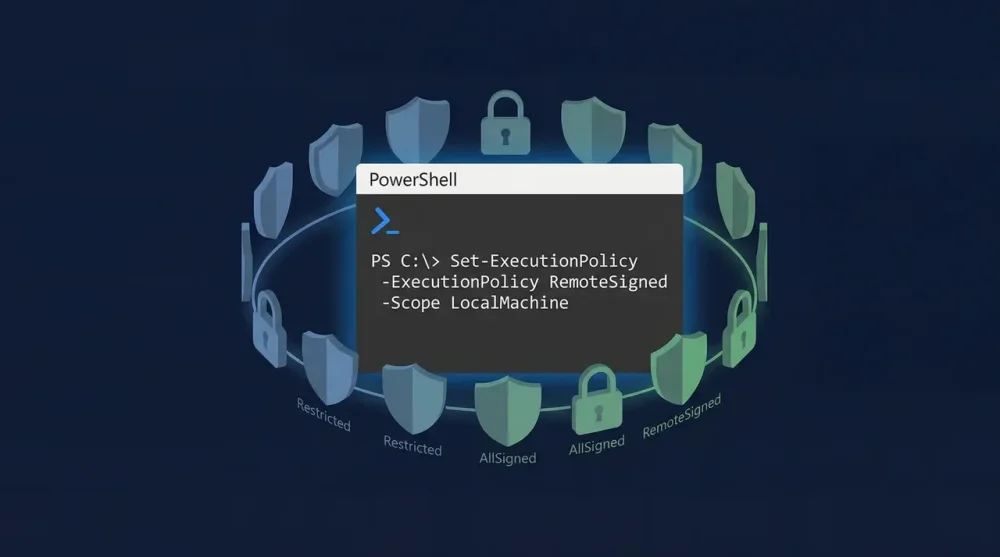

If you just tried firing off a .ps1 script and immediately ran into this wall, don't sweat it:
Plaintext
File C:\Scripts\hello.ps1 cannot be loaded because running scripts is disabled on this system.Nothing is broken, and your machine definitely hasn't been hacked. This is just Windows leaning on its default safety net, known as the Execution Policy. A ton of tutorials out there will tell you to immediately re-launch PowerShell as an Administrator to fix it, but honestly, you almost never need to do that.
Here is the quickest, cleanest fix that won't ask you for admin rights:
- Open PowerShell just like you normally do (standard user is totally fine)
- Run:
Set-ExecutionPolicy -Scope CurrentUser -ExecutionPolicy RemoteSigned - Hit
Aand press Enter when prompted - Kick off your script with
.\scriptname.ps1
This approach hits the sweet spot for developers for three big reasons:
- No admin needed: you're only tweaking settings inside your own user profile
- Set it and forget it: run the command once, and it sticks around for every future terminal session
- Still sensible: your own local scripts run without complaint, while stuff pulled off the web still needs a digital signature
Stuck on a locked-down work laptop or just in a rush? You can actually sidestep changing the policy altogether by using the Bypass switch for a quick one-off run:
PowerShell
powershell -ExecutionPolicy Bypass -File .\your-script.ps1Doing this applies strictly to that single execution. The second your script wraps up, your shell snaps right back to its default state. In fact, CI/CD pipelines rely on this exact trick all the time to run setup scripts smoothly.
Working on a corporate network where nothing seems to take? Jump ahead to When Policy Changes Don't Stick - your IT department's Group Policy is probably overriding you.
Why Windows Blocks Scripts by Default
First off, execution policy isn't a hard security boundary. Microsoft is pretty candid about this in their docs: it's designed to keep you from shooting yourself in the foot by accidentally double-clicking a rogue .ps1 file, not to stop a dedicated hacker. Anyone with terminal access can bypass it in about two seconds. Still, it saves you from making careless mistakes.
Out of the box, standard Windows clients sit in Restricted mode. That means zero scripts run, period. Windows Server editions, on the other hand, usually default to RemoteSigned, allowing locally written scripts to run while requiring signatures on downloaded code.
Here is how the policy levels stack up, ordered from tightest to loosest:
- Restricted: Total lockdown. No scripts run at all, which is the Windows desktop default.
- AllSigned: Every single script has to carry a trusted digital signature before it runs.
- RemoteSigned: Your local files run freely, but anything downloaded needs a valid signature.
- Unrestricted: Pretty much anything goes, though Windows will still bug you with a prompt before running internet files.
- Bypass: The wild west. Nothing is blocked, and no warnings pop up. Great for automated CI/CD runners.
For everyday coding on your own box, sticking with RemoteSigned under the CurrentUser scope is almost always the right answer.
Check Your Current Policy First
Before you start flipping switches, take a second to see where things currently stand:
PowerShell
Get-ExecutionPolicy -ListThat command dumps out the current rule applied at every level of the OS. You'll see a table that looks something like this:
Plaintext
        Scope ExecutionPolicy
        ----- ---------------
MachinePolicy       Undefined
   UserPolicy       Undefined
      Process       Undefined
  CurrentUser    Unrestricted
 LocalMachine      Restricted
What really counts here is the highest-priority active scope. If you spot an entry under MachinePolicy or UserPolicy that isn't Undefined, those settings are calling the shots and will steamroll everything else on the list.
Scopes: Where the Policy Actually Lives
This is the nuance that so many blog posts gloss over. PowerShell doesn't just read one single setting; it evaluates policies in a very specific pecking order:
- MachinePolicy (Group Policy pushed system-wide - beats everything else)
- UserPolicy (Group Policy assigned specifically to your domain user)
- Process (applies only to the terminal window you have open right now)
- CurrentUser (saved to your personal Windows profile and sticks around)
- LocalMachine (applies across the entire machine for all users, lowest priority)
When you simply type Set-ExecutionPolicy RemoteSigned without specifying where, PowerShell assumes you mean LocalMachine, which immediately demands elevated admin privileges. Scoping it down to CurrentUser sidesteps that roadblock entirely, leaves the rest of the machine untouched, and works permanently.
Three Ways to Enable Script Execution
Option 1: Permanent Change for Your User (Recommended)
Fire up a regular terminal window and run:
PowerShell
Set-ExecutionPolicy -Scope CurrentUser -ExecutionPolicy RemoteSignedPress A to accept the change. You're set from here on out across any new terminal windows you open.
Option 2: Current Session Only
If you'd rather not leave any permanent footprint behind, you can target just the active shell:
PowerShell
Set-ExecutionPolicy -Scope Process -ExecutionPolicy RemoteSignedThis works wonders on shared machines or staging boxes because everything resets back to normal the moment you exit the terminal.
Option 3: One-Time Bypass Without Changing Policy
If you just need to run one specific script right this second without tweaking configs, pass the flag at startup:
PowerShell
powershell -ExecutionPolicy Bypass -File "C:\Scripts\myscript.ps1"This is easily the cleanest way to handle isolated tasks. Nothing gets permanently modified in your registry, which is why build tools and deployment scripts lean so heavily on this pattern.
The Better Fix for Downloaded Scripts: Unblock-File
Let's say you're on RemoteSigned, but a script you grabbed from GitHub or an email attachment still refuses to run. The answer isn't to blast open your system policy to Unrestricted. Windows automatically tags incoming web files with an NTFS hidden flag known as a Zone Identifier, and that tag is what PowerShell is choking on.
You can strip that warning flag right off the file with a quick command:
PowerShell
Unblock-File -Path "C:\Downloads\script.ps1"Once you do that, RemoteSigned treats it just like a script you wrote yourself from scratch. It's a much cleaner, surgical solution than opening up security loopholes across your entire operating system.
If you're curious whether a file actually carries that web download flag in the first place, check it like this:
PowerShell
Get-Item "C:\Downloads\script.ps1" -Stream Zone.IdentifierIf that spits back stream data, the file is actively flagged. Running Unblock-File wipes that stream clean.
Running the Script
With your permissions sorted, hop into the target folder and trigger the script:
If you need a refresher on jumping around folders, changing directories in PowerShell works the exact same way as the classic command prompt cd.
PowerShell
cd C:\Scripts
.\scriptname.ps1
Keep in mind that the .\ part is mandatory. Unlike CMD, PowerShell refuses to execute files out of your current directory without that explicit path prefix for security reasons. If you just type scriptname.ps1, it will throw a command-not-found error.
Whenever your file path includes spaces, wrap it in quotes and slap the call operator & in front:
PowerShell
& "C:\My Scripts\hello world.ps1"PowerShell needs that ampersand to understand you're executing a path rather than evaluating a raw string.
When Policy Changes Don't Stick: Group Policy
If you attempt a Set-ExecutionPolicy tweak and it immediately vanishes, or if your terminal barks this error back at you:
Plaintext
Set-ExecutionPolicy : Windows PowerShell updated your execution policy successfully, but the setting is overridden by a policy defined at a more specific scope.That means Group Policy is running the show. You run into this constantly on corporate laptops managed by an IT department. To see who's locking things down, run:
PowerShell
Get-ExecutionPolicy -ListIf you see values assigned under MachinePolicy or UserPolicy, your domain admins have locked the configuration down, and standard PowerShell commands won't override them.
Your silver bullet here is the Process scope, which Group Policy doesn't restrict:
PowerShell
Set-ExecutionPolicy -Scope Process -ExecutionPolicy BypassWhile it only lasts for the lifetime of that specific terminal window, it gets the job done when you're working on managed corporate hardware. Dealing with admin restrictions here is pretty similar to the hoops you jump through when running Windows executables from the command line.
And once you've got your automation running reliably, tossing Start-Sleep pauses in PowerShell into your scripts will help you space out actions cleanly.
Resetting to Default
If you ever want to lock things back down to the factory Windows defaults, just run:
PowerShell
Set-ExecutionPolicy -Scope CurrentUser -ExecutionPolicy RestrictedOr reset the system-wide scope if you previously tweaked it (you'll need an elevated prompt for this one):
PowerShell
Set-ExecutionPolicy -Scope LocalMachine -ExecutionPolicy RestrictedCommon Errors and What They Actually Mean
"Access to the registry key is denied" You tried running Set-ExecutionPolicy without giving it a scope, so it targeted the entire machine. Either append -Scope CurrentUser so it doesn't need admin rights, or open PowerShell as an Administrator. You'll run into this exact same permission barrier when enabling Hyper-V on Windows 11.
"Cannot be loaded because the file is not digitally signed" You're trying to run an internet download under RemoteSigned rules. Use Unblock-File on the script to strip the flag, or run that specific terminal in Bypass mode.
"Running scripts is disabled on this system" even after changing the policy Fire off Get-ExecutionPolicy -List. If there's a setting listed under MachinePolicy or UserPolicy, an active Group Policy rule is overriding whatever you just configured.
Script runs fine in VS Code but fails in the terminal VS Code's integrated terminal can spin up with its own custom profiles or enter constrained language mode. Check the plain old powershell.exe console to see how it behaves natively, and inspect $ExecutionContext.SessionState.LanguageMode to verify your environment isn't locked down.
PowerShell's execution policy has a reputation for being confusing, but once you peel back the layers, it's pretty simple. Point RemoteSigned at your CurrentUser scope, and you shouldn't have to think about this error again on your dev setup.