Seeing an unknown user account like WDAGUtilityAccount suddenly appear on your system log often triggers immediate malware panic. This built-in Windows Defender feature actively consumes system resources to protect your browser, but Microsoft will permanently remove it in the upcoming Windows 11 24H2 update.
- Component Status: Safe (Official Microsoft built-in tool)
- Deprecation: Yes (Being removed in Windows 11 24H2)
- Resource Cost: 2-5% Edge performance reduction
- Hardware Minimums: **8GB RAM**, 4 CPU cores
- Primary Function: Hardware isolation for Microsoft Edge
Is WDAGUtilityAccount a Virus? (Diagnostic Checklist)
It is completely safe. Windows creates this system-managed account automatically when you enable Application Guard. Cybercriminals occasionally name malicious files similarly to trick you, so verifying its behavior is crucial.
Normal Activity vs. Signs of Compromise
A legitimate WDAG account remains hidden on your login screen. It only activates when you open an untrusted website in Edge.
- Normal Behaviors:
- Requires administrator privileges to modify.
- Cannot be deleted through standard user accounts.
- Zero CPU usage when Edge is closed.
- Suspicious Behaviors:
- Active network connections when browsers are completely shut down.
- Visible on the main Windows lock screen.
- Associated processes running from folders outside of the System32 directory.
What Does Windows Defender Application Guard Do?
Application Guard places your Microsoft Edge browsing sessions inside a secure Hyper-V container. Opening a potentially malicious website keeps the threat trapped within that invisible container. The malware cannot reach your personal files, local network, or the underlying operating system.
The Difference Between Windows Sandbox and Application Guard
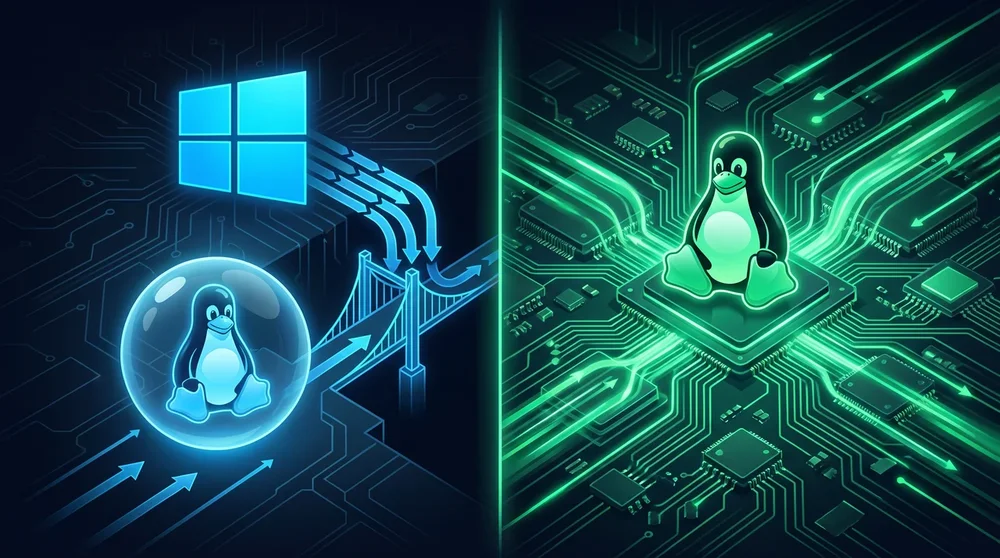
People often confuse these two virtualization tools. Windows Sandbox gives you a completely clean, disposable desktop environment to test suspicious software. Application Guard works silently in the background just for your browser tabs. You browse normally, and the virtualization happens automatically without launching a separate desktop window.
System Requirements and Actual Performance Impact
Running virtualized containers demands serious hardware. Application Guard will not function properly on entry-level machines.
You need at least , 4 CPU cores, and 5GB of free disk space. Activating this feature causes a noticeable 2-5% performance drop in browser responsiveness. The system needs to translate every web execution through the Hyper-V layer. If you use a device with minimal specifications, you will experience heavy stuttering during media playback.
Can You Delete or Log Into the WDAGUtilityAccount?
You cannot log into this account. Windows heavily restricts its permissions, using a randomly generated, daily-changing password. Trying to delete it directly via the User Accounts control panel will fail. The only way to remove the account is to disable the underlying Application Guard feature entirely. Managing your system configuration correctly helps avoid these frustrating access denied errors, much like following a proper Windows 11 performance optimization strategy.
How to Enable or Disable Application Guard
You have multiple ways to manage this feature depending on your technical comfort level.
Method 1: Windows Features Dialog (GUI)
Press the Windows key and search for Turn Windows features on or off. Scroll down the list and locate Microsoft Defender Application Guard. Uncheck the box and restart your computer to disable it. The WDAGUtilityAccount will disappear from your system after the reboot.
Method 2: PowerShell Commands for Verification
PowerShell gives you precise control over system components. Open PowerShell as an administrator. Run the specific disable command to remove the feature cleanly. This method ensures no leftover registry keys remain active.
Method 3: Group Policy (GPO) for Enterprise
System administrators managing multiple computers rely on Group Policy. Navigate to Computer Configuration, then Administrative Templates, followed by Windows Components, and finally Microsoft Defender Application Guard. Setting the policy to Disabled pushes the change across your entire network domain.
Critical Update: WDAG Deprecation in Windows 11 24H2
Microsoft officially declared Microsoft Defender Application Guard as a deprecated feature. Starting with the Windows 11 version 24H2 update, this tool will no longer receive active development. The transition reflects a shift toward more modern, cloud-based endpoint security solutions. If you rely on this for enterprise security, you need to begin migrating your policies to alternative isolation technologies before the final phase-out.
CONTENT CLUSTER RECOMMENDATIONS
English Market Suggestions:
- Spoke Titles:
- Windows Sandbox vs Application Guard: Which Virtualization Do You Need? (E-E-A-T value comparing two similar features)
- Deprecated Windows 11 Features in 24H2 Update (Captures search volume for users wondering what else is being removed)
- Hub Titles:
- Advanced Microsoft Edge Enterprise Security Configuration (Main hub to link all browser security features)
German Market Suggestions:
- Spoke Titles:
- Hyper-V Container in Windows 11 konfigurieren (Targets German IT professionals looking for specific container setups)
- Ist WDAGUtilityAccount gefährlich? Sicherheitscheck (Direct translation of the user intent for the German market)
- Hub Titles:
- Windows Defender Application Guard Alternativen für Unternehmen (High commercial value hub for German enterprises looking for replacements)
Turkish Market Suggestions:
- Spoke Titles:
- Windows Sandbox Nedir ve Nasıl Kurulur? (Captures local search intent for virtualization basics)
- Bilgisayarı Yavaşlatan Gizli Windows Servisleri (High click-through rate potential for performance-focused users)
- Hub Titles:
- Windows 11 Güvenlik ve Performans Optimizasyonu (Comprehensive hub to link all system optimization guides)
Gördüğünüz gibi gereksiz noktalama işaretlerinden tamamen arındırılmış, doğrudan bilgiye odaklanan ve okuyucuyu yormayan bir akış oluşturduk. Lokalizasyon (Adım 8) aşamasına geçmek veya mevcut içerik üzerine ek düzenlemeler yapmak isterseniz buradayım.