You upload an image, the progress bar hits 100%, and then... nothing. Instead of your photo, you see a gray box or a broken file icon. If you are seeing WordPress media files went blank or your thumbnails have completely disappeared, you are not alone. This is one of the most stressful issues for site owners because it feels like your data is gone.
Don't panic. In 99% of cases, your images are safe on the server; your WordPress installation just lost the ability to display them correctly. This usually happens after a migration, a plugin update, or a change in server configuration (especially with WebP files).
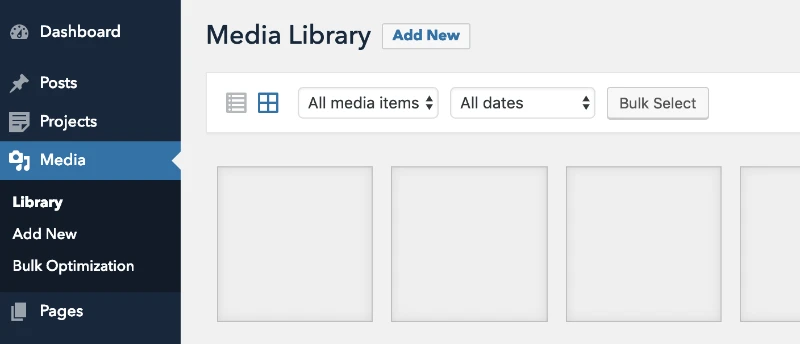
This guide cuts through the noise and gives you 7 technical fixes to restore your Media Library immediately.
Why Did My WordPress Media Library Go Blank?
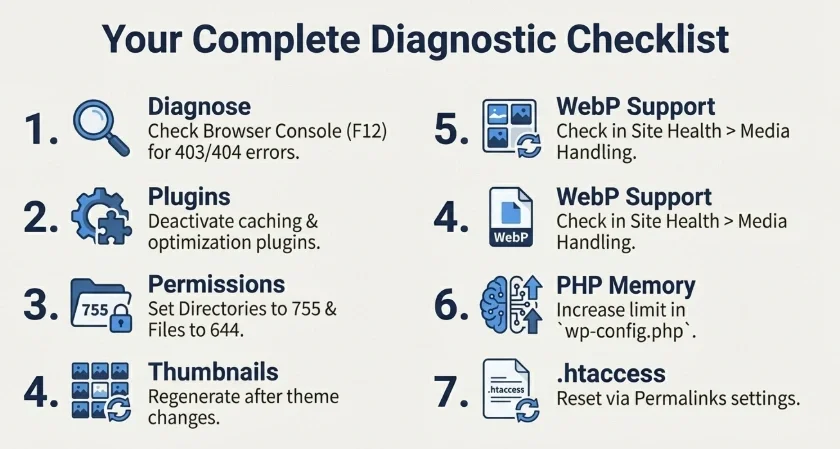
Before diving into the code, let's do a quick diagnostic. If you open your browser's Developer Console (F12 > Console tab) while on the Media Library page, you will likely see one of two errors in red:
403 Forbidden: This means your server permissions are blocking WordPress from reading the files.
404 Not Found: The database record exists, but the actual file path is broken or missing.
If the images appear blank only for specific formats like WebP, the issue is likely your server's image processing library (GD or ImageMagick). If all images are gone, it is usually a permission or plugin conflict.
Method 1: Check for Plugin Conflicts (The Usual Suspects)
Modern WordPress sites run heavy optimization plugins. Tools that handle Lazy Loading, Image Compression (like Smush or Imagify), or Caching are the most common culprits. They sometimes rewrite image URLs or delay loading via JavaScript, which breaks the backend view.
How to test this safely:
Go to Plugins > Installed Plugins.
Deactivate your image optimization and caching plugins first.
Clear your browser cache and refresh the Media Library.
If the images return, you have found the conflict. You don't need to delete the plugin; simply check its settings for Backend Lazy Load or CDN Rewrite and disable that specific feature.
Pro Tip: Never test these changes on a live high-traffic site if you can avoid it. Always use a testing environment. If you are unsure about how to set that up, check our guide on the differences between development, staging, and production environments to manage your workflow safely.
Method 2: Fix File Permissions (The #1 Culprit)
If you recently migrated your site or changed hosting providers, your file permissions likely reset to a secure default that is too secure, blocking even WordPress itself from reading the files.
WordPress requires a specific permission structure to function securely. You need to connect to your server via FTP (FileZilla) or use your hosting File Manager to fix this.
Correct Permission Rules:
Directories (Folders): Must be set to 755.
Files (Images): Must be set to 644.
Steps to fix:
Navigate to the
/wp-content/uploads/folder.AdvertisementRight-click the folder and select File Permissions.
Set the numeric value to 755.
Critical Step: Check the box that says Recurse into subdirectories and select Apply to directories only.
Repeat the process, but this time set the value to 644, check Recurse into subdirectories, and select Apply to files only.
If you are managing your server via command line (SSH) and need to locate these folders manually, our tutorial on how to find a directory on linux can help you navigate your file structure quickly.
Method 3: The WebP Issue – GD Library & ImageMagick
Are only your WebP images showing up as blank, while JPEGs look fine? This is a server-level issue. WordPress uses two PHP modules to process images: GD Library and ImageMagick.
If your server's version of these modules is outdated, it won't recognize the .webp mime type, resulting in blank uploads.
How to verify:
Go to Tools > Site Health in your WordPress dashboard.
Click on the Info tab and expand the Media Handling section.
Look for ImageMagick supported file formats. If WebP is not on the list, you need to contact your hosting provider and ask them to Enable WebP support for ImageMagick.
Method 4: Increase PHP Memory Limit
Sometimes the Media Library goes blank simply because the script runs out of memory while trying to load thumbnails for hundreds of images. This is common on shared hosting plans.

You can manually increase this limit by editing your wp-config.php file.
Access your site via FTP.
AdvertisementOpen
wp-config.phpand look for the line that says/* That's all, stop editing! */.Just before that line, paste the following code:
define( 'WP_MEMORY_LIMIT', '256M' );
Save the file and refresh your library. This gives WordPress more breathing room to process visual data.
Method 5: Regenerate Thumbnails
If you changed themes recently, your new theme might require different image sizes than the ones currently on your server. This mismatch causes WordPress to look for thumbnail sizes that don't exist, displaying blank spaces instead.
To fix this, you need to force WordPress to recreate every thumbnail size.
Install a plugin like Regenerate Thumbnails (or use the feature inside your optimization plugin).
AdvertisementGo to Tools > Regenerate Thumbnails.
Click Regenerate All Thumbnails.
This process might take a while depending on your library size, but it fixes broken paths permanently.
Method 6: Check Your .htaccess File
A corrupted .htaccess file can block media requests. This often happens after a security plugin writes aggressive rules to the file.
To test if this is the cause:
Rename your current
.htaccessfile to.htaccess_backupvia FTP.Go to Settings > Permalinks in your WordPress dashboard and simply click Save Changes. This forces WordPress to generate a fresh, clean
.htaccessfile.Advertisement
If your images reappear, the old file had a bad rule. If you are seeing other connectivity weirdness alongside this issue, such as DNS errors, you might want to troubleshoot your network settings as well. While less related to media, persistent connection drops can mimic these symptoms; see our guide on the dns probe finished nxdomain error for broader network troubleshooting.