Staring at a chaotic timeline for hours just to finish a simple ten-minute video drains your creative energy before you even hit export. Organizing your raw files and dialing in the exact numerical values for audio and rendering from the start is the only way to avoid the endless cycle of software lag and syncing issues.
Quick Reference: Essential Editing Targets
- Ideal Dialogue Level: -6dB to -12dB
- Background Music Level: -20dB to -25dB
- YouTube Render Format: H.264
- Recommended Bitrate (1080p): 10-15 Mbps
- Audio Export Standard: AAC 320kbps
Before You Cut: A Time-Saving Folder Structure
Create five distinct folders on your desktop before opening any editing software. Name them Raw Footage, Audio, Graphics, Project Files, and Exports. Dragging files directly from your downloads folder into your timeline guarantees disaster.
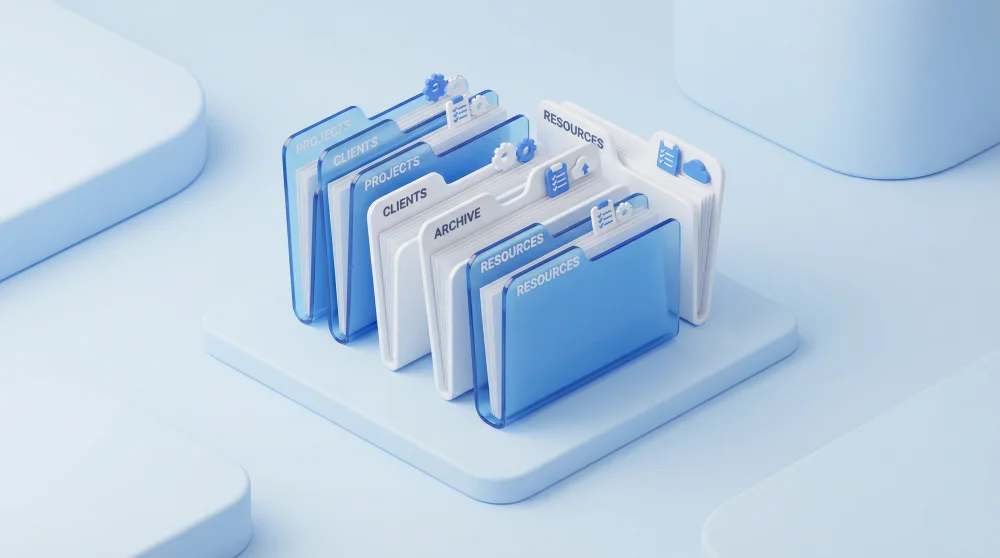
This strict organization prevents the dreaded missing media red screen when you reopen a project weeks later. Keeping everything contained in one master folder also makes archiving the project to an external drive incredibly simple. You maintain a clean workspace, and your software runs significantly faster.
Which Video Editing Software Should You Choose?
For Fast Production: CapCut and Descript
CapCut dominates the rapid creation space because of its built-in effects and immediate social media integration. Descript completely flips the traditional workflow by letting you edit video by editing a text transcript. Choose these if your main goal is pushing out high volumes of content without getting bogged down in complex color nodes.
Professional and Free: DaVinci Resolve
DaVinci Resolve offers Hollywood-level color grading and incredibly deep audio tools completely for free. The learning curve is steep, but you never have to pay a monthly subscription fee. Start here if you plan to build long-term technical skills and eventually take on freelance client work.
If you decide the Adobe subscription is not worth it, there is a way to pause Adobe Creative Cloud for two months free before cancelling.
Not sure where to start? Download DaVinci Resolve first. It handles everything from basic cuts to professional color grading, and you will never outgrow it.
Essential Cutting Techniques That Retain Viewers
Seamless Transitions with J-Cuts and L-Cuts
A J-Cut introduces the audio of the next clip before the visual actually changes. This tricks the human brain into anticipating the next scene smoothly. An L-Cut does the opposite, letting the audio from the current clip linger under the B-roll of the next shot.
These two fundamental techniques immediately elevate your footage from a basic home video to a professional production. Practice trimming the audio and video tracks independently.
Kill Your Darlings: Delete Without Mercy
If a beautifully shot cinematic sequence fails to advance the core story, delete it immediately. Modern viewers have incredibly short attention spans. Every single second of your timeline must serve a specific purpose or deliver a specific piece of information.
Visual Interruptions and B-Roll Usage
Talking head videos become visually exhausting after about thirty seconds. Break the monotony by layering relevant B-Roll over your dialogue. If you don't have B-Roll, text callouts and lower-thirds work just as well. This pattern interruption resets the viewer's attention and keeps them engaged with the topic.
Audio is Half the Video: Exact Decibel Targets
Viewers forgive slightly out-of-focus lighting, but they immediately click away from terrible sound.

Proper audio mixing requires strict adherence to specific decibel levels. Keep your primary dialogue track peaking comfortably between -6dB and -12dB.
Background music must stay tucked away, usually hovering around -20dB to -25dB. If you use sound effects for pop-ups or transitions, level them at -10dB to -20dB so they add impact without deafening the listener. Use your software's audio ducking feature to automatically lower the music whenever someone speaks.
A 3-Step Practical Rule for Color Correction
Fix your white balance first by identifying a purely white object in the frame and using the eyedropper tool to neutralize any strange color casts. Next, adjust your exposure so your subject's face is clearly visible without blowing out the highlights in the background.
Finally, add a slight touch of contrast and saturation to make the overall image pop. Avoid slapping heavy, stylized LUTs onto your footage until these three foundational corrections are locked in. The goal is natural realism.
Automating the Editing Process with AI
Sitting and manually cutting out every single breath and pause is a massive waste of time. AI-assisted tools now handle this grunt work instantly. Software like Descript features an automatic silence removal tool that tightens your entire video in one click.
Auto-captioning features generate highly accurate subtitles in seconds. For animated countdowns and lower-thirds, the dynamic timer expression workflow in After Effects pairs well with these auto-caption tools. You just review the text for minor spelling errors and stylize the font. Leveraging these automations easily cuts your post-production time in half.
The Best Export Settings for YouTube
Do not rely on generic default presets when it is time to render. Specific settings ensure YouTube processes your video cleanly without massive compression artifacts. Set your codec format to H.264 for the best balance of visual quality and upload file size.
Lock your resolution at 1080p and manually push your target bitrate to 10-15 Mbps. Make sure your audio is set to export at AAC 320kbps. These exact parameters prevent pixelation during fast-moving scenes and maintain crisp audio delivery on all devices.
Common Editing Mistakes to Avoid
Overusing flashy transitions screams amateur production. Stick to simple hard cuts and occasional cross-dissolves. Relying too heavily on transitions distracts from the actual content and looks incredibly dated.
Failing to learn keyboard shortcuts is another massive productivity killer. Memorize the keys for ripple delete, the blade tool, and zooming in on the timeline. Keeping your hands on the keyboard rather than dragging the mouse across the screen transforms your entire workflow speed.
Pick one project, apply the folder structure, dial in the audio levels from the Quick Reference above, and export with those exact H.264 settings. Your first properly structured edit will be faster than every previous one combined.