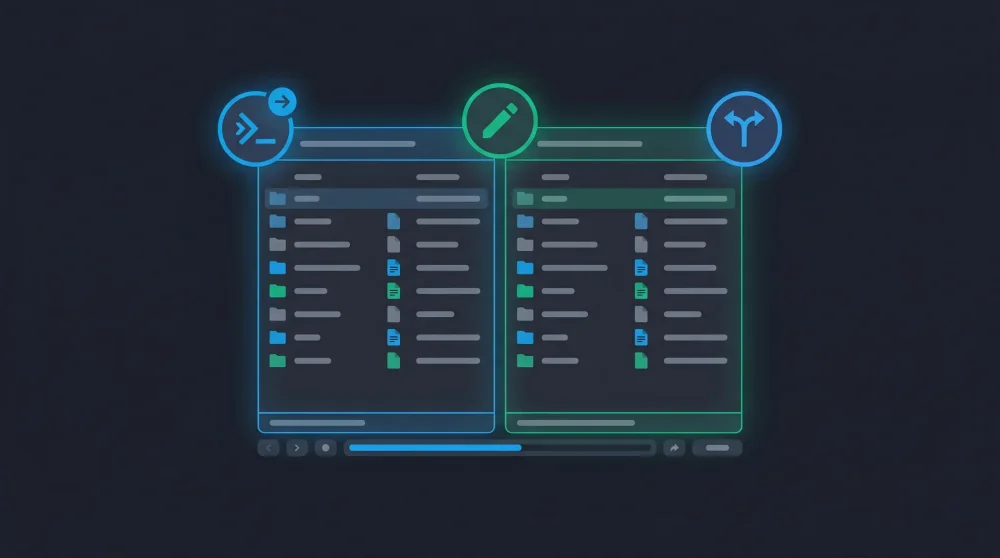
You have two project folders open in Total Commander, one of them was updated last night, and you need to figure out what changed. Clicking through Commands > Synchronize Directories every time is slow. Here's how to do it entirely from the keyboard, plus the workflows and edge cases that most guides skip.
- Assign a hotkey to cm_FileSync (command 2020) via Configuration > Options > Misc > Redefine hotkeys
- Inside the sync window: Alt+C for content compare, Alt+S for subfolders, F5 to execute
- Use Ctrl+Shift+E to hide equal files and focus only on differences
How to Open Synchronize Directories with a Keyboard Shortcut
There is no default hotkey for Synchronize Directories out of the box. You need to assign one yourself:
- Go to Configuration > Options > Misc > Redefine hotkeys
- In the command filter, type
cm_FileSync(internal command number 2020) - Assign your preferred key combination, for example
Ctrl+Shift+S - Click OK and restart Total Commander
From now on, select your two target folders in the left and right panels, press your assigned shortcut, and the sync window opens instantly.
Pro tip: If you use the same folder pairs regularly, save them as tab presets. Press Ctrl+T to open a new tab, navigate to your folder, then lock the tab (right-click > Lock Tab). Next time you open TC, your folders are already waiting.
Essential Shortcuts Inside the Synchronize Directories Window
Once the sync window is open, these shortcuts control what gets compared and how:
Comparison Controls
| Shortcut | Action | When to use |
|---|---|---|
Alt+C |
Compare file contents (byte-by-byte) | When timestamps are unreliable (cross-OS copies, FTP, git checkouts) |
Alt+I |
Ignore file dates | When you only care about content differences, not modification times |
Alt+S |
Include/exclude subfolders | Toggle recursive comparison for large directory trees |
A note on Alt+C: this is the single most important shortcut here. Date-based comparison is fast but unreliable in many real scenarios: files copied between Windows and Linux have different timestamp precision (NTFS stores to 100ns, ext4 to 1ns), FTP servers report times in their local timezone, and git checkout resets all timestamps to now. When in doubt, use content comparison.
Filter Shortcuts (Ctrl+Shift)
These toggle which files appear in the results list:
| Shortcut | Filter |
|---|---|
Ctrl+Shift+L |
Show files that exist only on the left side |
Ctrl+Shift+R |
Show files that exist only on the right side |
Ctrl+Shift+E |
Show equal files |
Ctrl+Shift+N |
Show newer files (different dates) |
Ctrl+Shift+D |
Show files with different content |
Ctrl+Shift+S |
Show files marked for synchronization |
Press the same shortcut again to toggle the filter off. You can combine multiple filters: press Ctrl+Shift+L and Ctrl+Shift+R to see only files that exist on one side but not the other.
Action Shortcuts
| Shortcut | Action |
|---|---|
F5 |
Start the synchronization (copies files according to arrows) |
F2 |
Save/load sync settings (folder pairs, filters, options) |
Ctrl+F3 |
Compare the selected left and right file in the internal viewer |
Space |
Toggle the sync direction arrow for the selected file |
ESC |
Close the sync window and return to the file panels |
Workflow: Syncing a Local Project to a Backup Drive
Here's a typical sync session using only keyboard shortcuts:
- Press your custom shortcut to open the sync window
- Press
Alt+Sto include subfolders - Press
Alt+Cfor byte-level content comparison - Wait for the comparison to finish
- Press
Ctrl+Shift+Eto hide equal files, so you only see differences - Review the results. Use
Spaceon any file to flip its sync direction or skip it - Press
F5to execute the synchronization - Press
ESCto return to your file panels
I use this exact workflow to sync a 40 GB project folder to an external SSD every Friday. With around 2,000 files changed per week, the comparison takes about 15 seconds and the whole process wraps up in under a minute. The first time I set it up, I saved the configuration with F2, so now it's just: open TC, load preset, F5, done.
Workflow: Syncing Local Files with an FTP Server
Total Commander's sync tool works with FTP connections, which makes it useful for deploying website files or keeping a remote server in sync.
- Connect to your FTP server in one panel (
Ctrl+Fto open FTP connections) - Navigate to the target directory on both sides
- Open Synchronize Directories with your custom shortcut
- Use content comparison (
Alt+C), since FTP timestamps are often unreliable across time zones - Review and sync as usual
Performance note: FTP content comparison downloads each file's data to compare locally, so it scales poorly. On a shared hosting server with 8,000+ files, a full compare took over 20 minutes. The fix: use the wildcard filter at the top of the sync window to limit the scope. For web deployments, *.php *.html *.css *.js covers most cases. You can also check if your FTP server supports the MDTM command (most modern servers do), which makes date-based comparison faster and more accurate.
How Total Commander Handles Deleted Files and Conflicts
This is the question most guides skip. Here's what actually happens:
Deleted files: If a file exists on the left but not the right (or vice versa), Total Commander shows it with a one-directional arrow. It does not automatically delete files from either side. If you want to remove files that were deleted from the source, you need to manually select them and delete. There is no "mirror delete" mode in the built-in sync tool.
Both sides modified (conflicts): When the same file was modified on both sides since the last sync, Total Commander shows a red "not equal" indicator instead of a directional arrow. It won't pick a winner automatically. You need to use Ctrl+F3 to compare the two versions in the internal viewer, decide which one to keep, and then press Space to set the sync direction manually.
One-directional vs. bidirectional sync: By default, Total Commander suggests copying newer files in both directions (bidirectional). If you only want to push changes from left to right, deselect the right-to-left files using the filter shortcuts or flip individual arrows with Space.
Saving and Reusing Sync Configurations with F2
If you regularly sync the same folder pairs with the same settings, press F2 inside the sync window to save the current configuration. This stores:
- Source and target directories
- Filter settings (subfolders, date ignore, content compare)
- File wildcards
The configurations are saved as .fsi files in Total Commander's installation directory. Next time you open the sync window, press F2 and load your saved configuration. If you manage multiple projects, name each configuration descriptively: project-backup.fsi, website-deploy.fsi, etc.
Customizing Sync Behavior in wincmd.ini
For advanced control, Total Commander reads sync-related settings from wincmd.ini (usually in %APPDATA%\GHISLER\). Add these under the [Configuration] section:
- SyncHideHiddenSystem=2: Excludes hidden and system files from sync results. Useful if
.thumbs.dbordesktop.inikeeps cluttering your comparison - SyncIgnoreDate=1: Makes "ignore dates" the default behavior every time you open the sync window
These settings apply from Total Commander 7.0 onwards and persist across updates.
Common Issues and How to Fix Them
Sync shows identical files as different: This usually happens when files were copied between Windows and Linux. Line endings (CRLF vs LF) and timestamp precision differences cause false positives. Switch to content comparison with Alt+C for accurate results.
Subfolders are missing from results: The subfolder toggle (Alt+S) resets to your default each time you open the sync window. Save your preferred setting with F2 to make it persistent.
FTP sync is extremely slow: Limit the comparison scope with file wildcards. Also verify MDTM support: connect to your FTP server, run QUOTE MDTM filename.txt in TC's command line. If it returns a timestamp, date-based comparison will work reliably and much faster than content comparison.
Sync direction arrows seem wrong: Total Commander determines direction based on which file is newer. If timestamps are unreliable, content comparison (Alt+C) combined with manually flipping arrows (Space) gives you full control.
If you're optimizing other parts of your keyboard-driven workflow, Windows window management shortcuts pair well with Total Commander's approach. And if your sync workflow involves Linux servers, knowing how to find files in Linux from the terminal helps when you need to verify what landed on the remote side.