Knowing exactly which Python version is running on your system is critical for avoiding compatibility errors. Whether you are debugging a script or setting up a new virtual environment, checking your version is usually a one-line command. However, the command you need depends on your operating system and how Python was installed.
Here is the quick answer to get your version number immediately.
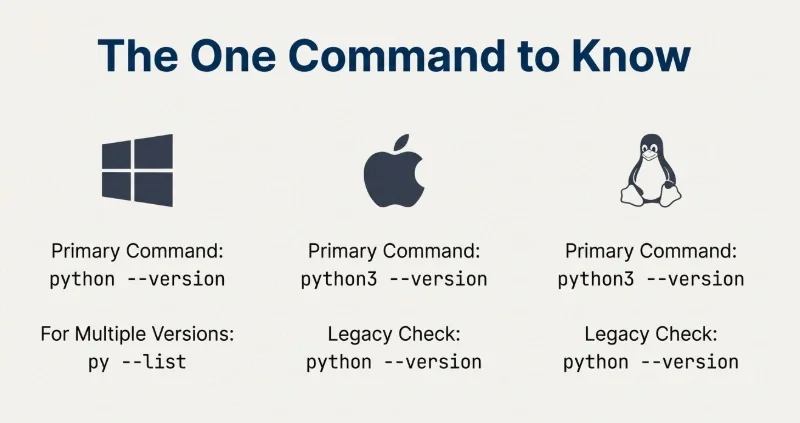
Check Python Version Command
| Operating System | Primary Command | Alternative Command |
|---|---|---|
| Windows | python --version | py --list |
| macOS | python3 --version | python --version |
| Linux | python3 --version | python --version |
How to Check Python Version on Windows
On Windows, Python is not installed by default. If you have installed it manually or via tools like Anaconda, you can verify the installation using the Command Prompt or PowerShell.
- Press Win + R, type cmd, and press Enter.
- Type the following command:
python --versionIf Python is installed and added to your PATH, you will see an output like Python 3.12.1.
Using the Python Launcher for Windows
If you have multiple versions of Python installed (e.g., Python 3.10 and Python 3.12), the standard command might only show the default one. Windows comes with a handy tool called the Python Launcher.
Run this command to see all installed versions:
py --listThis will display every version detected on your system, allowing you to select specifically which one to run. For example, to run a script specifically with Python 3.10, you would use py -3.10 myscript.py.
PowerShell Tip: If the command hangs or opens the Microsoft Store, it usually means Python is not installed or the App Execution Aliases in Windows settings are interfering.
Checking Python Version on macOS & Linux
macOS and Linux (Ubuntu, Debian, Fedora) function similarly because they are both Unix-based. However, there is a crucial detail regarding legacy versions.

The python vs python3 Distinction
For a long time, macOS and many Linux distros came with Python 2.x pre-installed as a system dependency. To avoid breaking system tools, the command python often pointed to legacy Python 2.7, while python3 pointed to the modern version you actually want to use.
To check your current version on macOS or Linux, always try the specific command first:
python3 --versionIf you are managing files and need to locate where these executables are actually stored, finding the directory on Linux can help you trace the binary paths. If you are on an unfamiliar machine, confirming the Linux distro and kernel version first also tells you which Python variants ship by default with your system.
How to Check Version inside a Python Script
Sometimes you need your code to verify its own runtime environment. This is useful if your script relies on features introduced in newer updates (like the match-case statement in Python 3.10).
You can check the version programmatically using the sys or platform modules.
Method 1: Using the sys Module (Recommended)
import sys
# Prints a detailed string containing version number and build date
print(sys.version)
# Prints just the version info (e.g., 3, 10, 4)
print(sys.version_info)
Method 2: Enforcing a Version Check
If you want to prevent your script from running on an outdated version, add this check at the top of your file:
import sys
if sys.version_info < (3, 10):
    raise Exception("This script requires Python 3.10 or higher.")
Checking Version in Virtual Environments (Venv & Conda)
When working on professional projects, you rarely use the global Python installation. Instead, you work inside isolated environments.
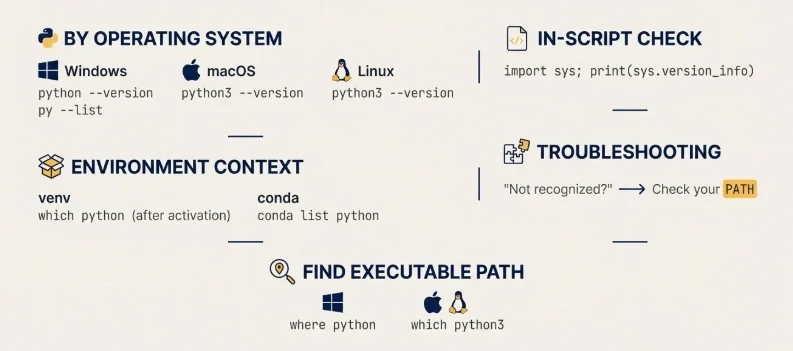
It is vital to confirm that your terminal is actually using the environment's Python, not the system's global one.
For Venv: Activate your environment and run python --version. You should also check which python (on Mac/Linux) or where python (on Windows) to confirm the path points to your venv folder.
For Conda: If you are using Anaconda, you can list all your environments and the Python versions they use with:
conda list pythonUnderstanding the difference between your local dev environment and production is key. If your script works locally but fails on the server, it is often due to a version mismatch. You can read more about handling these discrepancies in our article on differences between development, staging, and production environments.
Troubleshooting: Python is not recognized Error
If running python --version returns an error saying the command is not recognized, it usually means the Python executable is not in your system's PATH variable.
This happens if you unchecked the Add Python to PATH box during installation on Windows. You do not need to reinstall. You can manually add the path to your environment variables. For a detailed walkthrough on managing these system settings, refer to our guide on how to use environment variables.
Once added, restart your terminal, and the version command should work correctly.




Comments (0)
Sign in to comment
Report