Running a destructive command on your repository is stressful when you are not completely sure which branch you are targeting. You can easily wipe out weeks of unmerged work if you confuse a local reference with a remote-tracking branch. Here is exactly how to clean up your repository safely and recover any data if you make a mistake.
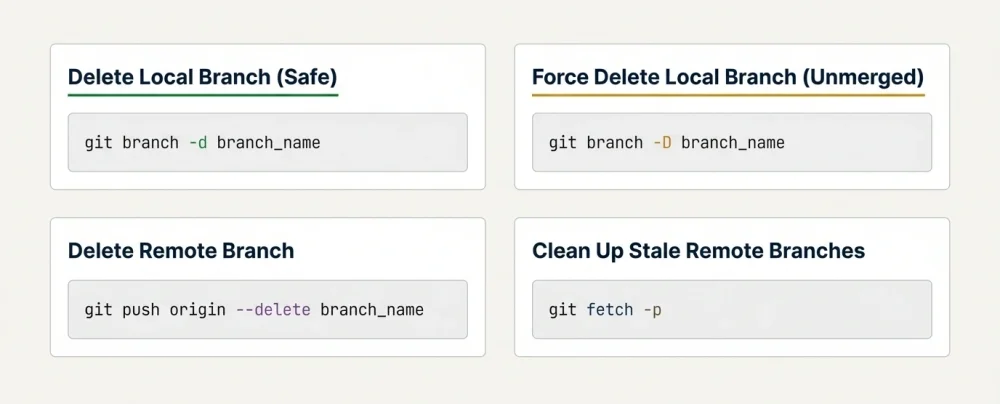
- Local safe delete: git branch -d branch_name
- Local force delete: git branch -D branch_name
- Remote delete: git push origin --delete branch_name
- Cleanup stale tracking: git fetch --prune
- Recovery tool: git reflog
The Pre-Delete Safety Checklist
Jumping straight into terminal commands without checking your current state is a recipe for disaster. You need to verify exactly where your HEAD pointer is resting before dropping any branches.
Type git status in your terminal and press Enter. Ensure your working tree is clean and you do not have any uncommitted changes lingering in the background. You must also verify that you are not currently checked out on the branch you are planning to delete. Switch to your main branch by running git checkout main before proceeding.
How to Delete a Local Git Branch
Your local machine holds completely separate branch references from your remote server like GitHub or GitLab. Deleting a branch locally does not affect the remote repository at all.
Safe Deletion (-d) vs. Force Deletion (-D)
Git provides a built-in safety net to prevent you from losing unmerged code. Using the lowercase flag is always your best starting point. Run git branch -d feature_branch to attempt a safe deletion. Git will block this command and throw an error if the branch contains commits that are not merged into your current active branch.
If you are absolutely certain you want to scrap the code and discard those unmerged commits permanently, you need to capitalize the flag. Run git branch -D feature_branch to force the deletion. This overrides the safety check and removes the reference immediately.
Resolving the Cannot Delete Branch You Are Currently On Error
You will inevitably encounter an error stating Git cannot delete the branch you are currently on. You cannot delete the floor you are standing on. You must move to a different floor first.
Run git checkout main or switch to any other existing branch. Once you are resting on a different branch, run your deletion command again.
Before deleting a branch, you might also want to know how to rename a Git branch if you only need to correct a typo in the branch name.
How to Delete a Remote Git Branch
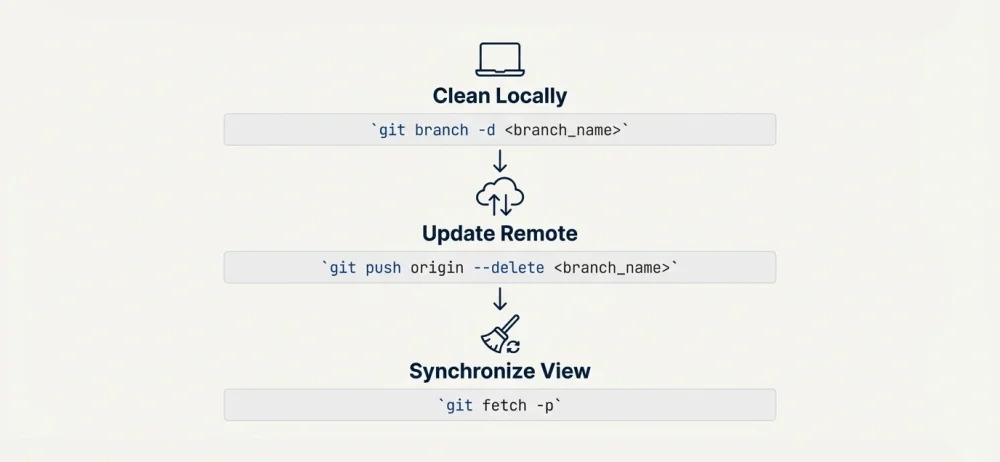
Removing the branch from your local machine leaves the remote version completely intact. You have to send a specific push command to the server to tell it to drop the branch from the remote repository.
The Standard Push Delete Command
The most explicit and readable way to remove a remote branch is using the delete flag. Type git push origin --delete feature_branch and hit Enter.
Git communicates with your remote server, finds the branch under that exact name, and removes it entirely. Your terminal will display a confirmation message showing the deleted reference.
The Short Syntax Method
Advanced developers often prefer typing fewer characters. You can achieve the exact same remote deletion using a colon before the branch name.
Run git push origin :feature_branch in your terminal. This syntax technically tells Git to push an empty payload into the remote branch, which triggers a deletion on the server side.
How to Delete Branches via GitHub and GitLab Web UI
You do not always have to rely on the terminal to manage your repository. The web interface offers a much more visual and reassuring way to handle branch cleanup, and it is especially useful when you are working on a shared computer or reviewing branches as part of a code review workflow.
Deleting a Branch on GitHub
Open your repository on GitHub and click the Branches link located right below the repository name, just above the file list. GitHub shows you all active branches grouped by activity. Find the branch you want to remove and click the trash can icon on the right side of its row. GitHub removes the remote branch immediately and shows an "Undo" button for a few seconds in case you made a mistake.
You can also delete a branch directly from a merged pull request page. At the bottom of a closed or merged PR, GitHub shows a Delete branch button. This is the most common way teams clean up feature branches during their code review process.
Deleting a Branch on GitLab
Open your GitLab project and navigate to Repository > Branches from the left sidebar. You will see a list of all branches with their last commit date and author. Click the three-dot menu icon next to the branch you want to remove, then click Delete branch. GitLab asks for confirmation before deleting.
On GitLab you can also delete a branch from within a merge request. After the MR is merged, click the Delete source branch checkbox before merging, or use the delete button shown on the merged MR page.
How to Clean Up Stale Remote-Tracking Branches
When a teammate deletes a branch on GitHub, your local machine does not magically know about it. Your local Git keeps a cached list of remote branches called remote-tracking branches. You will continue to see these ghost branches when you run git branch -a until you manually clean them up.
The Difference Between Fetch Prune, Remote Prune, and Prune
Most tutorials confuse these three distinct cleanup commands. Understanding the difference is crucial for keeping your local environment healthy.
Run git fetch --prune to sync your local tracking branches with the remote server. If a branch no longer exists on the remote, Git removes the stale tracking reference from your local machine. This is the command you should use 99 percent of the time.
Running git remote prune origin performs the exact same tracking cleanup, but it strictly targets the origin remote instead of fetching updates for all configured remotes.
Running git prune has absolutely nothing to do with branch names. This is an internal garbage collection command that removes orphaned Git objects that are no longer tied to any commit history. You rarely need to run this manually.
How to Batch Delete All Merged Branches
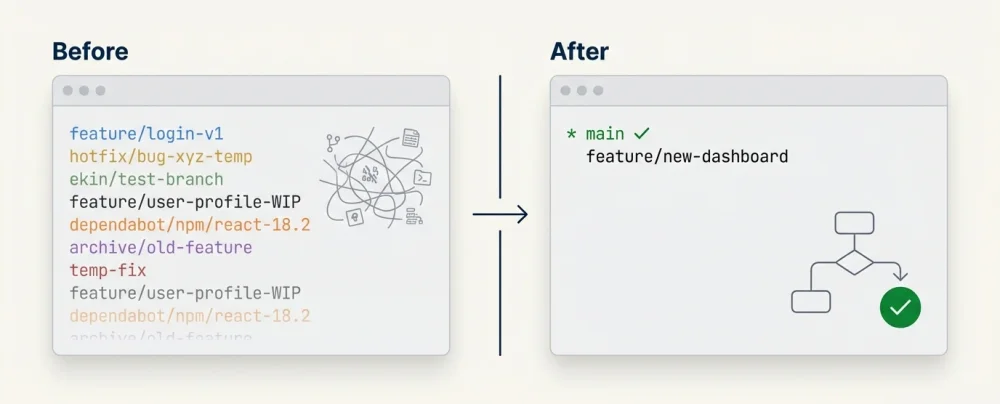
Repositories get incredibly messy after a few months of active development. Manually deleting dozens of merged feature branches one by one is a massive waste of time. You can clear them all out with a single combined command.
One-Liner Command for Fast Cleanup
Open your terminal, ensure you are on your main branch, and run this exact command: git branch --merged main | grep -v main | xargs git branch -d
This pipeline does three things instantly. It lists all branches already merged into main. It filters out the main branch itself so you do not accidentally delete it. Finally, it passes the remaining list to the safe delete command, instantly wiping out your local clutter.
How to Recover an Accidentally Deleted Git Branch
Every developer eventually deletes the wrong branch by mistake. The good news is that Git rarely deletes data permanently right away. You have a generous 90-day window to recover your lost work before the internal garbage collector permanently removes the unreferenced commits.
Using Git Reflog as Your Lifeline
Your local repository keeps a hidden diary of every single time the tip of your branches changed. This diary is called the reference log.
Run git reflog in your terminal. You will see a chronological list of your recent actions, each tied to a specific alphanumeric commit hash. Scroll through the list until you spot the commit message from your deleted branch. Copy that short commit hash.
Run git checkout -b recovered_branch_name commit_hash using the hash you just copied. Git will instantly recreate the branch and restore all your lost files perfectly.
Protected Branches and Deletion Errors
Protected branches are branches that repository administrators have locked to prevent accidental deletion or force pushes. If you try to delete a protected branch, Git will reject the operation with an error message.
On GitHub, the error looks like: remote: error: GH006: Protected branch update failed for refs/heads/main. You need to go to Settings > Branches, find the branch protection rule, and remove or modify the rule before you can delete the branch. Only repository administrators have this permission.
On GitLab, the error is: remote: GitLab: You are not allowed to delete protected branches from this project. A user with at least the Maintainer role must navigate to Settings > Repository > Protected Branches, find the branch in question, and click the Unprotect button before deletion is possible.
If you receive a deletion error on a branch that you believe should not be protected, always check with your team lead before removing the protection rule. Branch protection exists to prevent data loss on your main development lines.
Automating Branch Cleanup
Manual cleanup is tedious and highly prone to human error. You can configure your repository platform to handle all of this administrative work for you automatically.
Enable Auto-Delete After Merge in GitHub
You can completely eliminate the need to run remote deletion commands by changing one setting. Go to your GitHub repository and click on Settings. Scroll down to the Pull Requests section on the General page.
Check the box next to Automatically delete head branches. From now on, whenever you click the green merge button on a pull request, GitHub will instantly delete the source branch. You only need to run your local fetch prune command to keep your environment completely synchronized.