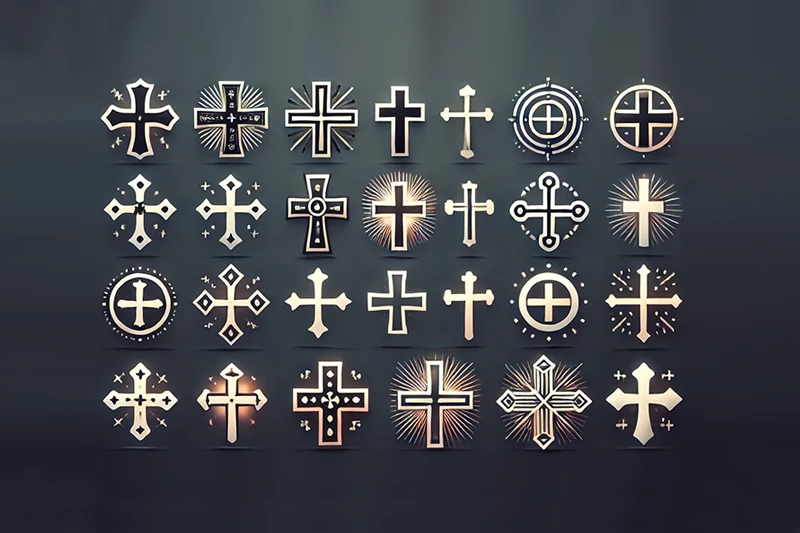
Finding the correct cross symbol can be frustrating because there are so many variations. You might need a religious cross for a text, a multiplication sign for a math equation, or a close button icon for your web development project. This guide provides you with the exact codes, shortcuts, and copy-paste assets you need right now.
We have organized these symbols by category to help you distinguish between a decorative dagger and a mathematical operator.
Quick Copy & Paste Collection
You can select and copy these symbols directly to use them in social media posts, Word documents, or messaging apps.
Common & Religious Crosses
- ✝ Latin Cross
- ✞ Latin Cross 3D Shadow
- ✟ Latin Cross Outline
- ✠ Maltese Cross
- ☦ Orthodox Cross
UI/UX & Check Marks
- ✕ Multiplication X (Often used as Close Icon)
- ✖ Heavy Multiplication X
- ✗ Ballot X
- ✘ Heavy Ballot X
- ☒ Ballot Box with X
Decorative & Miscellaneous
- † Dagger
- ‡ Double Dagger
- ☩ Cross of Jerusalem
- ♱ Cross Patonce
If you need other decorative elements for your design, you should also check our star symbol copy and paste and heart symbol copy and paste guides to complete your set.
How to Type Cross Symbol on Keyboard?
You do not always need to search Google to copy these marks. You can type them directly using keyboard shortcuts on Windows and Mac.
Windows Alt Codes
To use these codes, you must have a numeric keypad on the right side of your keyboard. Ensure Num Lock is active. Hold down the Alt key, type the number sequence, and then release the Alt key.
- Alt + 0134 = † (Dagger / Cross)
- Alt + 0135 = ‡ (Double Dagger)
- Alt + 0215 = × (Multiplication Sign)
Note: Windows does not have native Alt codes for complex symbols like the Maltese Cross (✠). For these, copying from the list above is the fastest method.
Mac Shortcuts
macOS makes it slightly easier to access common typographical symbols without memorizing long numeric codes.
- Option + T = † (Dagger)
- Shift + Option + T = ‡ (Double Dagger)
- Ctrl + Cmd + Space = Opens the Character Viewer (Emoji & Symbols) where you can search for cross to find all variations.
For Developers: HTML, CSS, and Unicode Hex
As a developer, using the correct HTML entity or Unicode is crucial for cross-browser compatibility and accessibility. Using the letter x instead of a proper multiplication sign × allows screen readers to misinterpret your content.
Here is the technical reference table for your projects:
| Symbol | Description | Unicode (Hex) | HTML Entity (Dec) | HTML Entity (Named) |
|---|---|---|---|---|
| ✝ | Latin Cross | U+271D | ✝ | \- |
| × | Multiplication Sign | U+00D7 | × | × |
| ✗ | Ballot X | U+2717 | ✗ | ✗ |
| ✘ | Heavy Ballot X | U+2718 | ✘ | \- |
| † | Dagger | U+2020 | † | † |
| ‡ | Double Dagger | U+2021 | ‡ | ‡ |
Pro Tip: When building web interfaces, prefer using the Multiplication Sign (×) for close buttons rather than the letter X. It is centered vertically and looks more professional. For lists, instead of standard hyphens, consider using proper bullet point copy and paste assets or the Ballot X for negative items.
Troubleshooting: Why Do I See a Square Box?
You might sometimes see a rectangular box (□) or a question mark instead of the cross symbol. This issue usually occurs due to font limitations.
The Font Does Not Support the Glyph: Not all fonts contain every Unicode character. Standard religious crosses usually render well in Arial, Times New Roman, and Segoe UI. However, decorative crosses like the Maltese Cross require fonts with a wider glyph set. If you are designing for the web, ensure your font stack includes a fallback system font to display these symbols correctly.
Encoding Issues: If you see strange characters like †instead of a cross, your file encoding is likely set to ANSI or ASCII instead of UTF-8. Always ensure your HTML document declares <meta charset="UTF-8"> in the head section to prevent these rendering errors.
Comments (0)
Sign in to comment
Report