Is your Chrome browser chewing through your battery life faster than you can finish a YouTube video? Or maybe you are seeing strange green glitches when trying to watch Netflix? The culprit, and often the solution, is a setting called Hardware Acceleration.
While modern browsers are smart, they sometimes need a manual nudge to play nicely with your specific computer components. Whether you are a gamer trying to squeeze every frame out of a browser game or just trying to fix a black screen error, mastering this setting is a game-changer.
Here is everything you need to know about managing hardware acceleration in Chrome, verified with the latest [year] updates.
Quick Fix: The 10-Second Summary
If you are just here to flip the switch, here is the fastest way to do it:
Open Chrome and click the three dots (menu) in the top-right corner.
Go to Settings.
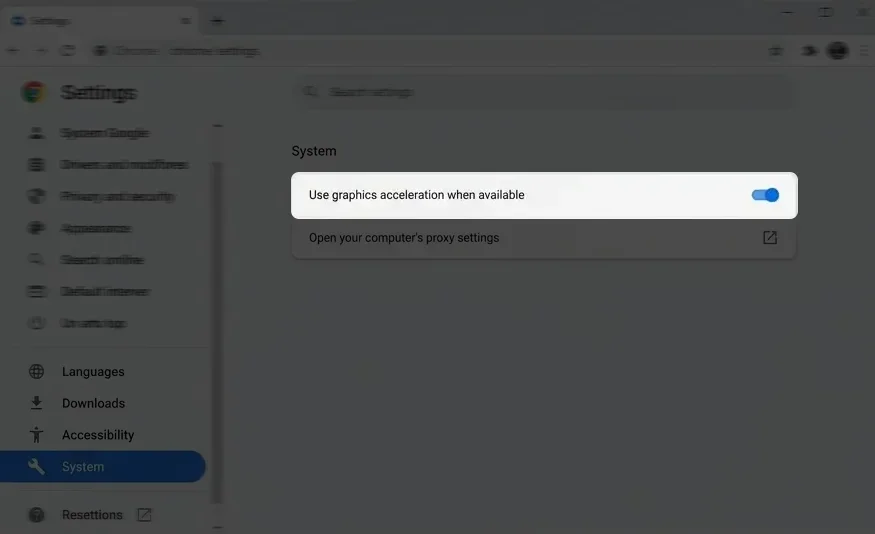
On the left sidebar, click on System.
AdvertisementFind Use graphics acceleration when available.
Toggle it ON for better performance or OFF to fix display glitches.
Click Relaunch to apply the change.
What Is Hardware Acceleration? (Simply Explained)
Think of your computer having two brains. The CPU (Central Processing Unit) is the main brain that handles everything from opening Word documents to calculating spreadsheets. The GPU (Graphics Processing Unit) is the specialized brain designed specifically to handle visuals, images, and heavy graphics.
By default, Chrome tries to do everything using only the main brain (CPU). When you enable Hardware Acceleration, you are essentially telling Chrome: Hey, stop burdening the CPU with these heavy videos and 3D graphics. Pass that work to the GPU.
This usually results in smoother video playback and faster browsing. However, if your graphics card drivers are outdated or incompatible, this hand-off can fail, causing crashes or visual bugs.
How to Enable or Disable Hardware Acceleration
Managing this setting is straightforward, but the location can slightly change depending on Chrome updates. Here is the definitive method for Windows, macOS, and Linux.
Step 1: Open your Chrome browser and type chrome://settings/system into the address bar. This is a shortcut that takes you directly to the right menu, saving you a few clicks.
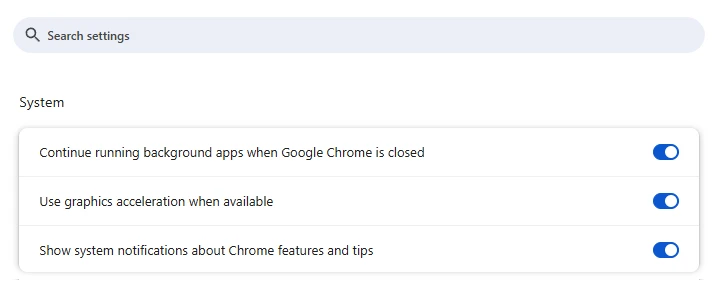
Step 2: Look for the line that says Use graphics acceleration when available.
Step 3:
To Enable it: Switch the toggle to the right (it will turn blue).
To Disable it: Switch the toggle to the left (it will turn gray).
Step 4: You will see a Relaunch button appear next to the toggle. You must click this for the changes to take effect. Chrome will close and reopen exactly where you left off, so you won't lose your open tabs.
How to Verify If It Is Actually Working (chrome://gpu)
This is the step most guides skip. Just because you toggled the switch to On doesn't mean Chrome is actually using your GPU. Sometimes, Chrome might blacklist your specific graphics card model due to known bugs.
Here is how you check the real status like a pro:
Open a new tab and type
chrome://gpuin the address bar.Press Enter. You will see a long report.
Look at the first section titled Graphics Feature Status.
If you see mostly green text saying Hardware accelerated, then it is working perfectly.
However, if you see red text saying Software only, hardware acceleration disabled, then Chrome is ignoring your setting. This often happens if your drivers are old. If you are an NVIDIA user and seeing issues here, it might be worth checking GeForce Experience error codes to ensure your drivers are healthy.
How to Force Hardware Acceleration (Advanced Method)
If chrome://gpu shows that acceleration is disabled even though you turned it on, Chrome might have blocked your GPU. You can force Chrome to use it anyway using the Flags menu.
Warning: This is an experimental feature. If your browser becomes unstable, you may need to revert this change.
Type
chrome://flagsin your address bar.In the search box at the top, type Override software rendering list.
Change the dropdown menu from Default to Enabled.
Click Relaunch at the bottom of the screen.
This forces Chrome to ignore its safety blacklist and use your GPU. This is particularly useful for older laptops that Chrome has deemed obsolete but are still capable of running simple tasks.
Troubleshooting: When Should You Turn It Off?
Hardware acceleration is great when it works, but it is also the number one suspect for many common browser issues. You should consider turning it OFF if you experience any of the following:
1. The Green or Black Screen on Videos If you try to watch a video on YouTube, Netflix, or Twitch and hear audio but see only a black or green screen, this is almost always a hardware acceleration conflict. Turning it off usually solves this instantly.
2. Text or Images Look Blurry Sometimes the GPU renders fonts differently than the CPU. If text looks jagged or images have strange artifacts, switch back to CPU rendering (turn off acceleration) to see if it clears up.
3. Unexpected Browser Crashes If Chrome closes randomly or freezes completely, your GPU driver might be crashing in the background. If a simple restart doesn't fix it, you might want to learn how to start your computer in safe mode to troubleshoot deeper driver issues.
4. Input Lag on Websites Paradoxically, sometimes enabling acceleration can cause mouse lag on simple websites if the GPU is busy doing something else (like rendering a game in another window).
Final Verdict: On or Off?
If you are unsure what to stick with, here is a simple rule of thumb for [year]:
Keep it ON if you watch high-definition videos, play browser-based games, or use design tools like Canva and Figma. It saves your battery and keeps your laptop cooler.
Turn it OFF only if you are actively facing display glitches, crashes, or if you are using a very old computer where the GPU is actually weaker than the processor.
If you are still seeing network-related error pages after fixing your graphics settings, the issue might be your connection. Checking guides for common errors like DNS_PROBE_FINISHED_NXDOMAIN can help you rule out internet problems versus browser performance issues.