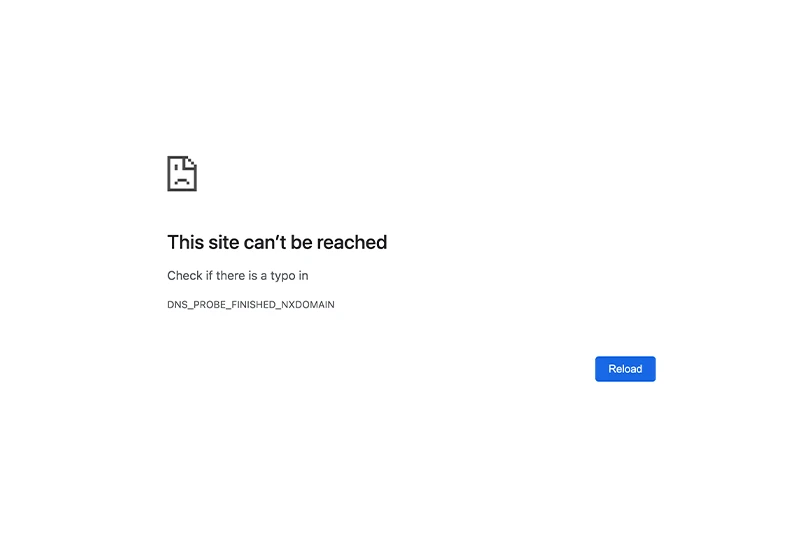
It is incredibly frustrating to have your internet connection drop suddenly and stare at that grey error screen. The DNS_PROBE_FINISHED_NXDOMAIN error that your browser is trying to tell you about technically means I cannot find the address of the website you are trying to reach.
Essentially, your computer or phone cannot resolve the IP address of the site you want to visit. Don't worry; this usually doesn't mean your computer is broken or the internet is completely down worldwide. Most of the time, you can fix this situation in under 5 minutes with a few simple commands or setting changes.
In this guide, we will walk through the steps to solve this problem once and for all on Windows, Mac, and mobile devices.
First Response: Emergency Fix (30 Seconds)
Before diving into deep settings, definitely try these two simple steps. They often save the day:
Restart Your Router: It’s a classic for a reason. Unplug your modem/router, wait for 10 seconds, and plug it back in. Wait until all the lights are back on.
Try Incognito Mode: Open an Incognito (or Private) window in your browser by pressing CTRL + Shift + N (or Command + Shift + N on Mac). If the site opens here, the problem is just in your browser cache, and clearing your history should be enough.
If it still isn't fixed, let's move on to the technical part.
Why Does This DNS Error Happen?
Without getting bogged down in too many technical details, here is the logic: When you type google.com into your browser, the DNS (Domain Name System) translates this into a numerical IP address that computers can understand.
If your DNS server doesn't respond, your internet is slow, or the cache on your computer is full of faulty records, this translation fails, and you get the NXDOMAIN error. In short, the phonebook (DNS) cannot find the address you are looking for.
Definitive Steps for Windows Users
The most guaranteed way to fix this error on Windows is to use the Command Prompt (CMD) and manually change your DNS addresses.
1. Resetting IP and DNS via Command Prompt
This process resets all network connections on your computer and gives you a fresh start.
Click the Start menu and type
cmd.Right-click on Command Prompt and select Run as administrator.
A black screen will open. Type the following codes in order, pressing Enter after each one:
Advertisement
ipconfig /release(This releases your current IP address; your internet will disconnect briefly.)ipconfig /flushdns(Clears the DNS cache. You should see a Successfully flushed message.)ipconfig /renew(Gets a new IP address.)netsh int ip set dns(Resets IP settings.)netsh winsock reset(Resets the Windows network catalog.)
Note: You will need to restart your computer after the last command, but wait! Let's handle the DNS setting below first, then restart.
2. Manually Changing DNS Addresses
The automatic DNS servers assigned by your Internet Service Provider (ISP) can sometimes crash or slow down. Switching to global and fast DNS servers like Google or Cloudflare solves the problem 99% of the time.
Go to Control Panel > Network and Internet > Network and Sharing Center.
Click on Change adapter settings on the left side.
Right-click on your active internet connection (Wi-Fi or Ethernet) and select Properties.
Find Internet Protocol Version 4 (TCP/IPv4) in the list and double-click it.
Select Use the following DNS server addresses and enter these values:
Google DNS: Preferred:
8.8.8.8/ Alternate:8.8.4.4Alternative: If you want something different, Cloudflare DNS (
1.1.1.1and1.0.0.1) is also very fast.Advertisement
Click OK to exit and restart your computer.
If the problem persists, sometimes conflicting drivers running in the background can be the cause. In such cases, booting Windows in Safe Mode to test only the network drivers is a logical next step.
Solution for Mac Users
Terminal commands on Mac devices are slightly different from Windows, but the logic remains the same. Clearing the cache is usually sufficient.
Go to Applications > Utilities > Terminal.
Paste the following command and press Enter:
sudo killall -HUP mDNSResponderYou will be asked for your administrator password (it won't appear on the screen as you type; just type it and press Enter).
To change DNS settings: Go to System Preferences > Network > Advanced > DNS. Click the + button at the bottom left and add 8.8.8.8.
DNS Error on Android and iOS Devices
If you are getting this error on your phone, the issue is usually in the Wi-Fi network configuration. If you see this on mobile data, there aren't many settings you can tweak other than toggling Airplane Mode, but the solution for Wi-Fi is simple.
For Android:
Go to Settings > Wi-Fi.
Press and hold the network you are connected to or tap the gear icon next to it.
Select Modify Network or Advanced.
Change IP Settings from DHCP to Static.
In the DNS 1 and DNS 2 fields, type Google DNS (
8.8.8.8/8.8.4.4) and save.
For iPhone (iOS):
Go to Settings > Wi-Fi.
AdvertisementTap the blue i icon next to your connected network.
Scroll down and tap Configure DNS.
Select Manual, delete the existing servers, and add the new ones (
8.8.8.8).
Browser and Antivirus Issues
Sometimes your computer is connected to the internet perfectly, but only Chrome gives this error.
Reset Chrome Flags: Type
chrome://flagsin the address bar and press Enter. Click the Reset all button at the top right and restart the browser. Sometimes experimental features can trigger this error.Check VPN and Antivirus: If you use a VPN, disable it temporarily. When VPN servers fail to respond, the browser cannot find the site. Similarly, an antivirus program with very strict settings might show this error code while blocking connections it deems unsafe. Pause your antivirus temporarily and try accessing the site.
By following these steps, you will likely regain access to that website. If the problem only happens on a single specific site and everywhere else works fine, the issue might be with that website's servers, and the only thing you can do is wait.