
You click on a text file, expecting that familiar, lightweight white window to pop up instantly, but nothing happens. Or worse, the loading circle spins for a second and then vanishes. It’s a small utility, but when Notepad stops working, it instantly disrupts your workflow.
In modern versions like Windows 11, Notepad has evolved from a simple .exe into a packaged Microsoft Store app. This means the old-school troubleshooting methods often don't work anymore. The issue usually stems from a zombie background process, a corrupted app cache, or a conflict with other text editors. Here is how to troubleshoot and fix it quickly, starting from the most common culprit.
Force Close the Background Process
Before you dive into system settings, check if Notepad is already running but stuck in the background. Often, the application fails to launch a new instance because a previous session didn't close properly and is hanging in your system memory.
Right-click on your Start button or the taskbar and select Task Manager.
Go to the Processes tab.
Look for Notepad in the list. If you see it, right-click on it and select End task.
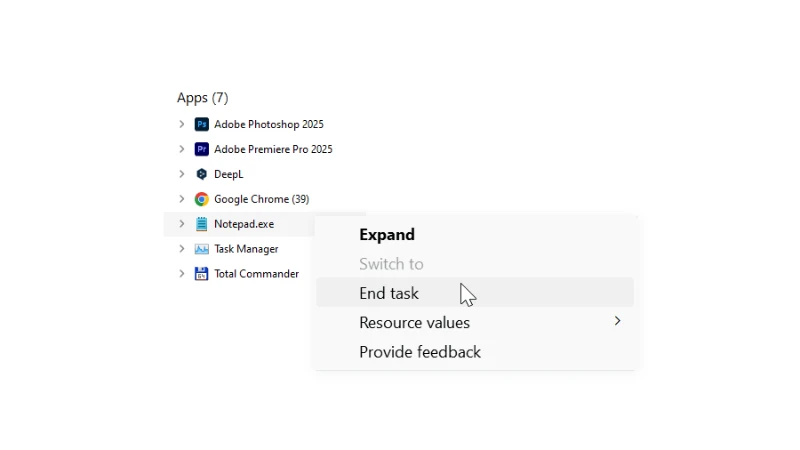
Try opening your file again. If it works, it was just a temporary glitch. If not, the app data might be corrupted.
Repair or Reset the App Data
Since Notepad is now a UWP (Universal Windows Platform) app, it has built-in repair options that are far more effective than the old method of deleting registry keys. This is the safest way to fix the app without touching your text files.
Repair: Attempts to fix the app without deleting your preferences.
Reset: Reinstalls the app completely, reverting settings to default.
Navigate to Settings > Apps > Installed apps. Search for Notepad in the list, click the three dots (...) next to it, and select Advanced options.
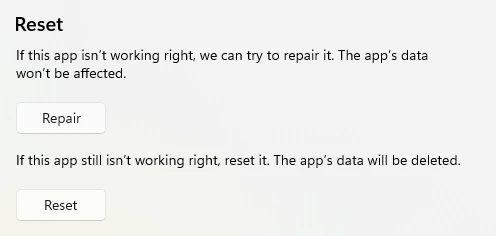
First, try the Repair button. If that doesn't solve it, use the Reset button. Keep in mind that resetting will clear any custom font settings or window preferences you might have set.
Verify Default App Associations
Sometimes the problem isn't that Notepad is broken, but that Windows is confused about which app to use. If you recently installed a code editor like VS Code or Notepad++, it might have partially hijacked the .txt association, causing conflicts when you double-click a file.
Go to Settings > Apps > Default apps. Type .txt in the search bar.
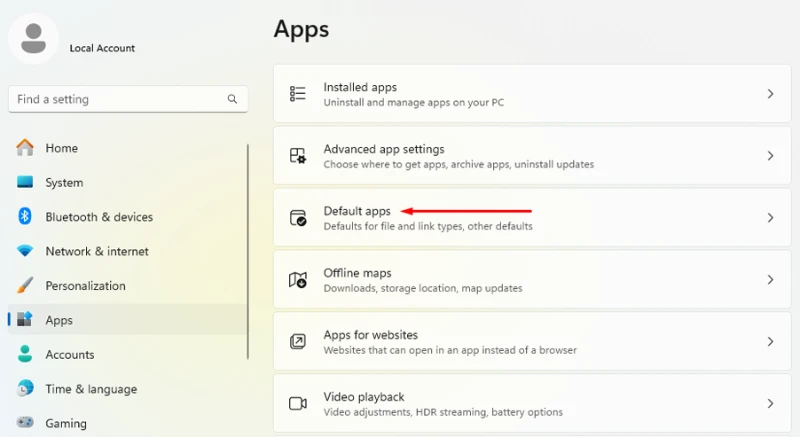
Ensure Notepad is selected as the default. If you see a different app or a blank icon, click on it and re-select Notepad from the list. This ensures the operating system knows exactly which executable to trigger.
Reinstall via PowerShell (The Cleanest Method)
If the standard uninstall button is grayed out or the Store is buggy, you can force a clean reinstallation using PowerShell. This is often necessary for persistent errors where the app package itself is corrupted.
To do this, you will need to open PowerShell as an administrator. If you are comfortable with command-line operations or have experience running PowerShell scripts, this is straightforward.
To remove Notepad: Run the following command: Get-AppxPackage *Microsoft.WindowsNotepad* | Remove-AppxPackage
To reinstall it: You can simply visit the Microsoft Store and search for Windows Notepad, or run this command to pull it directly from the server: Get-AppxPackage -allusers *Microsoft.WindowsNotepad* | Foreach {Add-AppxPackage -DisableDevelopmentMode -Register "$($_.InstallLocation)\AppXManifest.xml"}
This method bypasses the graphical interface glitches and ensures a fresh file structure.
Check for System File Corruption
If Notepad (and possibly other system apps) still refuses to open, the issue might lie deeper in the Windows image itself. Running a System File Checker (SFC) scan can identify and repair damaged system libraries.
Open Command Prompt (CMD) as an administrator and type: sfc /scannow
Let the process reach 100%. If it finds violations, it will attempt to replace the bad files automatically. For a more thorough repair, especially if you suspect Windows update errors, you might also want to follow up with a restart via CMD to ensure all pending system changes are applied correctly.