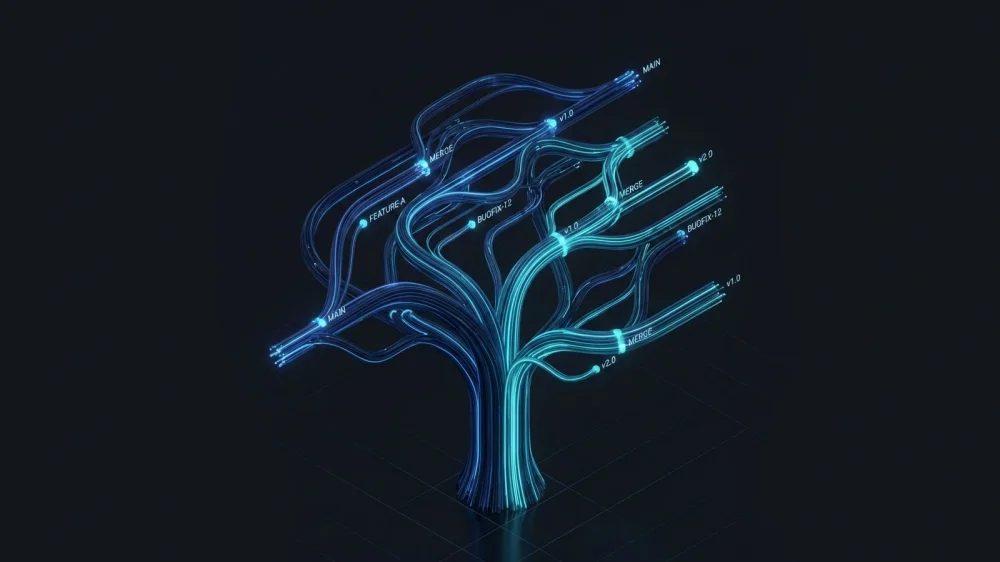
Git is the backbone of modern software development, but let's be honest: memorizing every single command is impossible. Whether you are a junior developer just starting out or a senior engineer who momentarily forgot how to undo a commit, you don't need a dictionary. You need a practical, workflow-based guide.
This guide isn't just a random list. It is structured exactly how you work, from setting up a repo to fixing critical mistakes when things go wrong. Keep this tab open; it is your daily survival kit for version control.
Git Configuration (One-Time Setup)
Before you write a single line of code, you need to tell Git who you are. These settings are crucial because every commit uses this information to identify the author. You only need to run these globally once on your machine.
Set your identity These commands configure your username and email address. If you use environment variables in your projects, think of this as setting your global signature.
git config --global user.name "Your Name"
git config --global user.email "your.email@example.com"
Enable colors It might seem trivial, but color-coded outputs make reading diffs and statuses significantly faster.
git config --global color.ui true
View your configuration If you are unsure about your current settings, list them out.
git config --list
Starting a Project: Init vs. Clone
Every project begins here. You have two paths: creating a brand new project from scratch or downloading an existing one.
Initialize a new repository Use this when you have a local folder and want to turn it into a Git repository.
git init
Clone an existing repository Use this to download a project from a remote server (like GitHub or GitLab). This command automatically sets up the remote connection for you.
git clone https://github.com/username/repository.git
The Daily Workflow: Stage, Commit, Push

This is the cycle you will repeat 90% of the time. Understanding the distinction between the Working Directory, Staging Area, and Repository is key to mastering this flow.
1. Check Status
Before doing anything, always check the state of your files. This tells you what is modified, staged, or untracked.
git status
2. Stage Changes (Add)
Git doesn't save changes automatically. You must manually move files to the Staging Area first.
Stage a specific file
git add filename.txt
Stage all changes This adds all new, modified, and deleted files in the current directory.
git add .
3. Save Changes (Commit)
A commit is a snapshot of your project at a specific point in time. Always write clear, descriptive messages.
git commit -m "Add user login feature"
Pro Tip: If you want to stage all tracked files and commit in one go (skipping the git add step for tracked files), use:
git commit -am "Fix typo in header"
4. Push to Remote
Send your local commits to the remote server so your team can access them. Before pushing, it is vital to understand the differences between development, staging and production environments to ensure you are pushing to the correct branch.
git push origin main
(Note: Replace main with your specific branch name if different).
Branching Strategy: The Multiverse
Branches allow you to work on new features or bug fixes without affecting the main codebase. Think of them as parallel universes for your code.
List branches See which branches exist and which one you are currently on (marked with an asterisk).
git branch
Create a new branch This creates a branch but stays on your current one.
git branch feature-login
Switch branches Move to the new branch to start working.
git checkout feature-login
Or the modern way:
git switch feature-login
Create and switch instantly This is the most common command you will use.
git checkout -b feature-login
Merge changes Once your feature is ready, go back to the main branch and merge your work.
git checkout main
git merge feature-login
Delete a branch After merging, keep your workspace clean. If you are struggling with file management on your server, knowing how to remove a directory in Linux is useful, but in Git, you use this:
git branch -d feature-login
Syncing with Remote: Update Your Code
Working in a team means the code on the server changes constantly. You need to keep your local machine updated.
Fetch changes This downloads the latest updates from the remote but does not merge them into your code. It is safe and lets you review what others have done.
git fetch origin
Pull changes This is a combination of git fetch and git merge. It downloads changes and immediately tries to integrate them into your current branch.
git pull origin main
The Undo Button: Fixing Mistakes
We all make mistakes. Committing to the wrong branch, adding the wrong file, or writing a bad commit message happens to the best of us. Here is how to fix them.
Fix the last commit message If you made a typo in your last commit message and haven't pushed it yet, use this.
git commit --amend -m "New correct message"
Unstage a file If you accidentally ran git add on a file you didn't mean to include.
git reset HEAD filename.txt
Discard local changes (Danger Zone) If you messed up a file completely and want to revert it to exactly how it was in the last commit. Warning: This cannot be undone.
git checkout -- filename.txt
Reset everything to the last commit This deletes all your local changes and resets the state to the last commit. Use this with extreme caution.
git reset --hard HEAD
Undo the last commit but keep changes This is great if you committed too early but want to keep your work in the staging area to modify it.
git reset --soft HEAD~1
Advanced Git Commands for Pros
Once you master the basics, these commands will speed up your workflow significantly.
Stash changes Imagine you are working on a feature, but you need to switch branches urgently to fix a bug. You don't want to commit half-finished work. Use Stash.
git stash
Retrieve stashed changes When you come back, pop the changes back into your workspace.
git stash pop
View Commit History (The Pretty Way) The standard git log can be overwhelming. Use this to see a clean, one-line graph of your history.
git log --oneline --graph --decorate --all
Rebase Rebasing is an alternative to merging that creates a cleaner, linear history. It moves your entire branch to begin on the tip of the master branch.
Bash
git rebase main
Quick Reference Table
| Command | Description |
|---|---|
| git init | Initialize a local repository |
| git clone [url] | Clone a remote repository |
| git status | Check the status of the working tree |
| git add [file] | Add a file to the staging area |
| git commit -m [msg] | Commit changes with a message |
| git push | Upload commits to remote |
| git pull | Download and merge changes from remote |
| git branch | List branches |
| git checkout -b [branch] | Create and switch to a new branch |
| git merge [branch] | Merge a branch into the active one |
| git stash | Temporarily save changes |
| git log | View commit history |
| git diff | Show changes not yet staged |