
Here is a natural, conversational rewrite in the voice of an experienced friend who has already done all the trial and error for you, keeping the original length, structure, shortcodes, and links intact:
You really don't need to blow thousands on physical studio time, nor do you have to put up with basic AI apps that warp your product's actual shape into something unrecognizable. The trick with Krea AI isn't just dropping an image in and crossing your fingers - it comes down to knowing the exact slider sweet spots and using the right prompt structure.
- Ideal Strength Setting: 0.85 (Your best baseline for almost any product)
- Maximum Resolution: 22K (Just make sure you upscale in stages)
- Credit Cost: 1 credit per scene transfer run
- Surface Rule: Matte items can handle a lot more AI freedom than glossy or reflective surfaces
The Complete Krea AI Product Workflow
Preparing Your Raw Assets
Before you feed anything to the AI, make sure your starting photo has decent, even lighting. If there’s a heavy, pitch-black shadow falling right across your logo, Krea won't magically repair it. Take the shot against a clean, clutter-free background so the algorithm can easily see where your product ends and the room begins.
Navigating the Scene Transfer Module
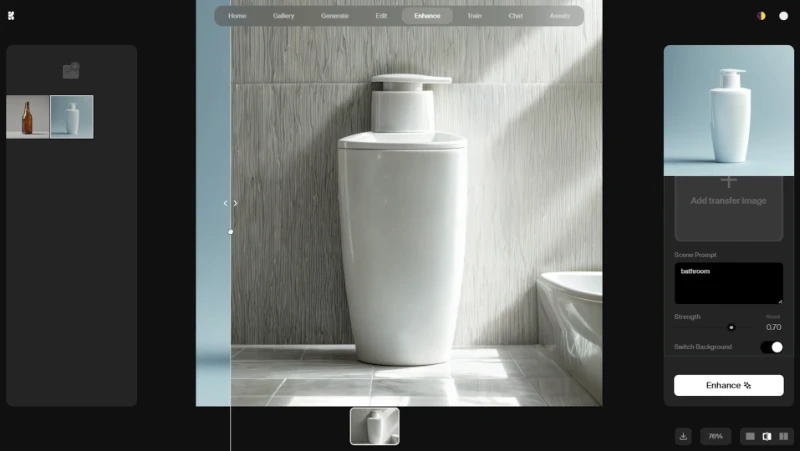
Don't bother with the standard upscaler right off the bat; head straight into the Scene Transfer tab instead. Drop your cutout or cleaned-up photo right into the main canvas. As soon as it uploads, you’ll see the primary slider and prompt box pop up directly underneath your image.
Mastering the Technical Settings
Clarity vs Sharpness
You’ll spot both of these controls inside the Enhancer panel once your asset is loaded. Sharpness simply cranks up contrast along pixel borders, which often makes things look crunchy and harsh. Clarity, on the other hand, tweaks the mid-tone contrast - this is what gives your shot that high-end, three-dimensional studio feel without looking over-processed. When in doubt, lean heavily on Clarity and go easy on Sharpness.
Why You Must Start at 0.85 Strength
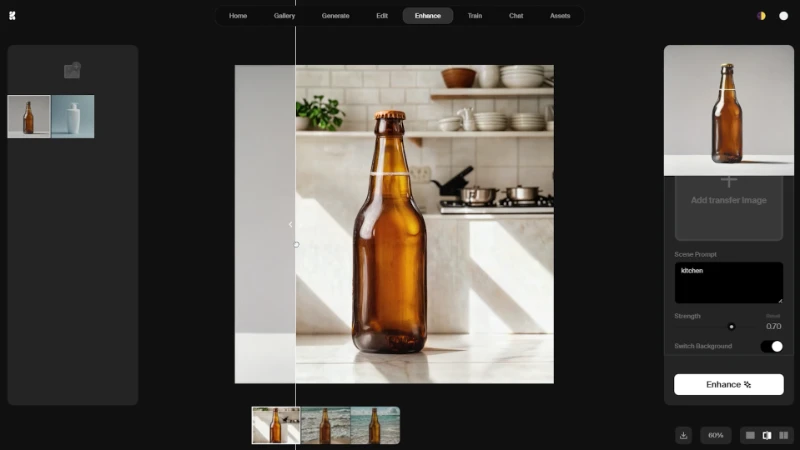
If you slide the strength all the way up to 1.0, Krea basically hallucinates a completely different product out of thin air. But if you pull it down to 0.5, you'll still see messy bits of your bedroom wall bleeding through. Dialing it in at 0.85 is the sweet spot: it gives Krea enough creative room to build a gorgeous new scene while locking down your product’s genuine outline.
The Product Category Prompt Matrix
Prompt Engineering with Camera Lens Vocabulary
If you just type something vague like on a table, you’re going to get a flat, amateur-looking render. Instead, talk to the model like you’re briefing a commercial photographer. Tack terms like Sony G Master 50mm, f/1.8 aperture, and volumetric lighting onto the very end of your prompt. This tells the generator to render genuine lens blur, creamy bokeh, and realistic depth around your item. Describe your scene setting first, then seal it with gear specs.
Settings for Reflective Cosmetics and Jewelry
Shiny glass bottles and polished silver pieces are naturally tricky because they mirror everything around them. If you stick a glossy perfume bottle on a sunny beach, the AI often struggles to blend the sand reflections naturally into the glass. Pull your strength down to around 0.75 for anything reflective, and keep your scene prompts grounded in controlled studio setups - think softbox lighting or an acrylic pedestal - so you don't end up with bizarre visual glitches.
Settings for Matte Tech and Furniture
Matte electronics, dark plastics, and raw wood retain their structural integrity remarkably well under heavy generation. Because they don’t throw wild reflections, you can easily bump the strength up to 0.90. They soak up light in a very predictable way, meaning you can get away with bold, atmospheric prompts like cyberpunk neon background or a sunlit forest floor without wrecking the product itself.
The Safe Upscaling Strategy
Stepping from 2x to 4x Without Artifacts
Krea advertises an incredible ceiling of 22K resolution, but trying to leap straight to maximum resolution in a single pass will ruin your render. When the model tries to bridge that massive pixel gap all at once, it tends to invent weird digital noise and smudge fine text. Always upscale to 2x first, save that clean export, and then run that new file through a 4x pass. Stepping up gradually keeps fine packaging print and logos crisp.
Troubleshooting Common Generation Errors
Fixing Unwanted Background Remnants
Every so often, you might notice a faint halo or ghost of your original backdrop lingering around the edges of the subject. That usually means your source photo didn't have enough contrast against its original background. To fix it, give your environment prompt extra punch. Tossing in phrases like completely empty background or pure white studio sweep helps tell the AI to paint over those stubborn fringe pixels completely.
Stopping Krea from Altering the Product Shape
If a crisp cardboard box starts looking warped or melted around the corners, the strength setting is simply running too hot for that perspective. Dial it down by roughly 0.10 and run the prompt again.
If it still bends out of shape, try swapping in a photo taken straight-on rather than from an extreme angle; Krea tracks orthographic, eye-level product angles much more reliably than steep perspectives. And if you're curious how other generative platforms stack up before locking yourself into a workflow, checking out a Google ImageFX hands-on review gives a solid look at how the competition handles raw fidelity and prompt precision.
Krea AI vs PhotoRoom and Mokker
Apps like PhotoRoom work on a cutout-and-paste principle, which often leaves items looking like flat stickers slapped onto a backdrop. Krea actually calculates the physics of the light in the scene. When it sets your item onto a marble counter, it casts genuine contact shadows and bounces ambient light off nearby surfaces.
Mokker works along similar lines, but Krea gives you far tighter reign over your generation sliders and fine details. Plus, if you like experimenting with generative tools beyond everyday e-commerce mockups, creating a custom AI action figure uses almost the exact same prompt framework and is a fun project to tackle next.
Cost Analysis for E-Commerce Processing
Shooting a catalog of 100 items in a conventional studio setup routinely runs into thousands in day rates and takes weeks of back-and-forth edits. In Krea, generating those same 100 hero shots costs pocket change by comparison. The free tier hands out enough daily credits to let you test prompts and handle modest product batches without spending anything.
The paid tiers open up plenty of headroom for heavy processing, though it's always smart to double-check their latest pricing table at krea.ai/pricing since tier limits get tweaked over time. For anyone running an active Shopify store with frequent product drops, the software easily pays for itself well within your first month.