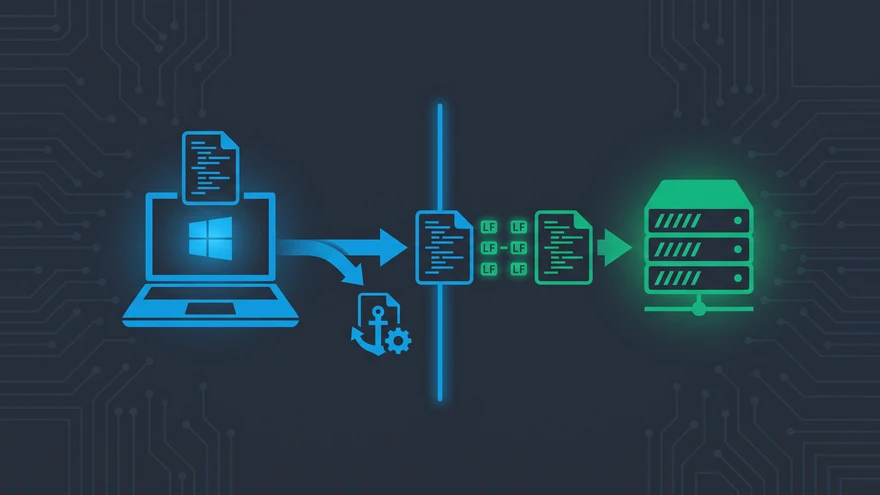
If your terminal keeps showing "warning: LF will be replaced by CRLF the next time Git touches it," Git is warning you that it may convert those files on the next checkout. If someone with different settings has already committed the same files with CRLF endings, those conversions can make a file appear 100% changed in a pull request. Leaving line endings to each developer’s Git settings across different operating systems can lead to noisy commits and broken deployment pipelines. Fixing a repository that already has mixed line endings takes a one-time normalization that applies the same rules regardless of local settings.
- The root cause: Windows commonly uses CRLF (carriage return + line feed), while Unix, macOS, and Linux use LF.
- The solution: commit a .gitattributes file at the root of your project.
- The command:
git add --renormalize .fixes existing files without losing history. - Local setup: set
git config --global core.autocrlf falseand let .gitattributes handle line endings.
Why core.autocrlf Is Failing Your Team
Git has a setting called core.autocrlf to handle the difference between Windows (CRLF) and Unix (LF) line endings. It has three options: true (converts LF to CRLF on checkout and back to LF on commit), input (leaves checkouts alone but converts to LF on commit), and false (doesn’t convert line endings).
The Problem with Local Git Configurations
The problem with core.autocrlf is that it’s set on each developer’s machine. On a team using different operating systems, line endings can become inconsistent even when everyone thinks their setup is correct. One new hire or fresh OS install with the wrong Git default can commit CRLF endings directly to the repository.
Once those endings reach the remote repository, other developers may start seeing huge diffs they can’t explain.
The Real Fix: Enforce Line Endings with .gitattributes
Set line-ending rules in the repository with a .gitattributes file. Git uses those rules alongside local configuration when it reads or writes files. Once the file is committed, anyone who clones the repository gets the same policy.
The Exact .gitattributes Configuration You Need
Create a file named .gitattributes at the root of your project and add these rules to standardize text handling across environments:
# Set default behavior, automatically normalizing line endings to LF
* text=auto eol=lf

# Explicitly declare text files you want to always be normalized
*.js text eol=lf
*.ts text eol=lf
*.css text eol=lf
*.html text eol=lf
*.sh text eol=lf

# Declare files that must always be treated as binary
*.png binary
*.jpg binary
*.woff binary
The * text=auto directive tells Git to detect text files and normalize them automatically. Detection alone can be unreliable for unusual file formats or templates. Explicit extensions (*.sh text eol=lf) remove that uncertainty: Git treats those source files as text and enforces LF endings regardless of the developer’s operating system.
How to Renormalize an Already Broken Git Repository
Adding .gitattributes sets the rules, but it won’t automatically update files already in the repository with mixed line endings. Run a one-time renormalization to fix them while preserving your commit history and git blame records.
Step 1: Commit your current work. Make sure your working directory is clean before updating the index. Commit or stash any pending changes so they don’t get mixed into the normalization.
git add .
git commit -m "Save work before renormalization"
Step 2: Update the Git index. Once .gitattributes is committed, have Git re-evaluate the repository’s files against the new rules. The --renormalize flag updates the index according to the .gitattributes policy.
git add --renormalize .
Step 3: Commit the normalized files. Check git status for the list of files Git converted. You may see many modified files whose only changes are their line endings. Put those changes in a separate commit so they’re easy to review.
git commit -m "chore: renormalize line endings across repository"
Push the commit and ask the rest of the team to pull it. Anyone with local changes should stash them with git stash, pull, then restore their work with git stash pop. Pulling a large line-ending change over uncommitted work can cause merge conflicts. If files still appear modified after the pull, check git diff to confirm the differences are only whitespace before letting Git update them. Don’t use git checkout -- . or its modern equivalent, git restore ., as a quick fix: either command can discard real uncommitted work along with the line-ending changes.
Reading git status After Renormalizing
A long list of modified files after git add --renormalize . can look worrying. Check what changed first. Run git diff --stat: if the changed-line count is close to the file’s total line count, and git diff shows identical content apart from the invisible \r characters, you’re seeing a line-ending change. If a file also contains code changes, stop and put those changes in a separate commit.
To check the current setup, git config --get core.autocrlf shows your local Git setting. On macOS or Linux, file <filename> reports "with CRLF line terminators" for affected files. If your project also has an .editorconfig, keep its end_of_line values consistent with .gitattributes. The files don’t override each other, but conflicting rules leave your editor and Git with different ideas of the right line endings.
CI/CD Nightmares: When CRLF Ruins Bash Scripts
Line-ending problems do more than clutter your terminal. They can break builds and deployments. Developers on Windows may accidentally save Bash scripts (.sh files) or Dockerfiles with CRLF endings.
Fixing the "Bad Interpreter" Error on Linux Runners
When a Windows-authored script runs on a Linux CI runner such as GitHub Actions or GitLab CI, the hidden \r character can be interpreted as part of the script’s interpreter path. The build then fails with a cryptic /bin/bash^M: bad interpreter: No such file or directory error.
Your CI/CD pipeline doesn’t use your personal git config settings. Enforcing *.sh text eol=lf in .gitattributes makes Git check out the script with LF endings, removing the carriage returns before the runner executes it. You don’t need to change the pipeline configuration.
I once spent an hour chasing that exact bad interpreter error. The script ran fine on Windows but failed on every CI run. The problem was the checkout, not the script. After .gitattributes forced *.sh to LF, the error didn’t return in that repository or the others where I used the same file.
If your team is also cleaning up inconsistent branch names, you could handle both changes while everyone is already preparing to pull the normalization commit.