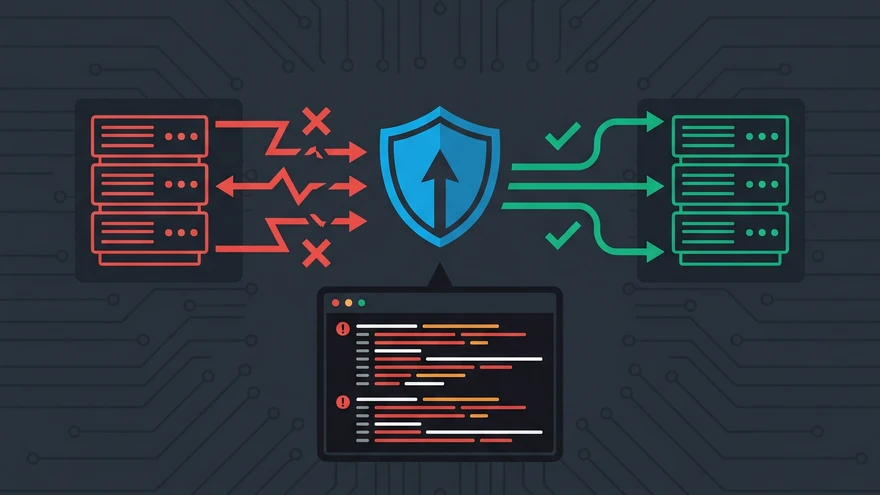

Seeing an HTTP 500-series error in production usually means your pager is going off, but your application error tracking is completely empty. While a standard 500 points directly to an unhandled exception in your code, 502, 503, and 504 errors are infrastructure mysteries trapped somewhere between your reverse proxy, container network, and backend service. Let's bypass the guesswork and map your exact server logs to the configuration misfires causing the downtime.
| Error Code | Protocol Meaning | Nginx Log Signature | Immediate Suspect |
|---|---|---|---|
| 502 Bad Gateway | Connection refused or invalid response | 111: Connection refused or 104: Connection reset |
Backend container is down, proxy is hitting the wrong port, or app crashed mid-response. |
| 503 Service Unavailable | Upstream deliberately unavailable | Often no direct error log (handled via health checks) | Overloaded server, planned maintenance, or failed K8s readiness probe. |
| 504 Gateway Timeout | Upstream took too long to respond | 110: Connection timed out |
Slow database query, deadlocked worker, or overly aggressive proxy timeouts. |
Gateway Errors at the Protocol Layer
Before diving into platform-specific fixes, you need to understand how the proxy views your backend architecture. Your reverse proxy (Nginx, ALB, Ingress) is the client in this relationship.
If the proxy attempts to open a TCP connection to your Node, Python, or PHP app and the door is locked, it returns a 502. If the door opens but the backend takes an eternity to send the HTTP headers, the proxy gives up and returns a 504. A 503 is slightly different; it means the infrastructure is aware the backend is offline or overwhelmed, often triggered by a failing health check rather than a direct connection attempt.
The Diagnostic Ladder: Reading Nginx Error Logs
When an Nginx gateway throws an error, the error.log contains the exact system code that tells you why. Stop guessing and search your logs for these specific strings.
110: Connection timed out (The 504 Trigger)
upstream timed out (110: Connection timed out) while reading response header from upstreamThis line means Nginx successfully connected to your backend application, forwarded the user's request, and started waiting. Nginx hit its proxy_read_timeout limit before the backend sent back a complete HTTP response header. The backend is likely hung on an unoptimized database query, a slow external API call, or an infinite loop.
111: Connection refused (The 502 Trigger)
connect() failed (111: Connection refused) while connecting to upstreamNginx tried to open a TCP connection, but the operating system actively rejected it. Your backend process is completely offline, listening on a different port than Nginx expects, or bound strictly to 127.0.0.1 while Nginx is trying to reach it via a Docker network IP. To confirm which process owns which port, find and kill the process by port number before restarting the backend.
104: Connection reset by peer (The Mid-Flight 502)
recv() failed (104: Connection reset by peer) while reading response header from upstreamThis is the sneakiest 502. Nginx connected successfully, but before the backend could finish sending the response, the backend process violently died. This almost always points to an Out of Memory (OOM) killer terminating your container, or a fatal segmentation fault in your application framework.
Fixing 502 and 504 in Nginx Reverse Proxies
When handling timeouts, Nginx has three distinct timers. Adjusting the wrong one won't fix your 504.
proxy_connect_timeout: Time allowed to establish the TCP handshake. Rarely needs to be above 5 seconds.proxy_send_timeout: Time allowed to transmit the request body to the backend.proxy_read_timeout: Time allowed to wait for the backend's response. This is the one you need to increase if your application legitimately takes 60+ seconds to generate a report.
If you are running PHP-FPM on RHEL, Rocky, or AlmaLinux, you might see 502s immediately upon deployment despite Nginx and PHP both running perfectly. This is an SELinux trap. SELinux blocks HTTP daemons from initiating outbound network connections by default. Run setsebool -P httpd_can_network_connect 1 to open the pathway.
Resolving 502s in Docker Compose Networks
The most common mistake when moving from local development to Docker Compose is the localhost trap. When Nginx runs directly on your machine, proxy_pass http://localhost:3000; works fine. Inside a container, localhost refers to the Nginx container's own internal loopback interface, not your host machine.
Since nothing is listening on port 3000 inside the Nginx container, you get an immediate 111: Connection refused 502 error. You must use the exact service name defined in your docker-compose.yml as the hostname. Change the directive to proxy_pass http://backend-api:3000; to leverage Docker's internal DNS resolution.
If you are evaluating whether Docker Compose is the right tool for your stack, Podman and nerdctl offer rootless alternatives that handle networking differently and avoid some of these proxy pitfalls.
Kubernetes Ingress 502s During Rolling Deploys
You set up a rolling update strategy in Kubernetes, but users experience intermittent 502 errors during the deployment. This happens because Kubernetes routing states are eventually consistent. The Ingress controller might still route traffic to a Pod that has already started shutting down, or it routes to a new Pod that says it's "Running" but hasn't actually booted the application framework yet.
To achieve true zero-downtime deployments, you need two safety nets:
- Readiness Probes: Ensure Kubernetes doesn't add the Pod to the Service endpoint list until the app actually returns an HTTP 200 on a
/healthroute. - PreStop Hooks: Add a
preStophook with asleep 5command to the container lifecycle. This forces the pod to wait a few seconds before receiving the SIGTERM signal, giving the Ingress controller enough time to remove the pod's IP from its routing table.
AWS Specifics: API Gateway, CloudFront, and ALB
Managed AWS infrastructure introduces its own strict rules for gateway errors. What works on a standard Linux server will often fail silently behind AWS load balancers.
The Lambda 29-Second Hard Limit
You can configure an AWS Lambda function to run for up to 15 minutes. However, if that Lambda is sitting behind AWS API Gateway, you are constrained by API Gateway's unchangeable 29-second integration timeout. If your Lambda takes 30 seconds to respond, API Gateway drops the connection and returns a 504, even while your Lambda happily continues processing in the background. You must offload long-running tasks to SQS or Step Functions.
API Gateway Malformed Integration 502
If your Lambda executes perfectly but API Gateway returns a 502, check your response payload. When using Lambda Proxy Integration, API Gateway expects a very specific JSON structure. If you return a raw string or an object missing the statusCode and body fields, API Gateway considers the backend response garbled and throws a 502.
CloudFront SSL Certificate Mismatches
A 502 Bad Gateway from CloudFront usually means the SSL handshake between CloudFront and your Origin Server failed. CloudFront requires the SSL certificate on your origin server to exactly match the Origin Domain Name you configured. If your origin is an ALB using an internal self-signed certificate, or an IP address without a valid SAN, CloudFront will refuse to connect.
Strategic Fixes: Raising Timeouts vs. Fixing the Backend
When faced with a sudden spike in 504 Gateway Timeouts, the immediate instinct is to double the proxy_read_timeout to keep the application online. This is often a fatal mistake.
Raising the timeout just masks the symptom and keeps backend connections open longer, quickly leading to connection pool exhaustion and locking up your database. Before modifying proxy configurations, check your database metrics. If a specific query suddenly lost an index or a table is locked, raising the timeout will actually accelerate a complete 503 Service Unavailable cascade as the server runs out of memory. Only increase timeouts for specific routes that handle known, heavy background processing.
How to Return 503 Correctly During Planned Maintenance
Taking your backend offline for a database migration without notifying the reverse proxy causes chaotic 502 errors for users and search engines. If Googlebot hits your site and receives a 502, it assumes your server is broken and may drop your pages from the index if the error persists.
RFC 7231 defines the correct approach: you must return a 503 Service Unavailable status code accompanied by a Retry-After HTTP header.
Configure Nginx to catch all requests during your maintenance window and serve a static HTML page with a 503 status. Inject Retry-After: 3600 (representing one hour) into the response header. Browsers will show your maintenance page, while search engines will pause their crawling budget and return later without penalizing your rankings.
Reproducing Gateway Errors Locally
The fastest way to understand these errors is to intentionally trigger them in your local development environment.
To trigger a pure 502 Bad Gateway, change your proxy configuration to forward traffic to a port you know is closed (e.g., localhost:9999). The immediate connection refusal mimics a crashed backend.
To trigger a 504 Gateway Timeout, add a forced delay to one of your application endpoints. In Node.js, add await new Promise(r => setTimeout(r, 10000)); to a route. Then, configure your local Nginx proxy_read_timeout to 2s. Hit the endpoint, and watch Nginx cleanly drop the connection after two seconds while your backend remains completely unaware.