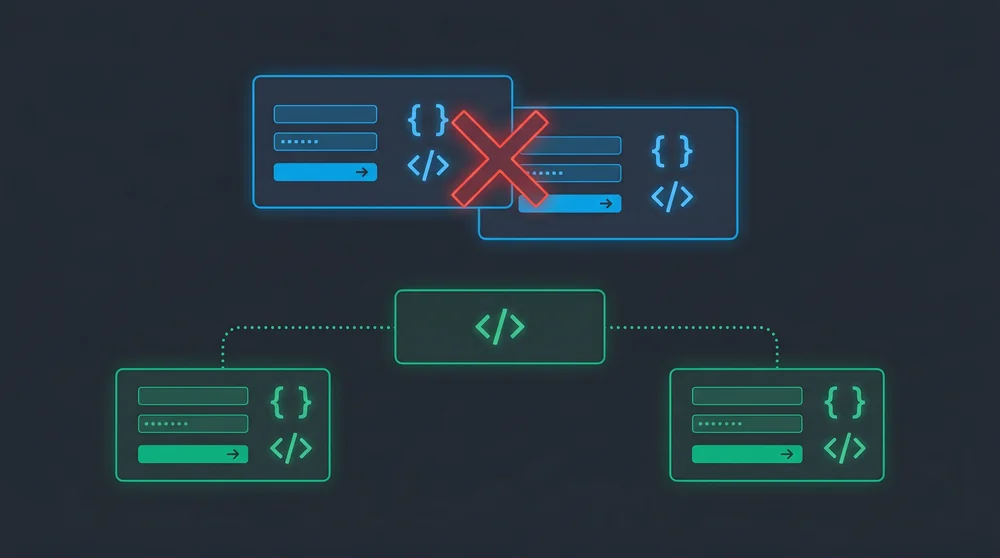

The new Date('2024-01-15') constructor creates a UTC midnight timestamp that often renders as January 14th in local time, instantly breaking your frontend UI.
Quick Decision Framework for Date Handling:
- Native Date API: 0KB. Best for simple getters and basic local formatting.
- Intl API: 0KB. Best for high-performance localized formatting and relative times.
- Day.js: 2KB. Best for lightweight manipulation and legacy codebases.
- date-fns: 13KB. Best for heavy functional manipulation and tree-shaking.
- Moment.js: 67KB. Officially deprecated. Do not use for new projects.
The Core Problem: Why JavaScript Dates Break
Working with time in JavaScript feels like navigating a minefield because the underlying object is fundamentally flawed. You need to understand these two architectural quirks before writing any formatting logic.
The Timezone Parsing Bug (String vs. Arguments)
When you pass an ISO string like '2024-01-15' into the Date constructor, JavaScript automatically assumes UTC midnight. If your user is sitting in New York on Eastern Standard Time, printing that exact date object will show up as 7:00 PM on the previous day. This single behavior causes more frontend bugs than almost any other language quirk.
// Dangerous: creates UTC midnight (may display as Jan 14 in UTC-5)
const fromString = new Date('2024-01-15');

// Safe: creates local midnight in the user's browser timezone
const fromArgs = new Date(2024, 0, 15);

console.log(fromString.toLocaleDateString()); // "1/14/2024" in EST
console.log(fromArgs.toLocaleDateString());   // "1/15/2024" in EST
Always use arguments instead of strings when you need to enforce the local timezone.
Why Months Are 0-Indexed (The Java Legacy)
Passing a zero to represent January feels completely unnatural. Brendan Eich created JavaScript in ten days in 1995, copying the java.util.Date implementation directly from Java 1.0, which treated months as a 0-indexed array but kept days of the month as 1-indexed.
Java eventually fixed their mistake. JavaScript kept it forever to maintain backward compatibility across the web. You simply have to memorize that months run from 0 to 11, while days of the month start at 1.
const date = new Date(2024, 0, 15); // January 15, 2024
console.log(date.getMonth()); // 0 (January)
console.log(date.getDate());  // 15
Native Formatting Without Libraries (0 KB)
You do not need a massive dependency just to display today's date on a dashboard. Modern browsers provide excellent built-in formatting tools.
Standard Getters and the padStart Trick
The most reliable way to create a custom format like DD/MM/YYYY is by extracting the raw components with getFullYear(), getMonth(), and getDate(). Because months are zero-indexed, you must add 1 to the month value. Single-digit months and days break your visual alignment. Fix this instantly with .padStart(2, '0').
const date = new Date(2024, 0, 5); // January 5, 2024

const day   = String(date.getDate()).padStart(2, '0');   // "05"
const month = String(date.getMonth() + 1).padStart(2, '0'); // "01"
const year  = date.getFullYear();                         // 2024

const formatted = `${day}/${month}/${year}`; // "05/01/2024"
toLocaleString vs toISOString
If you need a quick string representation without manual extraction, the native object offers several conversion methods.
const date = new Date(2024, 0, 15, 14, 30);

date.toISOString();       // "2024-01-15T12:30:00.000Z" (UTC)
date.toLocaleDateString(); // "1/15/2024" (locale-dependent)
date.toLocaleString('en-US', { month: 'long', day: 'numeric', year: 'numeric' });
// "January 15, 2024"
Call toISOString() when sending dates to your backend: it is the only format you should use for database writes. For user interfaces, toLocaleDateString() automatically reads the browser locale and formats accordingly.
The Hidden Power of the Intl API
Developers often install heavy libraries to handle complex localizations without realizing that modern JavaScript ships with an incredibly powerful internationalization engine.
Intl.DateTimeFormat (Locale-Aware Formatting)
The Intl.DateTimeFormat object gives you granular control over how the date appears. You can specify the exact language tag and pass an options object to define the length of year, month, and weekday.
const date = new Date(2024, 0, 15);

const formatter = new Intl.DateTimeFormat('en-US', {
  weekday: 'long',
  year: 'numeric',
  month: 'short',
  day: 'numeric',
});

formatter.format(date); // "Monday, Jan 15, 2024"

// Different locale, same date
new Intl.DateTimeFormat('de-DE').format(date); // "15.1.2024"
new Intl.DateTimeFormat('ja-JP').format(date); // "2024/1/15"
Performance Trick: Reusing the Formatter Instance
If you are rendering a large table with thousands of rows, formatting dates in every cell can bottleneck your rendering thread. Most developers call the formatter directly inside the loop. This re-runs the expensive initialization phase on every single row.
const dates = [...]; // thousands of date objects

// Slow: re-initializes on every iteration
dates.forEach(d => console.log(new Intl.DateTimeFormat('en-US').format(d)));

// Fast: initialize once, reuse everywhere
const fmt = new Intl.DateTimeFormat('en-US', { dateStyle: 'medium' });
dates.forEach(d => console.log(fmt.format(d)));
This is an easy win if you are profiling slow React render performance related to date-heavy list components.
Intl.RelativeTimeFormat
Social media feeds and chat applications rely heavily on relative timestamps like "2 hours ago" or "in 3 days". Nearly every tutorial tells you to install a library for this. You can do it natively.
const rtf = new Intl.RelativeTimeFormat('en', { numeric: 'auto' });

rtf.format(-2, 'day');    // "2 days ago"
rtf.format(1, 'hour');    // "in 1 hour"
rtf.format(-30, 'minute'); // "30 minutes ago"
rtf.format(0, 'day');     // "today"
To make this practical, calculate the difference and pick the right unit automatically:
function timeAgo(date) {
  const rtf = new Intl.RelativeTimeFormat('en', { numeric: 'auto' });
  const diffMs = date - Date.now();
  const diffSec = Math.round(diffMs / 1000);
  const diffMin = Math.round(diffSec / 60);
  const diffHour = Math.round(diffMin / 60);
  const diffDay = Math.round(diffHour / 24);

  if (Math.abs(diffSec) < 60) return rtf.format(diffSec, 'second');
  if (Math.abs(diffMin) < 60) return rtf.format(diffMin, 'minute');
  if (Math.abs(diffHour) < 24) return rtf.format(diffHour, 'hour');
  return rtf.format(diffDay, 'day');
}

timeAgo(new Date(Date.now() - 2 * 60 * 60 * 1000)); // "2 hours ago"
timeAgo(new Date(Date.now() + 3 * 24 * 60 * 60 * 1000)); // "in 3 days"
No library needed. This is the part most tutorials skip when they tell you to install Day.js.
Modern Date Libraries: Which One to Choose?
When your application requires complex date arithmetic, overlapping range comparisons, or dynamic timezone shifting, native APIs become difficult to manage. Pick the right tool for your bundle budget.
date-fns: The Functional Approach
Think of date-fns as the Lodash of dates. It provides hundreds of utility functions that you import individually. Because it uses a functional architecture, modern bundlers can tree-shake unused code. If you only need addDays and format, your bundle will only increase by a few kilobytes.
import { format, addDays, differenceInCalendarDays } from 'date-fns';

const today = new Date();
const nextWeek = addDays(today, 7);

format(today, 'MMM dd, yyyy');       // "Jan 15, 2024"
differenceInCalendarDays(nextWeek, today); // 7
It operates directly on native Date objects instead of creating wrapper classes, making it the safest choice for heavy manipulation in enterprise applications.
Day.js: The Lightweight Champion
If you are building a consumer-facing application where bundle size directly impacts conversion rate, Day.js is the undisputed winner. The core library weighs only 2KB.
import dayjs from 'dayjs';
import relativeTime from 'dayjs/plugin/relativeTime';

dayjs.extend(relativeTime);

dayjs('2024-01-15').format('MMMM D, YYYY'); // "January 15, 2024"
dayjs().from(dayjs('2024-01-15'));           // "a month ago"
It uses an API design nearly identical to Moment.js, making migration straightforward. Timezone and locale support come in as separate plugins, so you only ship what you actually use.
The Legacy of Moment.js
Moment dominated the JavaScript ecosystem for a decade and is still installed in millions of legacy projects worldwide.
Why it is Deprecated and How to Migrate
The maintainers officially placed Moment in maintenance mode. At 67KB (302KB with all locales), it cannot be tree-shaken because it relies on a mutated monolithic object architecture.
// Moment.js (deprecated)
import moment from 'moment';
moment('2024-01-15').format('MMMM D, YYYY');

// Day.js equivalent (drop-in replacement)
import dayjs from 'dayjs';
dayjs('2024-01-15').format('MMMM D, YYYY');
Do not install this in any new project. If you are removing it from an existing codebase, Day.js is your best migration path: the method signatures for formatting and parsing are nearly identical.
The Future: Preparing for the Temporal API
The JavaScript ecosystem is finally fixing the broken Date object at the specification level. The TC39 committee is finalizing the Temporal API, which will introduce an entirely new global object to replace Date.
// Temporal (polyfill required in most environments today)
const date = Temporal.PlainDate.from('2024-01-15');
date.toLocaleString('en-US', { month: 'long' }); // "January 15, 2024"

const zoned = Temporal.ZonedDateTime.from({
  timeZone: 'America/New_York',
  year: 2024, month: 1, day: 15,
});
Temporal completely eliminates the timezone parsing bugs and the 0-indexed month problem. It provides separate classes for PlainDate and ZonedDateTime, forcing developers to be explicit about timezone intent. It is not yet fully supported in all major browsers without a polyfill, but installing @js-temporal/polyfill lets you write future-safe code today.
For projects migrating off Moment.js, using Day.js as a bridge now and targeting Temporal when browser support stabilizes is the most practical path forward.